 24h
24hAnnie just started her first job, and after work she only wants to lie down. She types "dinner 150" to the 24h Assistant and the expense is logged. Before bed, she writes one line in her Calendar diary and picks Today's Mood. When her period is coming, her phone quietly reminds her. When she's tired, she draws a card for a little encouragement.
Individuals
Life on your own is worth keeping track of, too
Features you'll use
- Quick Log with the Assistant
- Diary and Today's Mood
- Expenses and Monthly Budget
- To-dos and habit check-ins
- Calendar
- Period Log
- Draw a Card and Today's little thing
- Breathing before bed
Quick Log with the Assistant
- 1
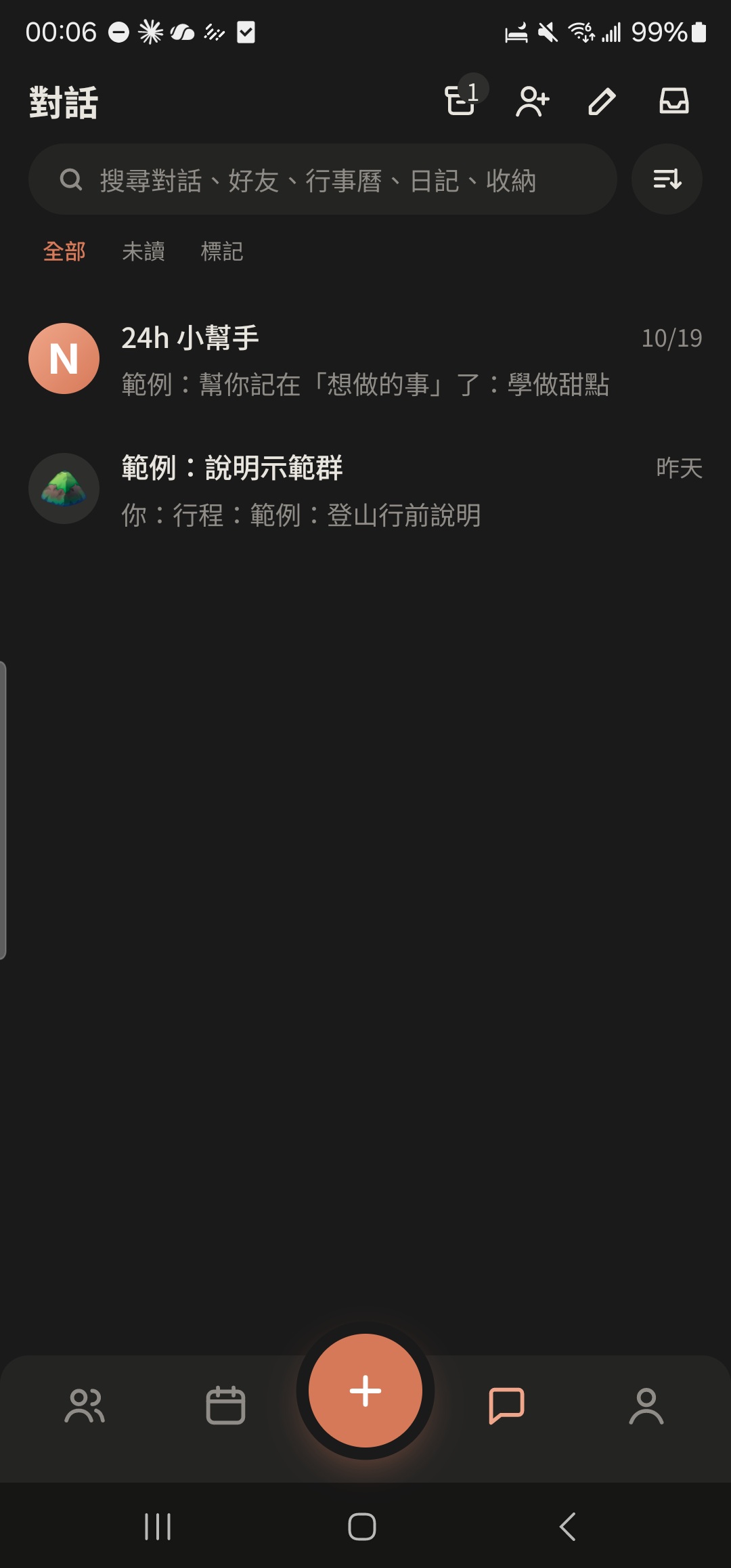
Tap "24h Assistant" in your chats list.
- 2
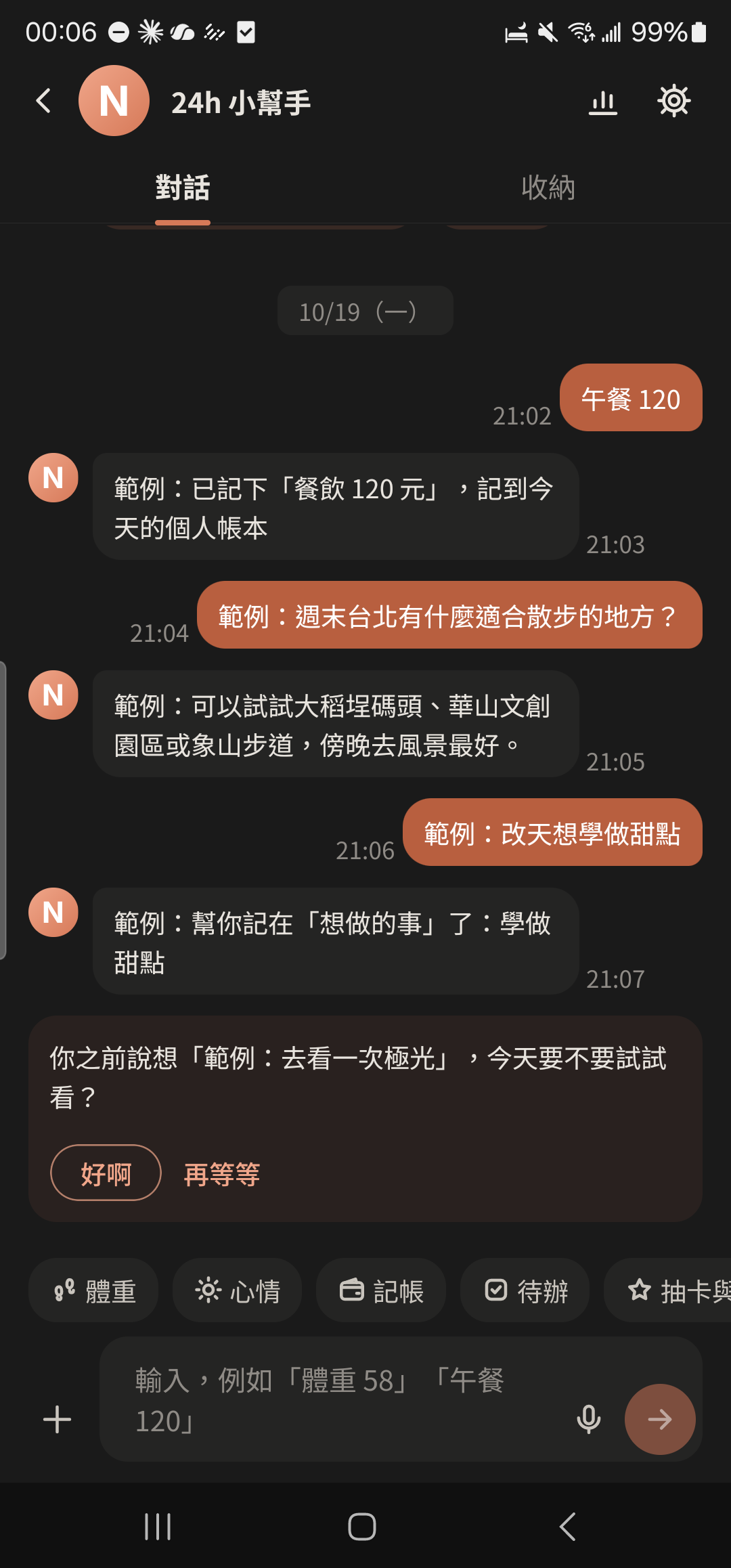
Type a short line like "weight 58" or "lunch 120" and tap send.
- 3
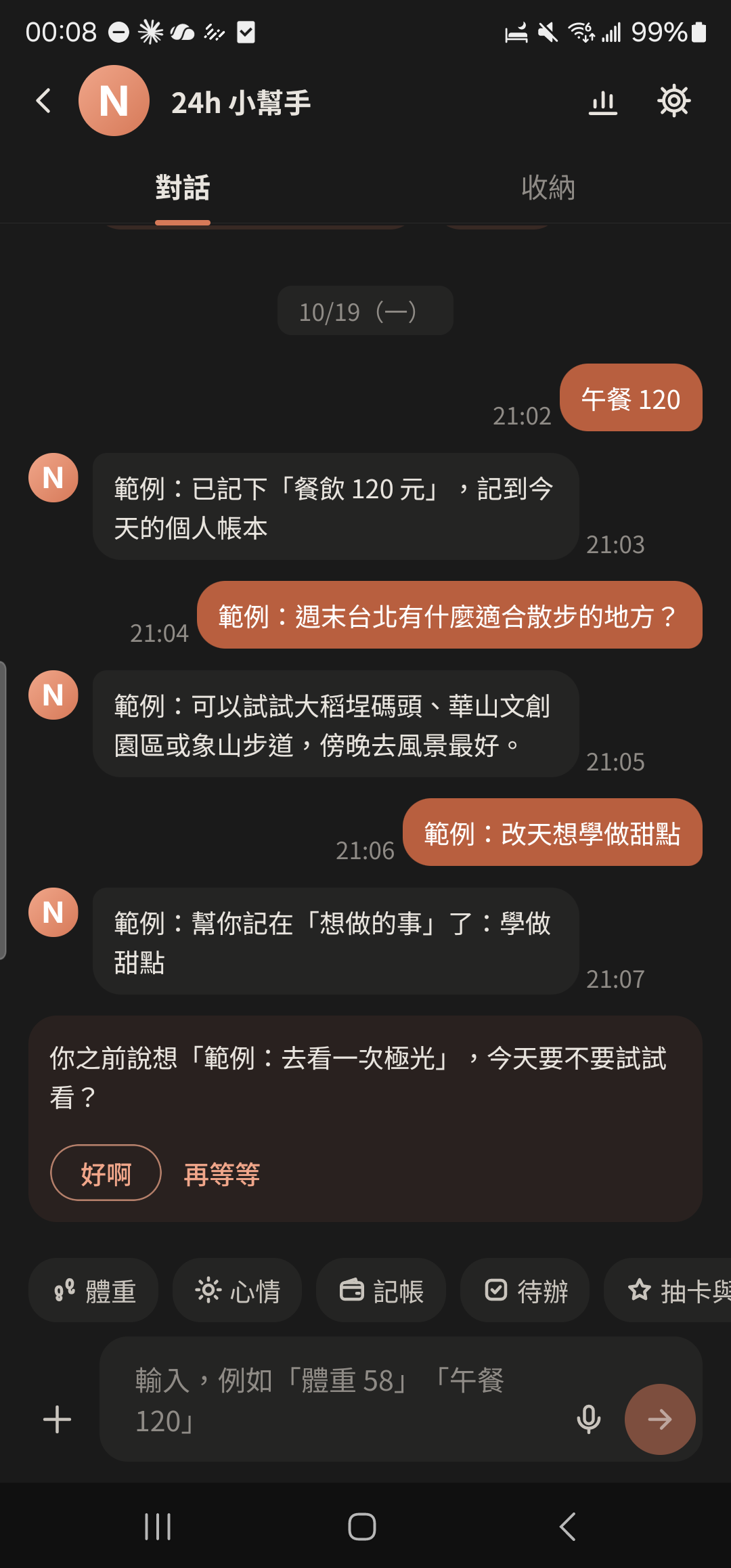
Tap "Add Entry" or "Today's Mood" above the input box, or tap the ⊕ on the right of the input bar and choose Weight, Mood, Ledger, or To-do under "Quick Log". Fill it in, then tap "Save".
Screenshot comingShortcut chips above the Assistant input box, and "Quick Log" in the ⊕ feature panel - 4
Tap the Assistant's reply to confirm it was saved to your Diary, Ledger, or To-dos. If it's wrong, tap "Undo" below the reply.
Diary and Today's Mood
- 1
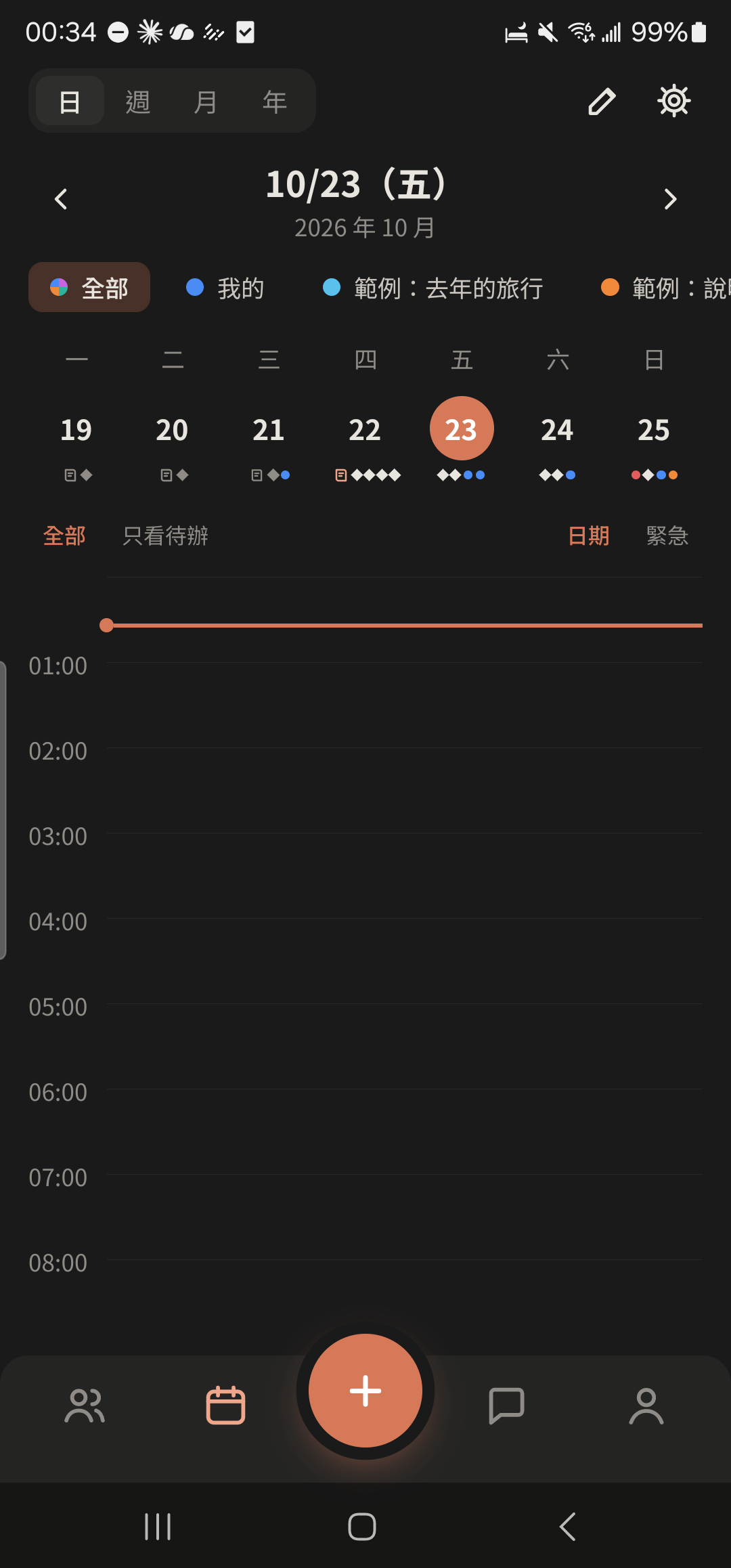
Tap "Write Diary" on that day in the "Calendar", or tap + and choose "Diary".
- 2
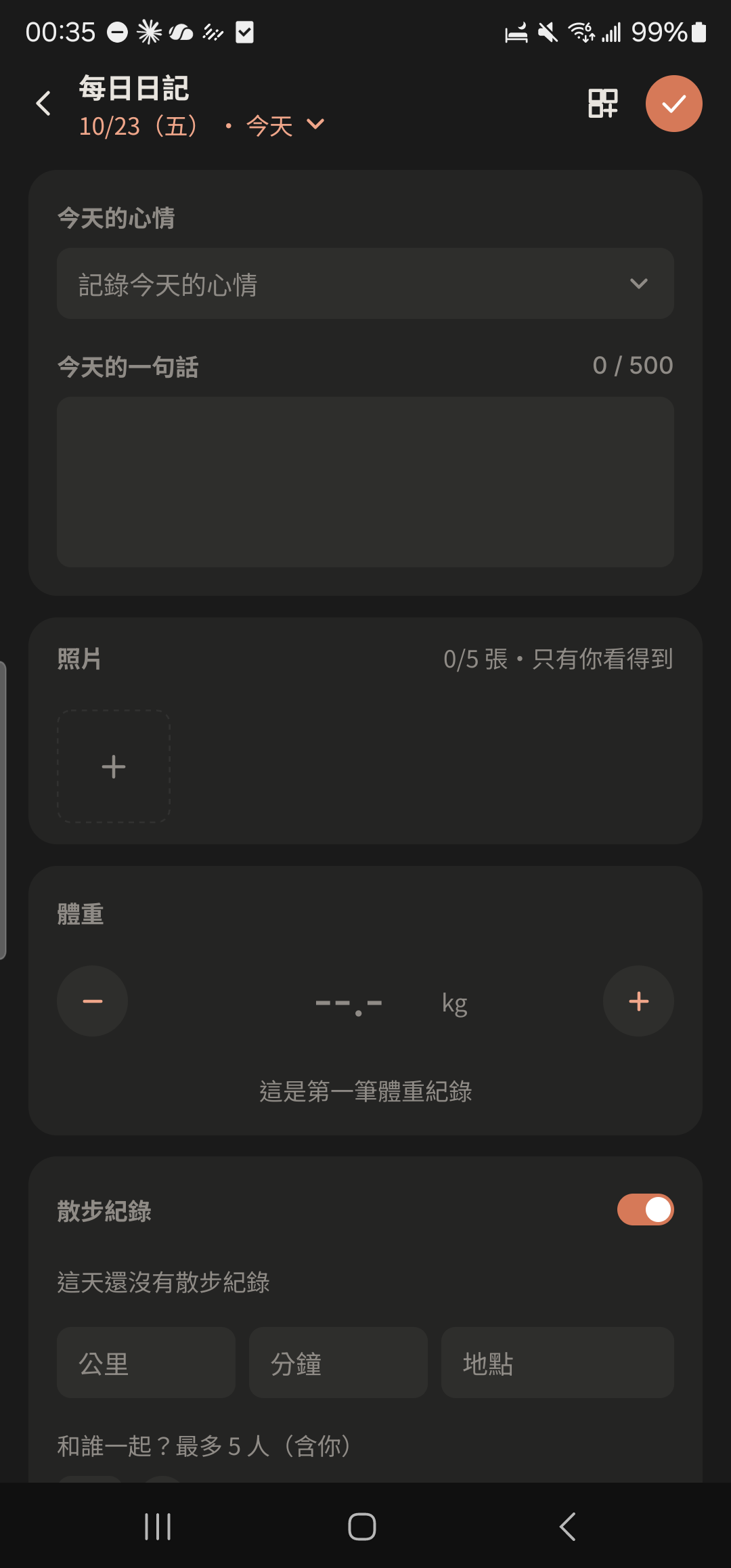
Tap "Today's Mood" and choose from three groups: sunny, cloudy, and rainy (you can pick more than one).
- 3
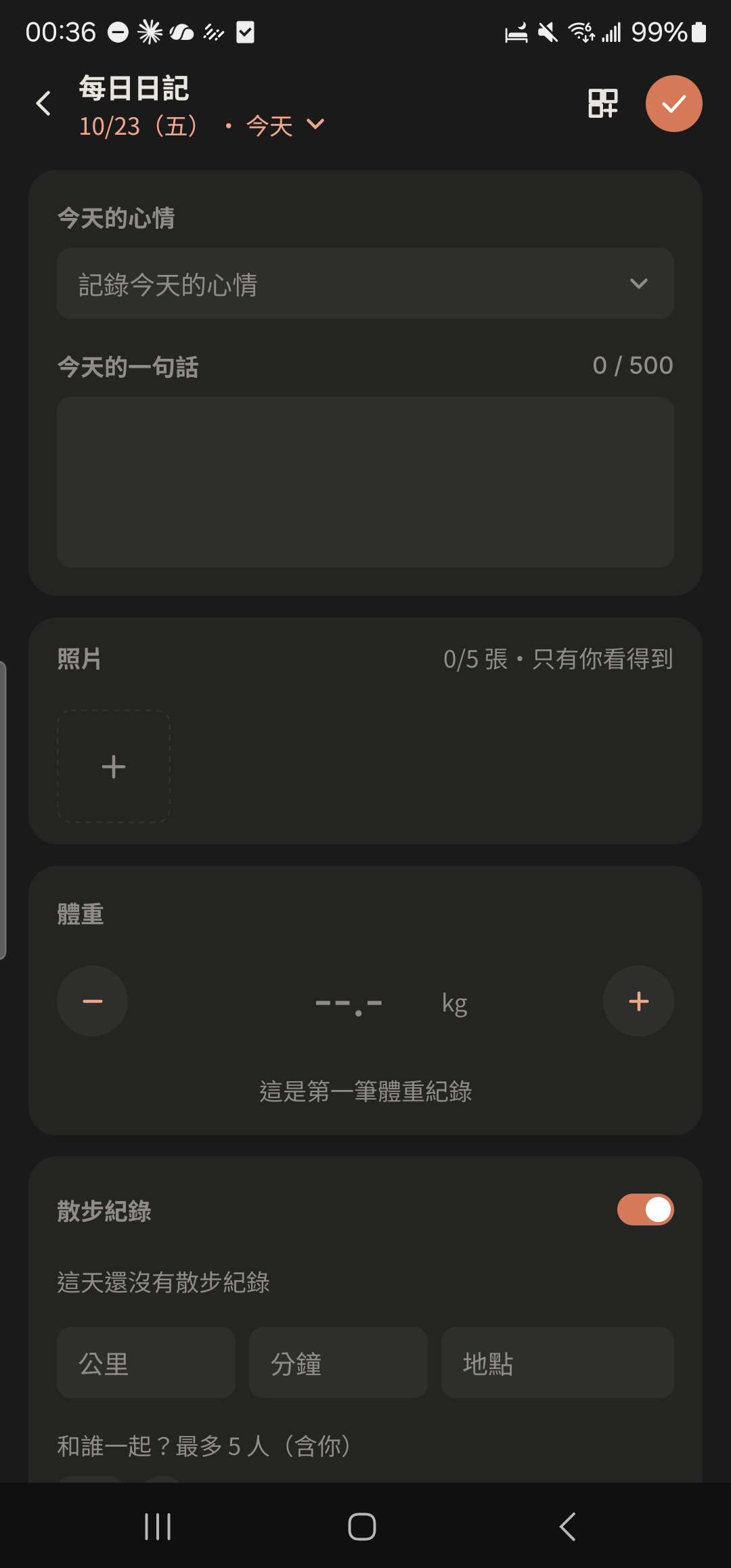
Enter "Today's quote", and log your weight, BBT, walk, or spending if you like.
- 4
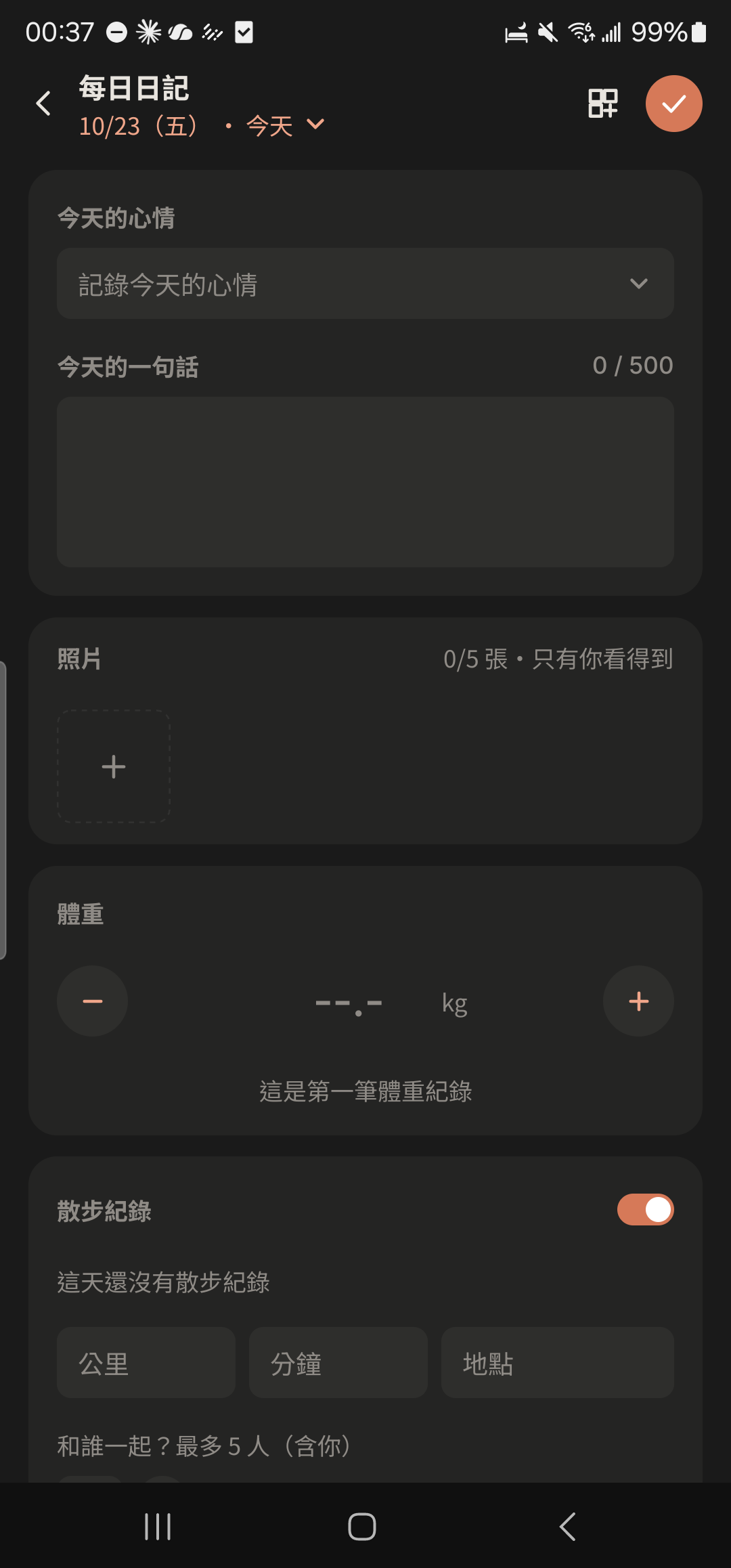
Just tap back to leave. Your Diary saves automatically when you stop typing.
- 5
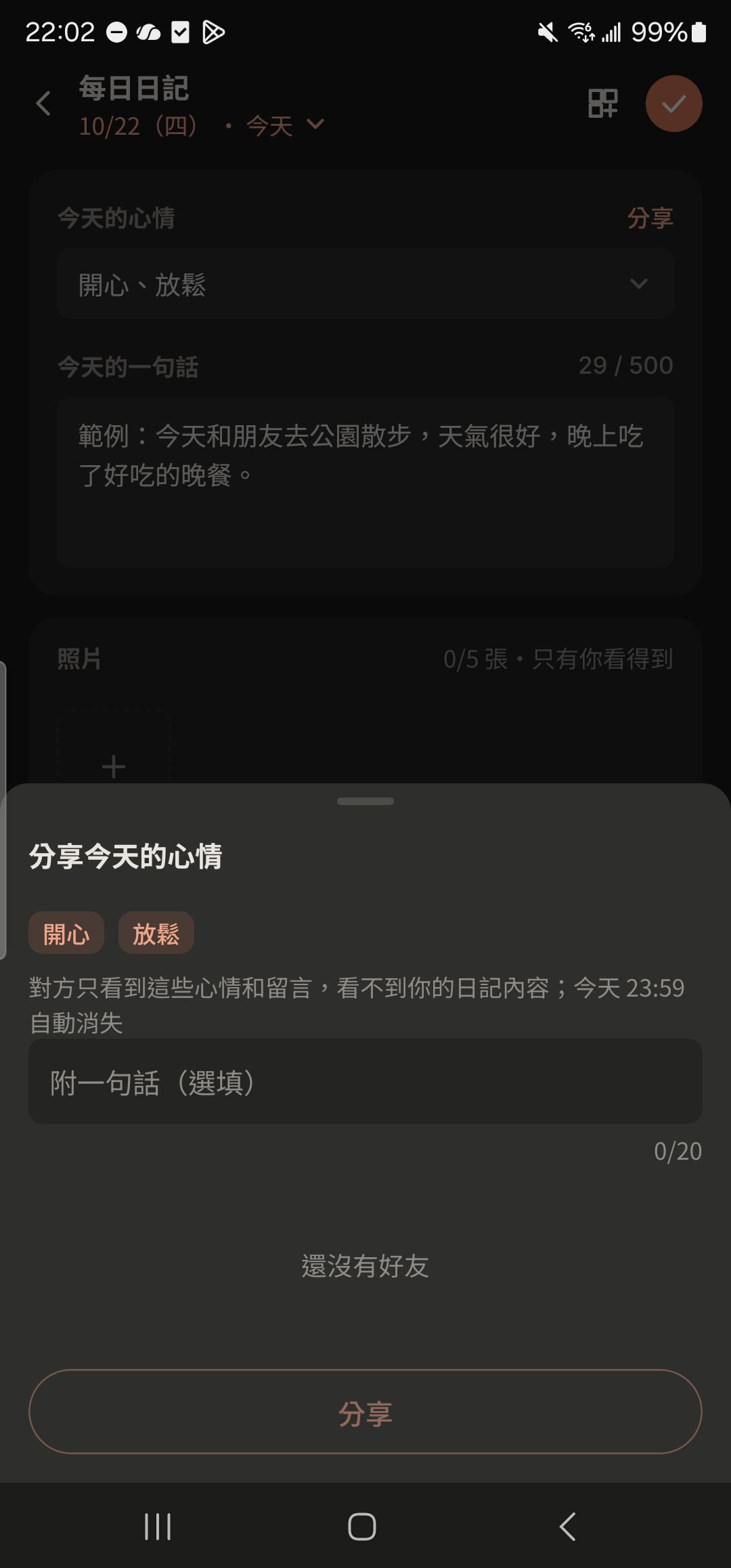
Tap "Share" and choose Close Ones or friends. They'll see a Mood Bubble on your profile photo, which disappears automatically at 23:59 that day.
Expenses and Monthly Budget
- 1
Tap the + at the bottom center and choose "Expenses".
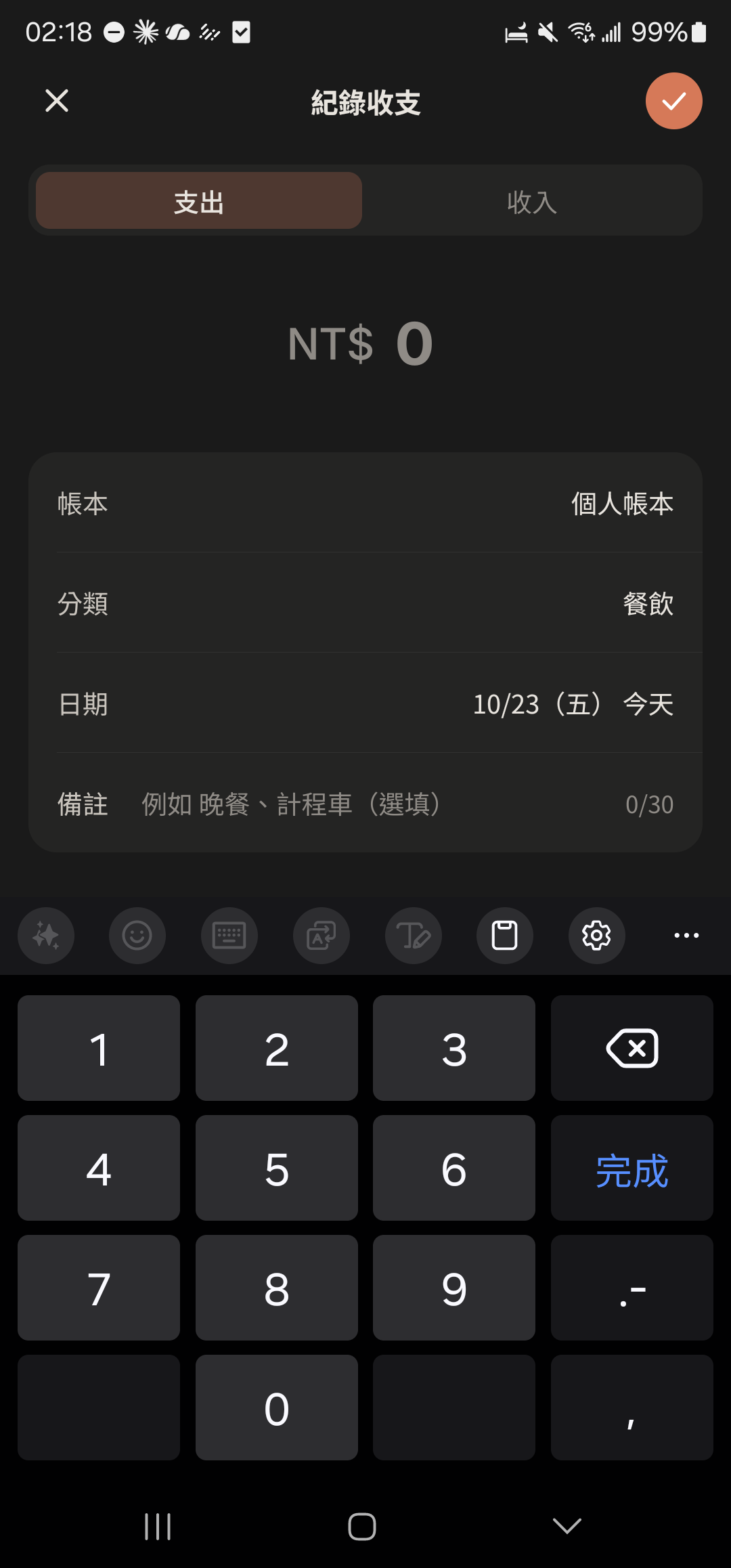
- 2
Choose "Expense" or "Income", enter the amount, and choose a category (or type a new one).
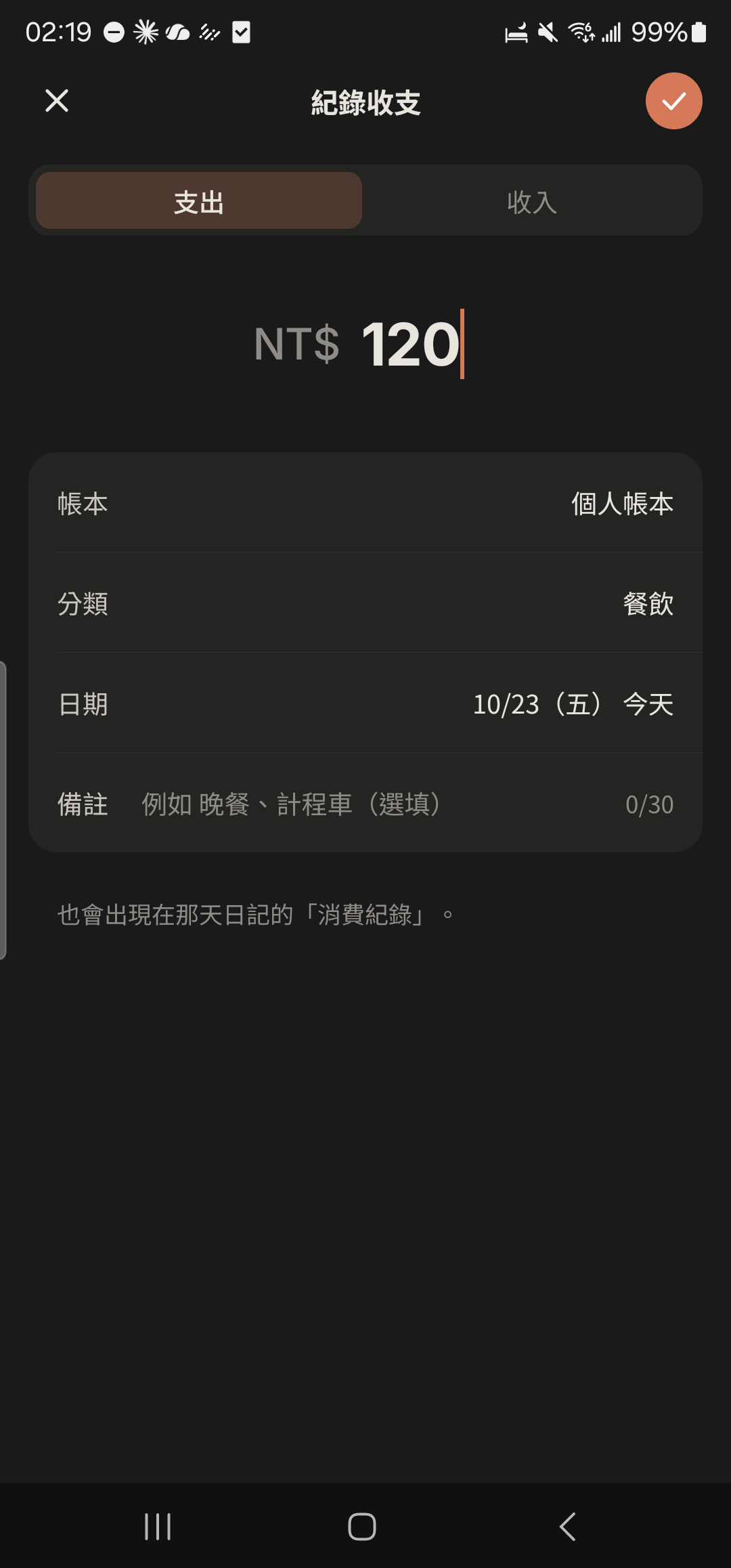
- 3
Tap the check mark at the top right to save.
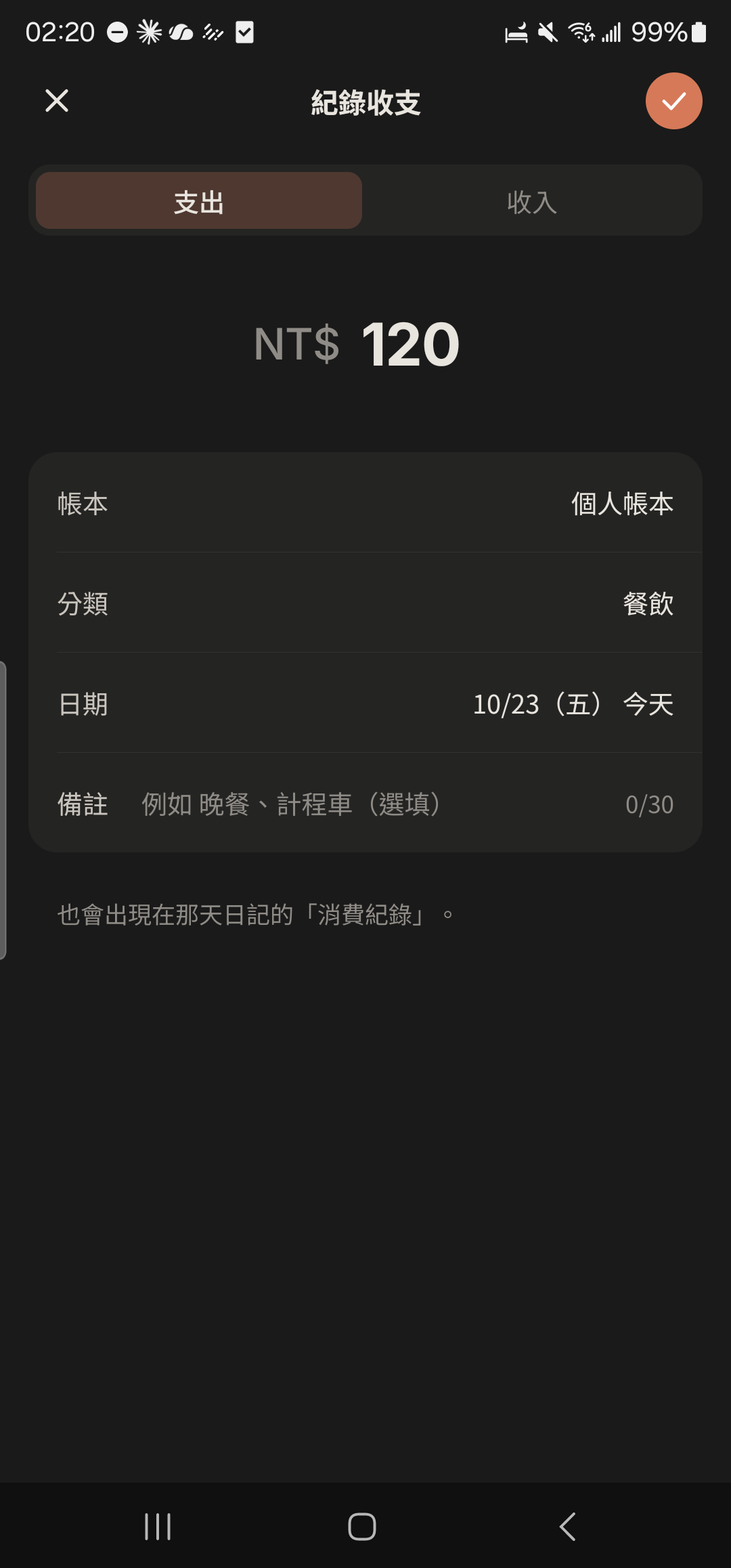
- 4
Tap "Expenses" in "Me", then tap "+ Set Monthly Budget".
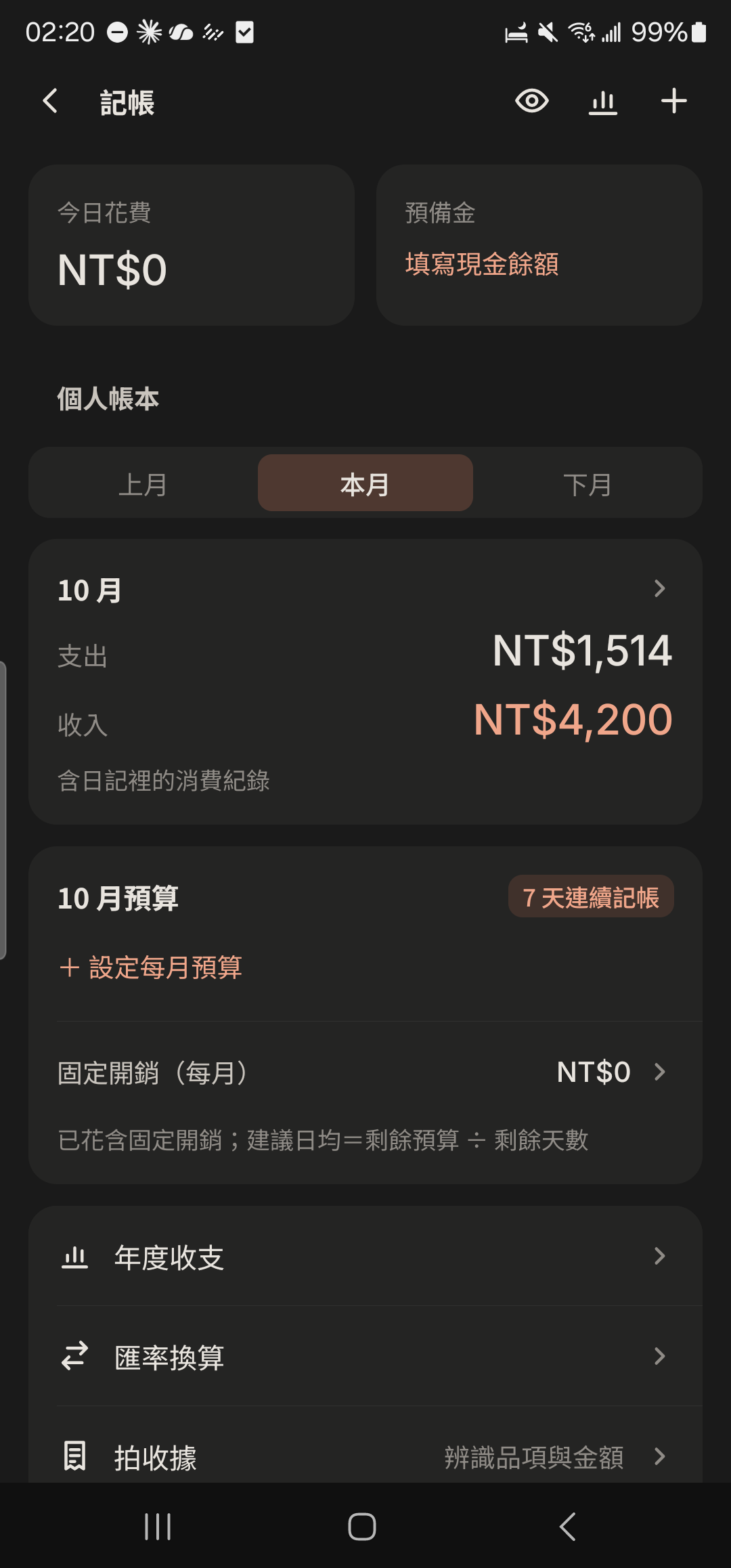
- 5
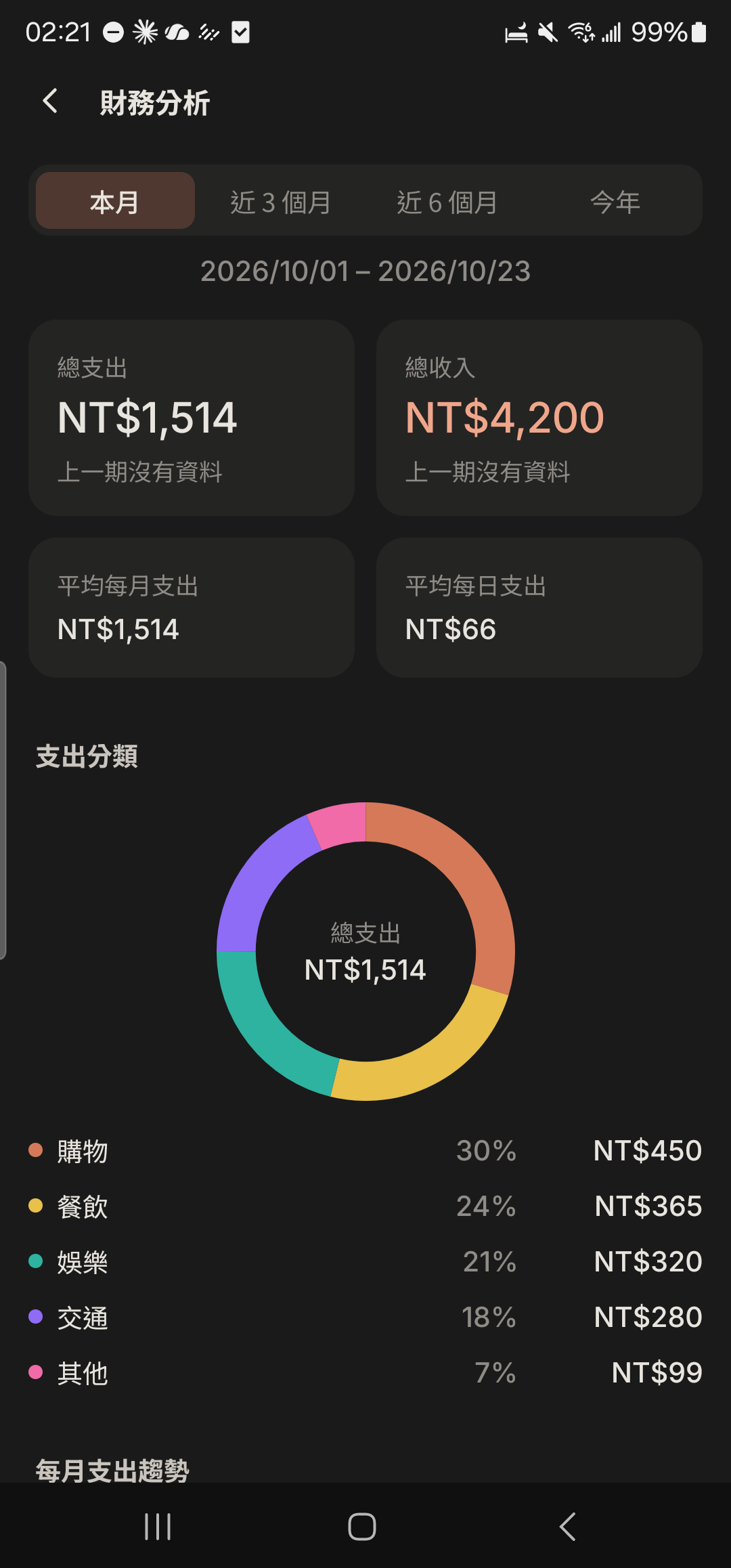
Tap the "Analysis" icon at the top right of the Expenses home screen to switch between the "Finances", "Yearly", and "Monthly Net Worth Report" tabs.
To-dos and habit check-ins
- 1
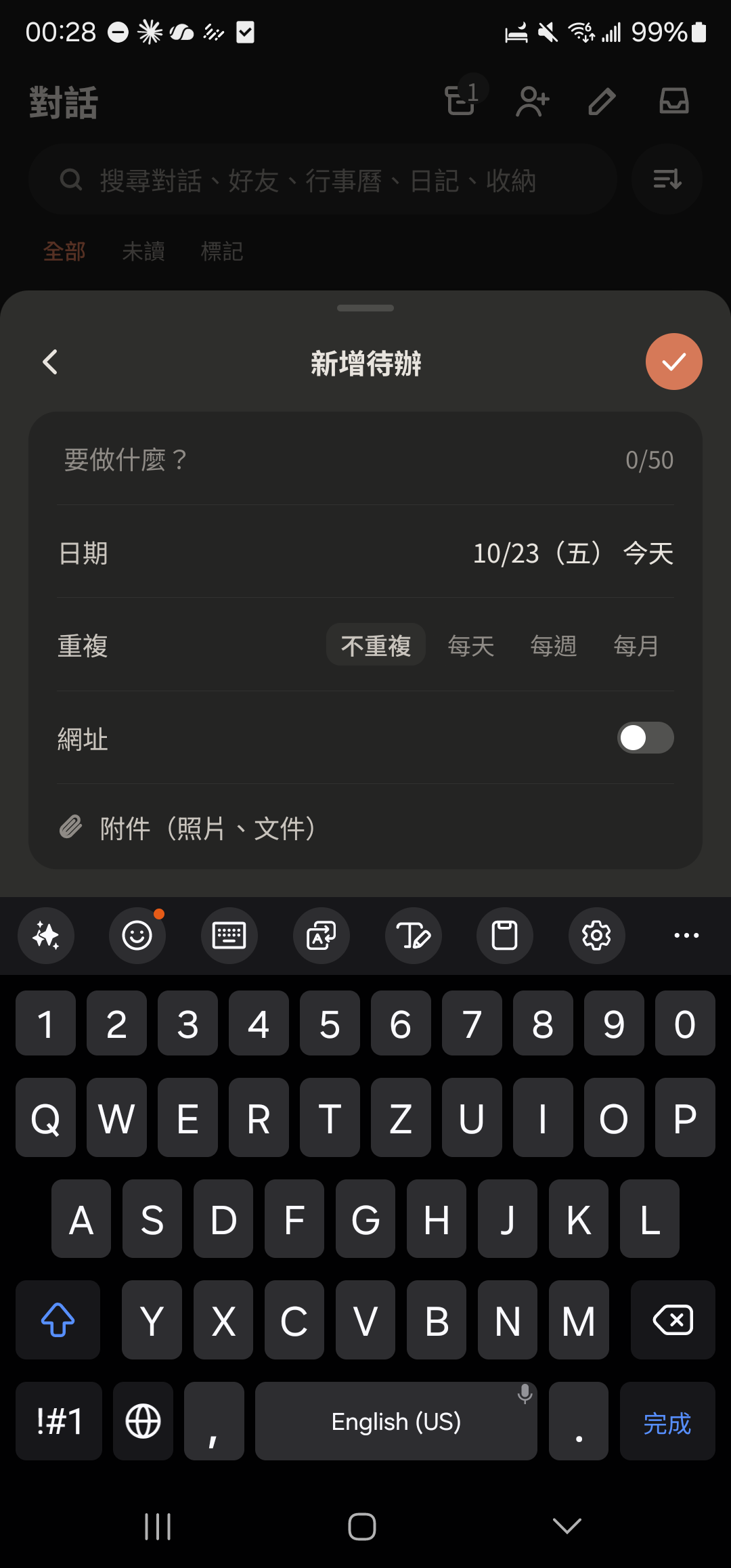
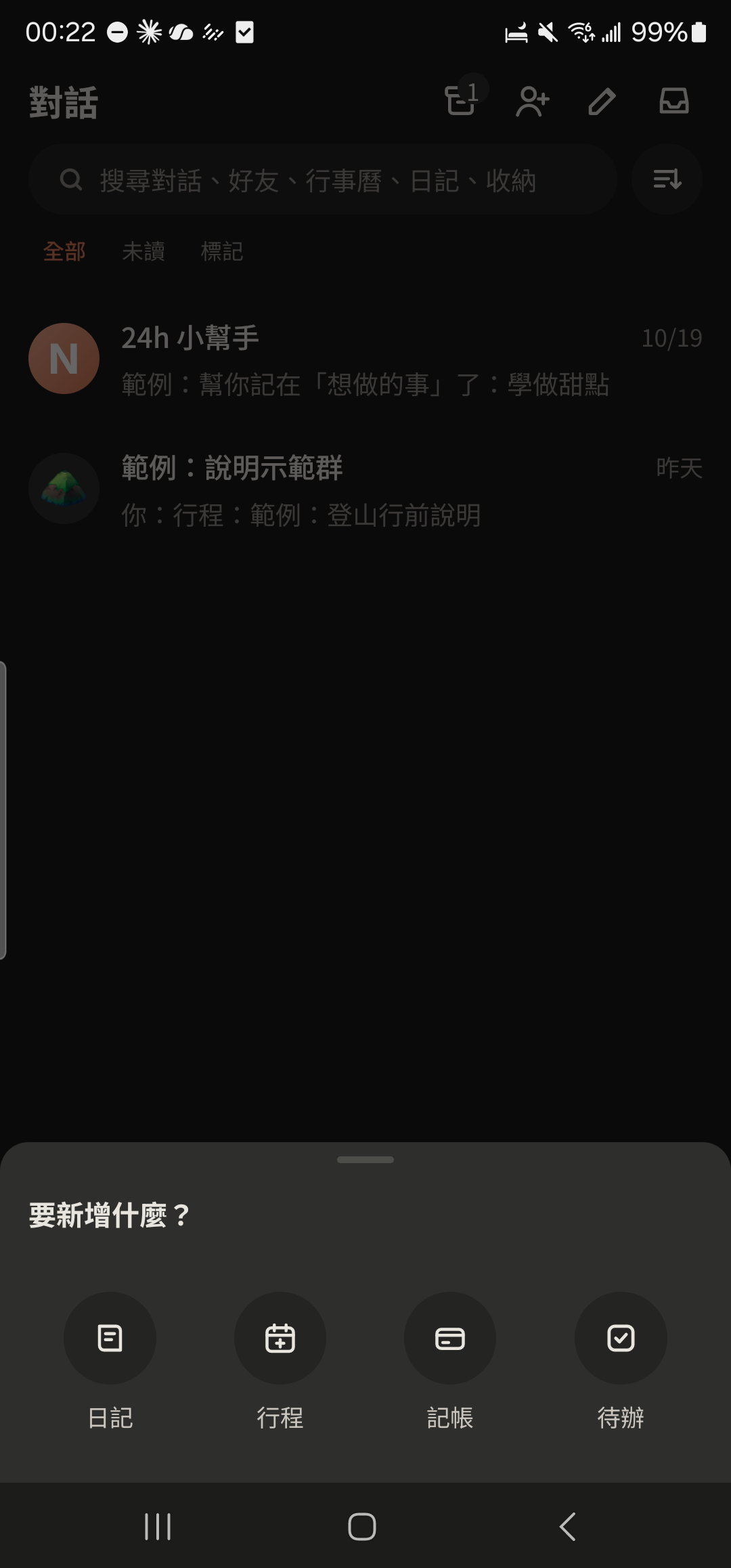
Tap the + at the bottom center and choose "To-do".
- 2
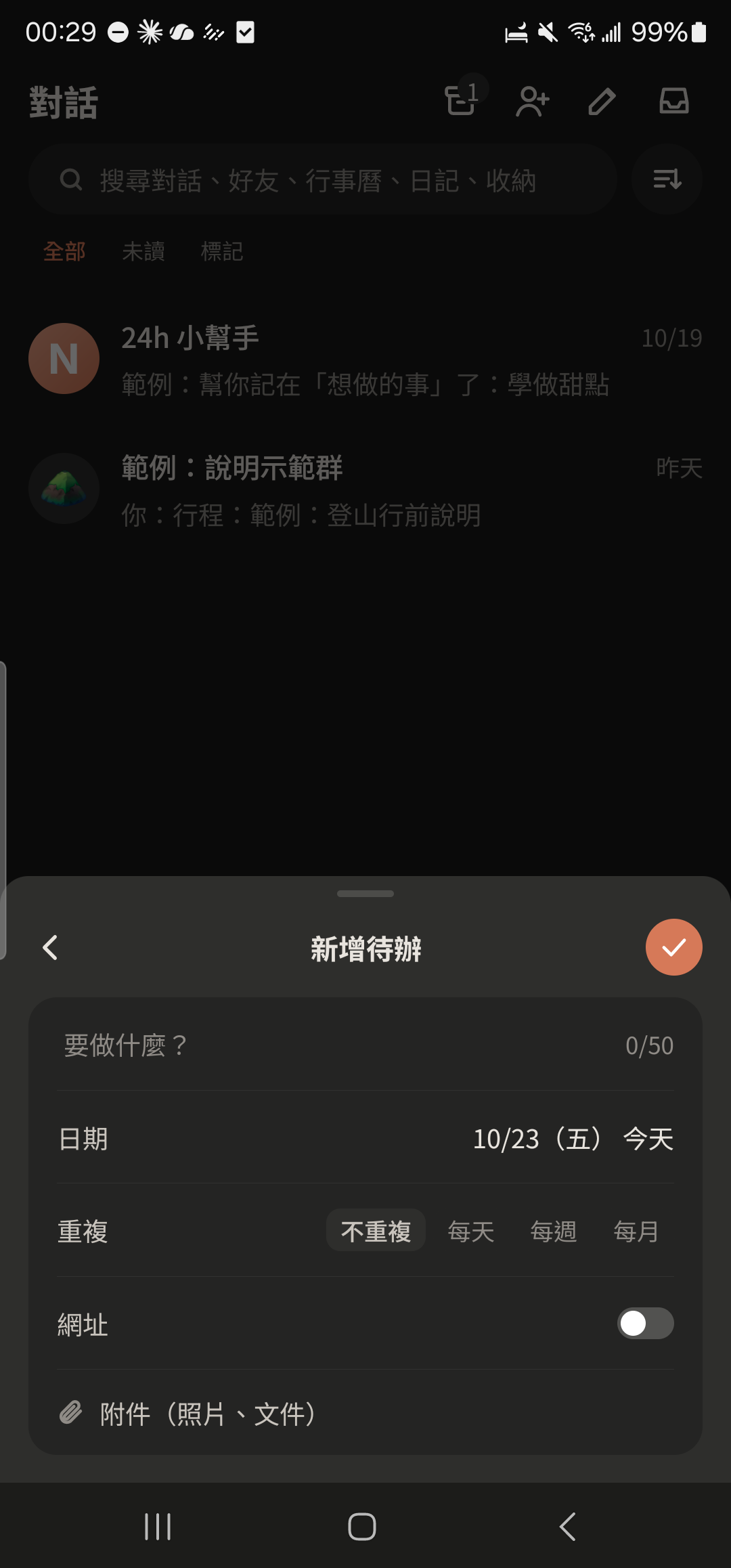
Enter what you need to do (up to 50 characters) and choose a date.
Screenshot comingAdd To-do screen with the task and date filled in - 3
Choose "Repeat" (daily, weekly, monthly) to check in on it as a habit.
- 4
Tap the P2 tag in front of a To-do to change it to P0 (most urgent) or P1 (important).
Screenshot comingTo-do row in the Calendar, P0/P1/P2 tag highlighted - 5
Tap a To-do once to complete it (it gets a strikethrough). Press and hold to edit or delete it.
Screenshot comingCompleted To-do and the 7 small circles on a repeating To-do
Calendar
- 1
Tap the + at the bottom center and choose "Event".
- 2
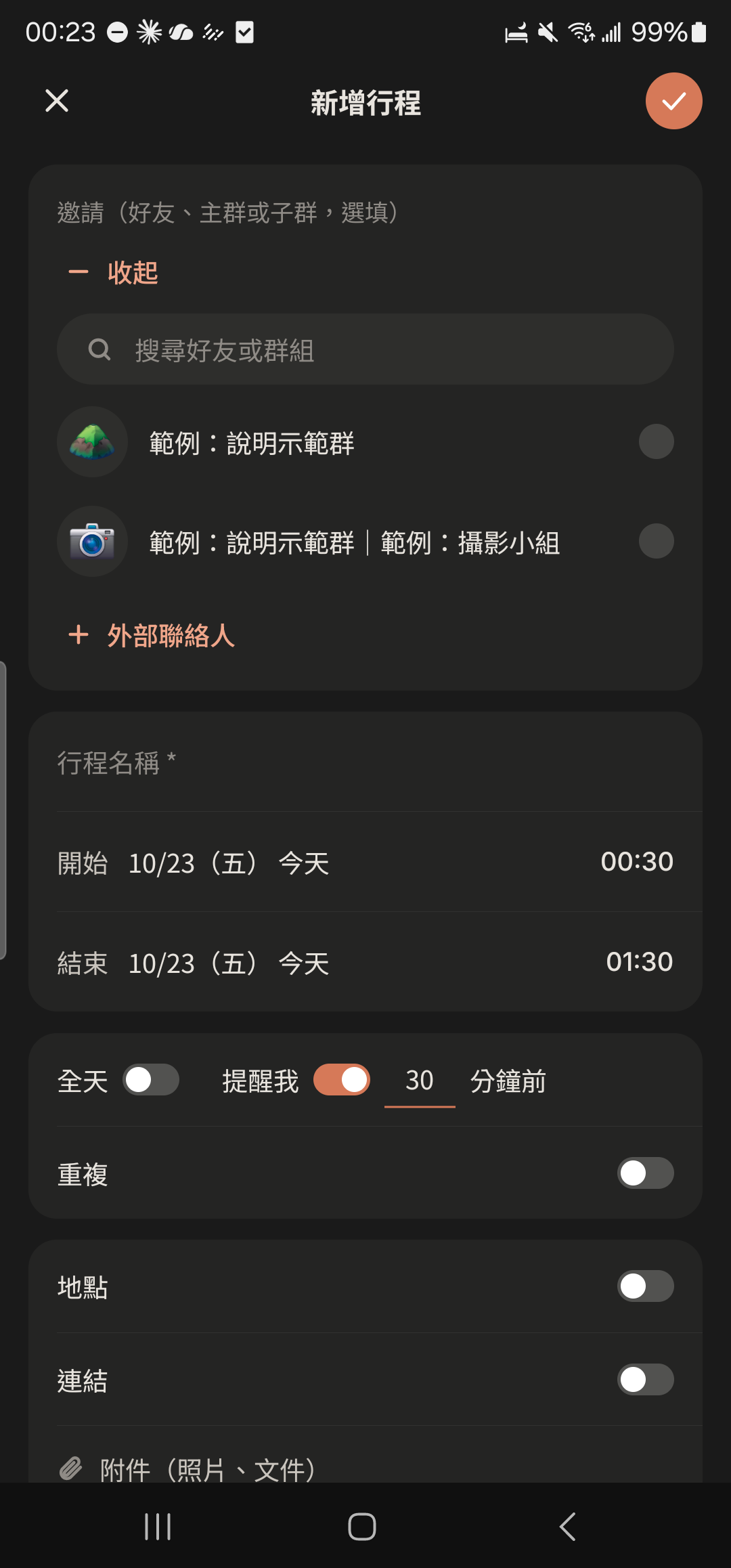
Tap "Invite" in the first row and choose friends, Groups, or Subgroups.
- 3
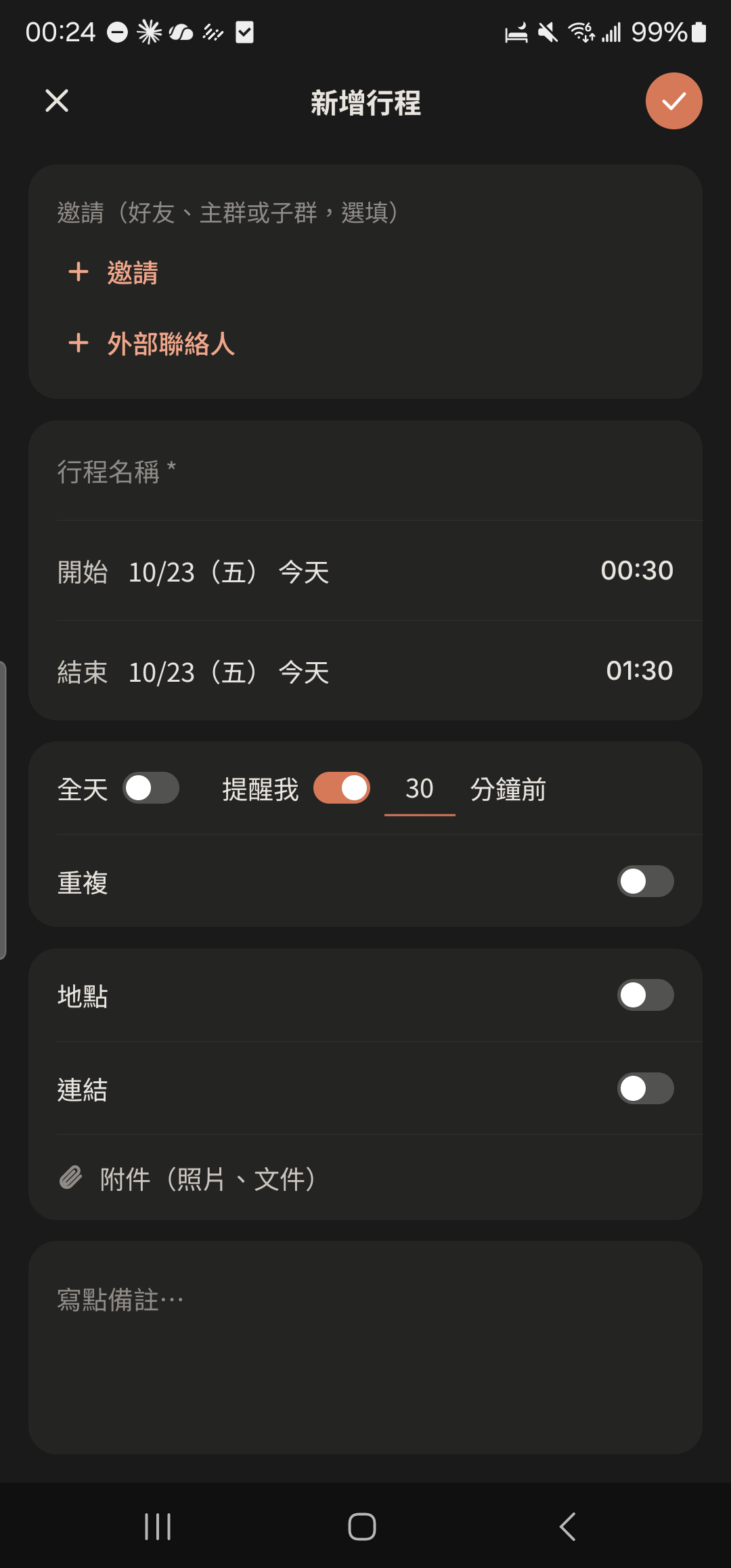
Enter the Event name and choose the start and end dates and times.
- 4
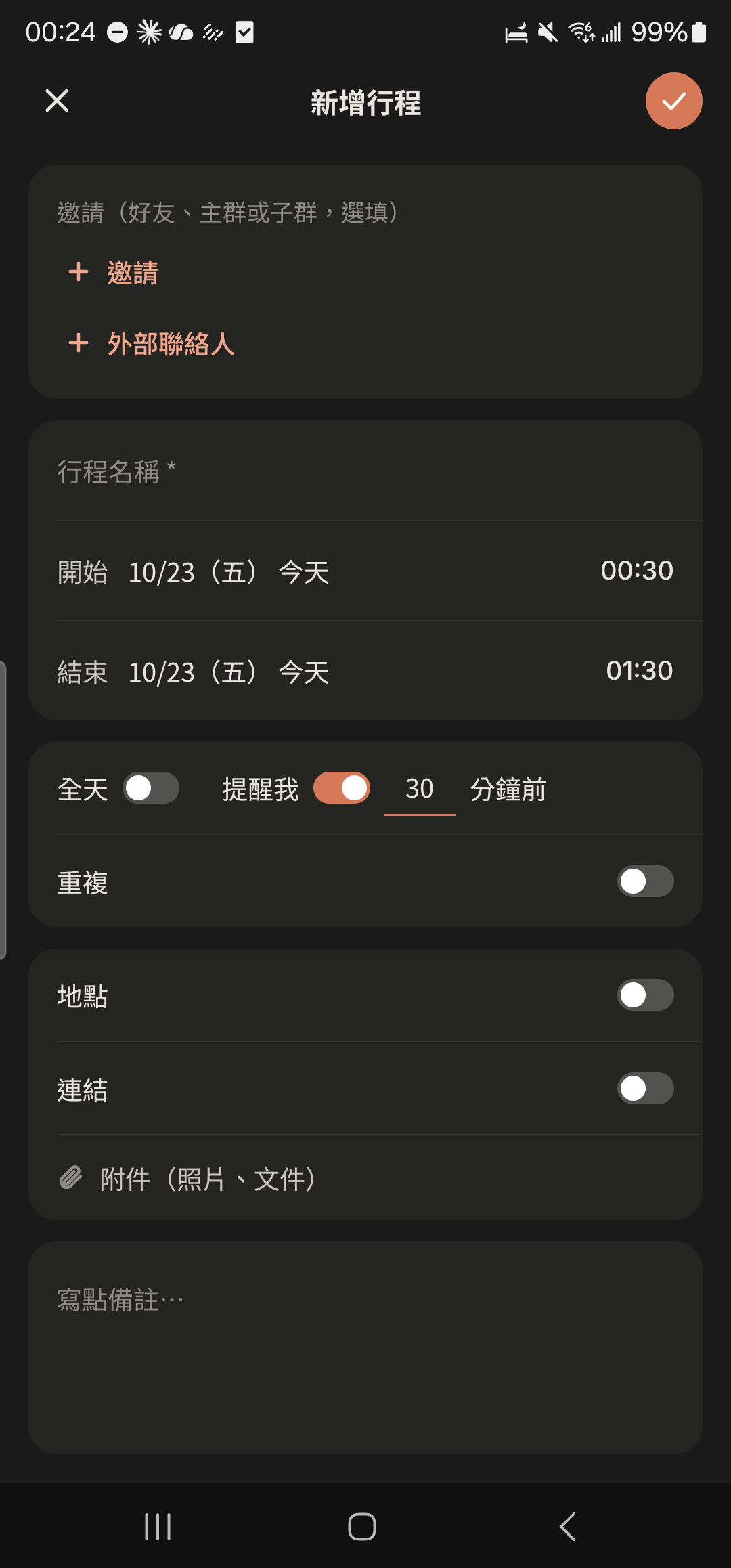
Choose "Remind Me" and "Repeat" (daily, weekly, monthly), and turn on "Location" or "Link" if needed.
- 5
Tap the check mark at the top right to save. They'll get an invite card in the chat, and once they tap "Accept Invite", you're all set.
Screenshot comingEvent invite card in a chat, "Accept Invite" highlighted
Period Log
- 1
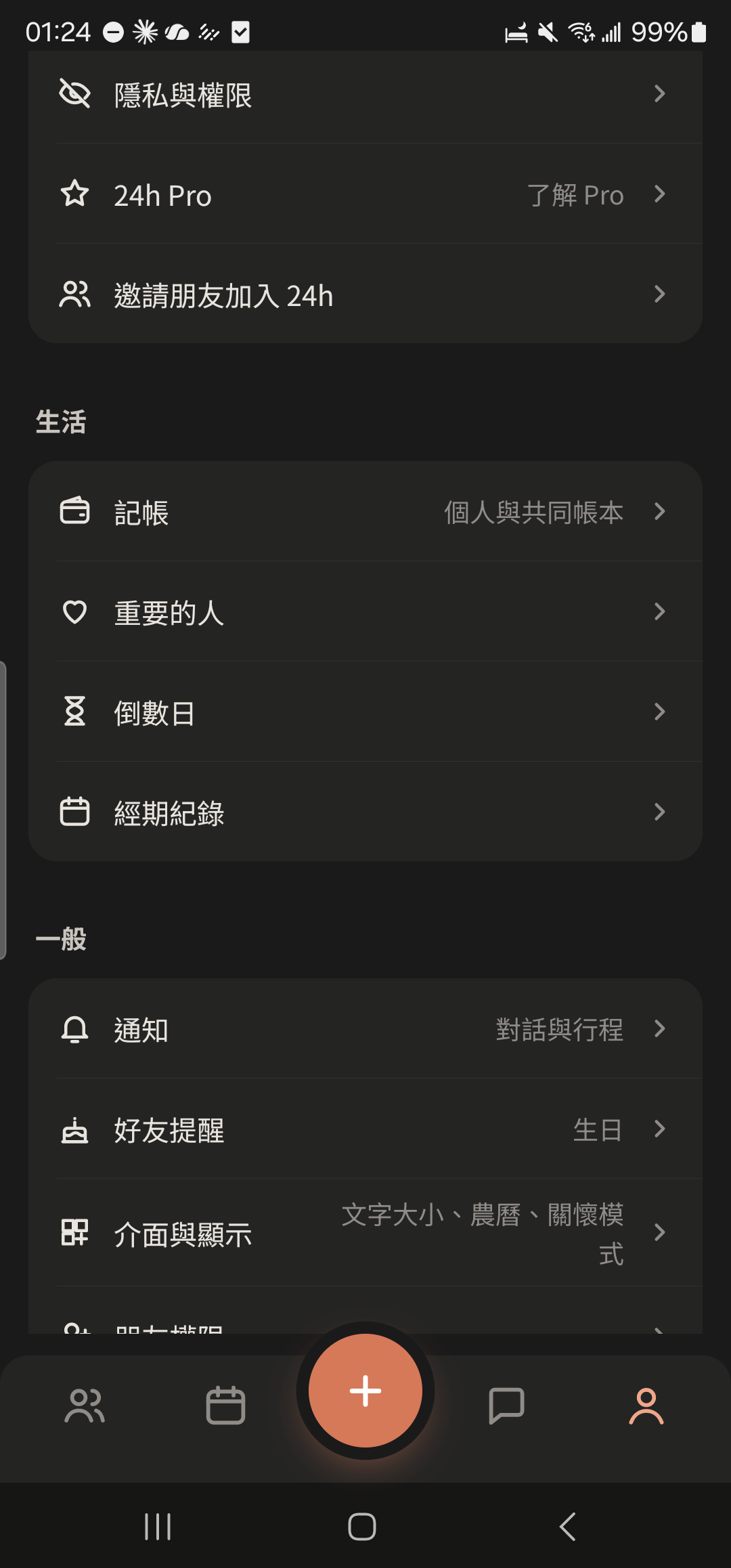
Tap "Period Log" in the Life section of "Me".
- 2
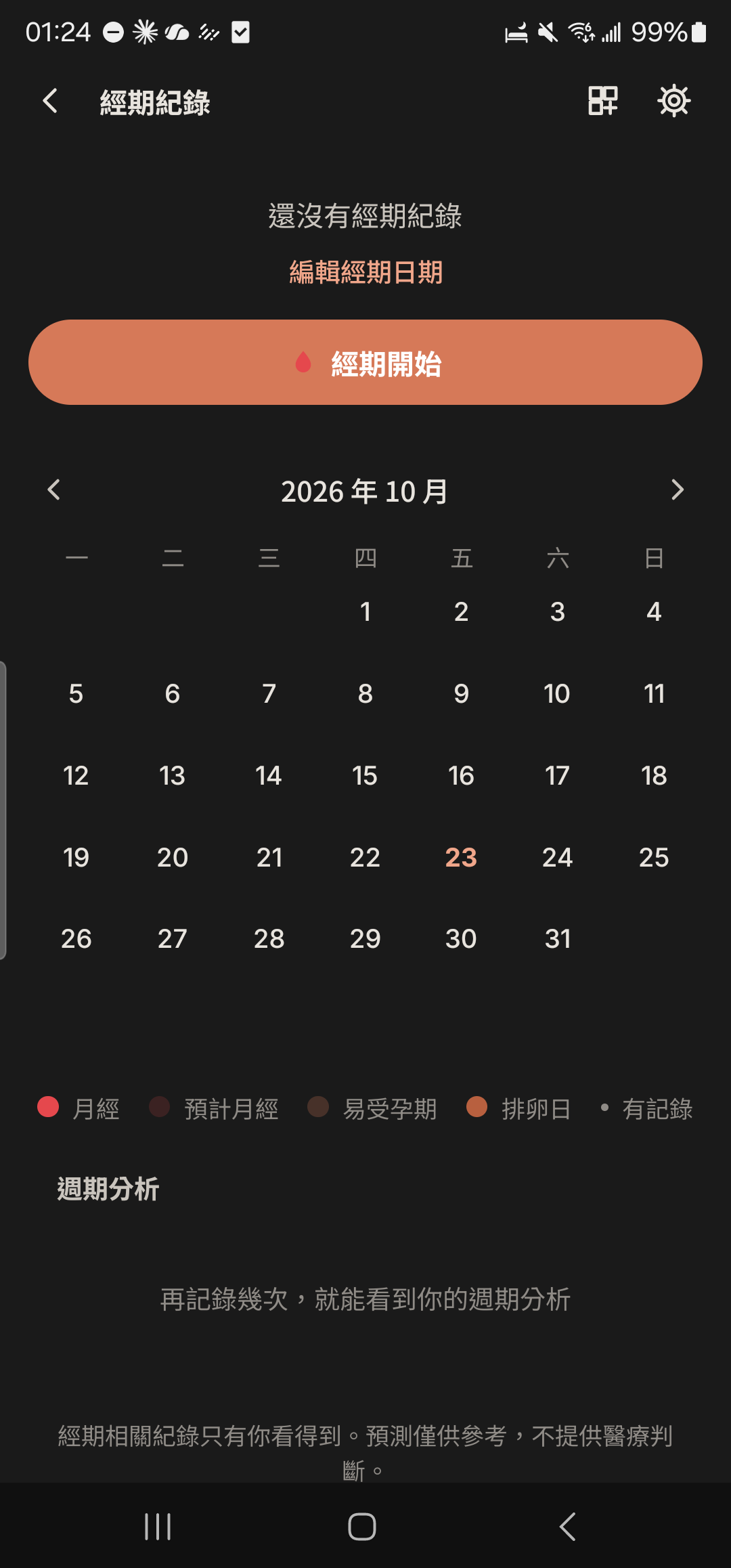
Tap "Period started". 24h automatically marks the following days based on the length you set.
- 3
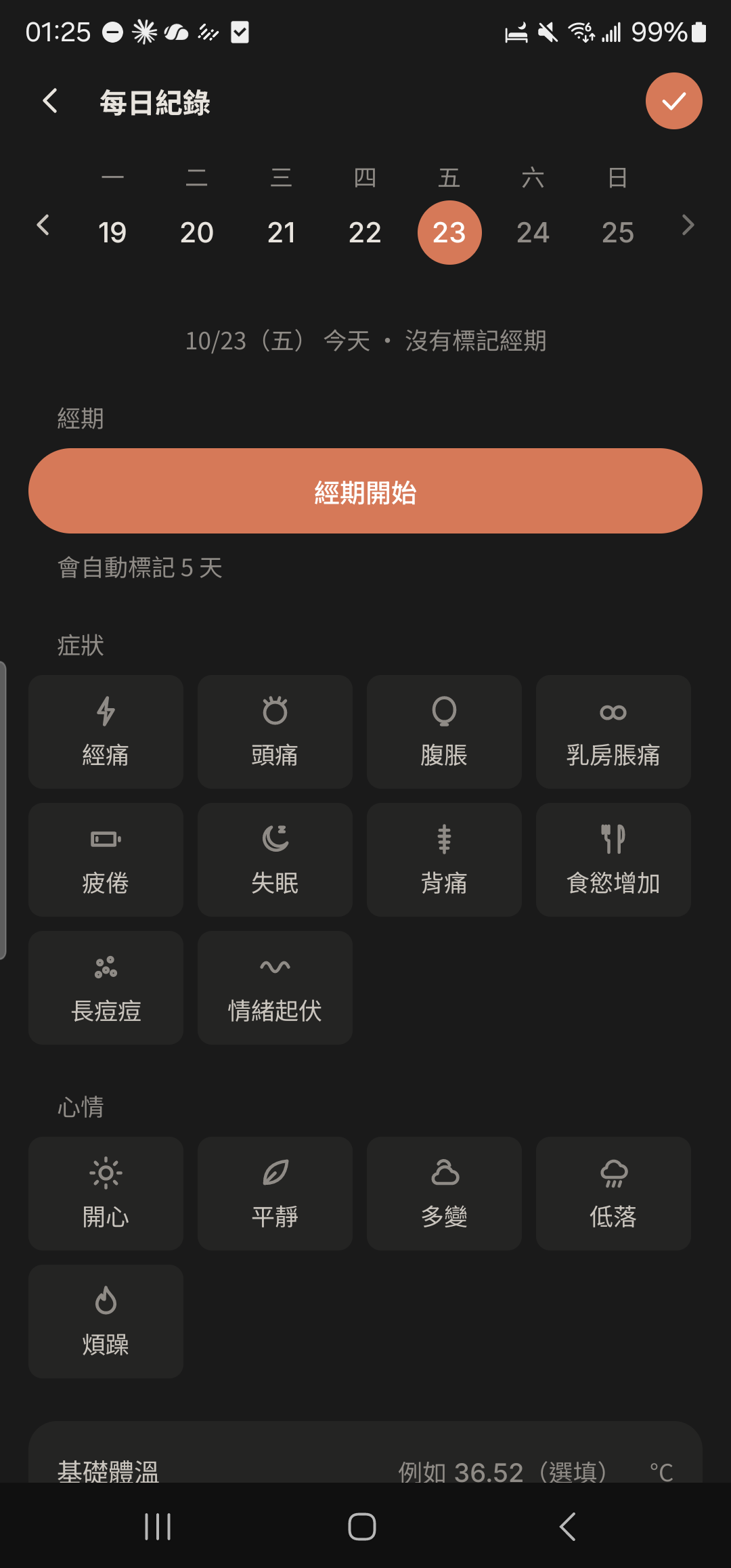
Tap the entry for "Today", choose flow and symptoms, add a note, then tap "Save".
- 4
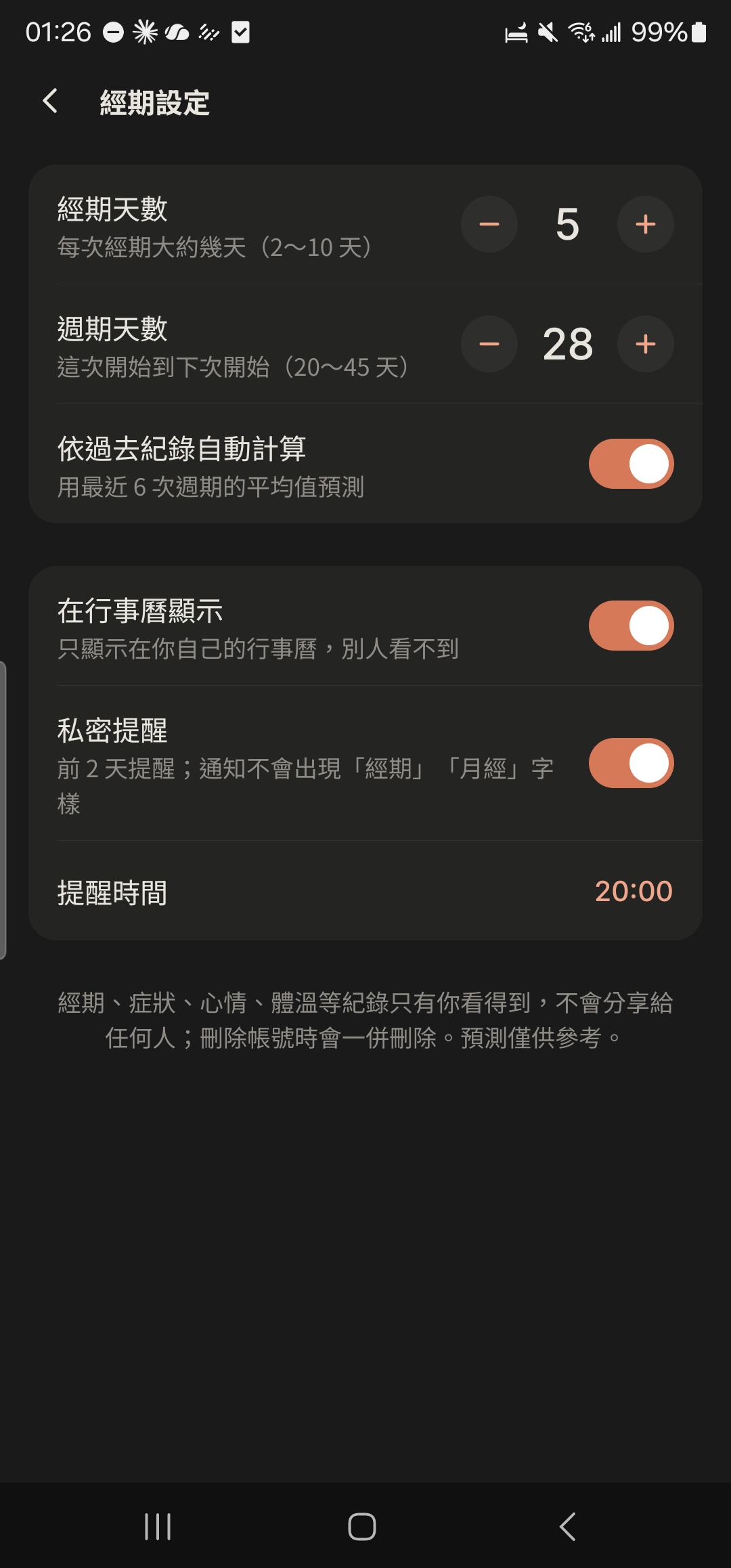
Tap the gear icon at the top right to set your period length, cycle length, and Private Reminder.
Only you can see your period data. Predictions are for reference only.
Draw a Card and Today's little thing
- 1
Tap "Draw a Card" above the input box (or tap the ⊕ on the right of the input bar and choose "Fortune" or "Life" under "Draw a Card"), choose a deck, and tap a card to flip it. To learn how to read the result, tap "How to read it?" at the top.
Screenshot comingFull-screen card flip, "How to read it?" highlighted - 2
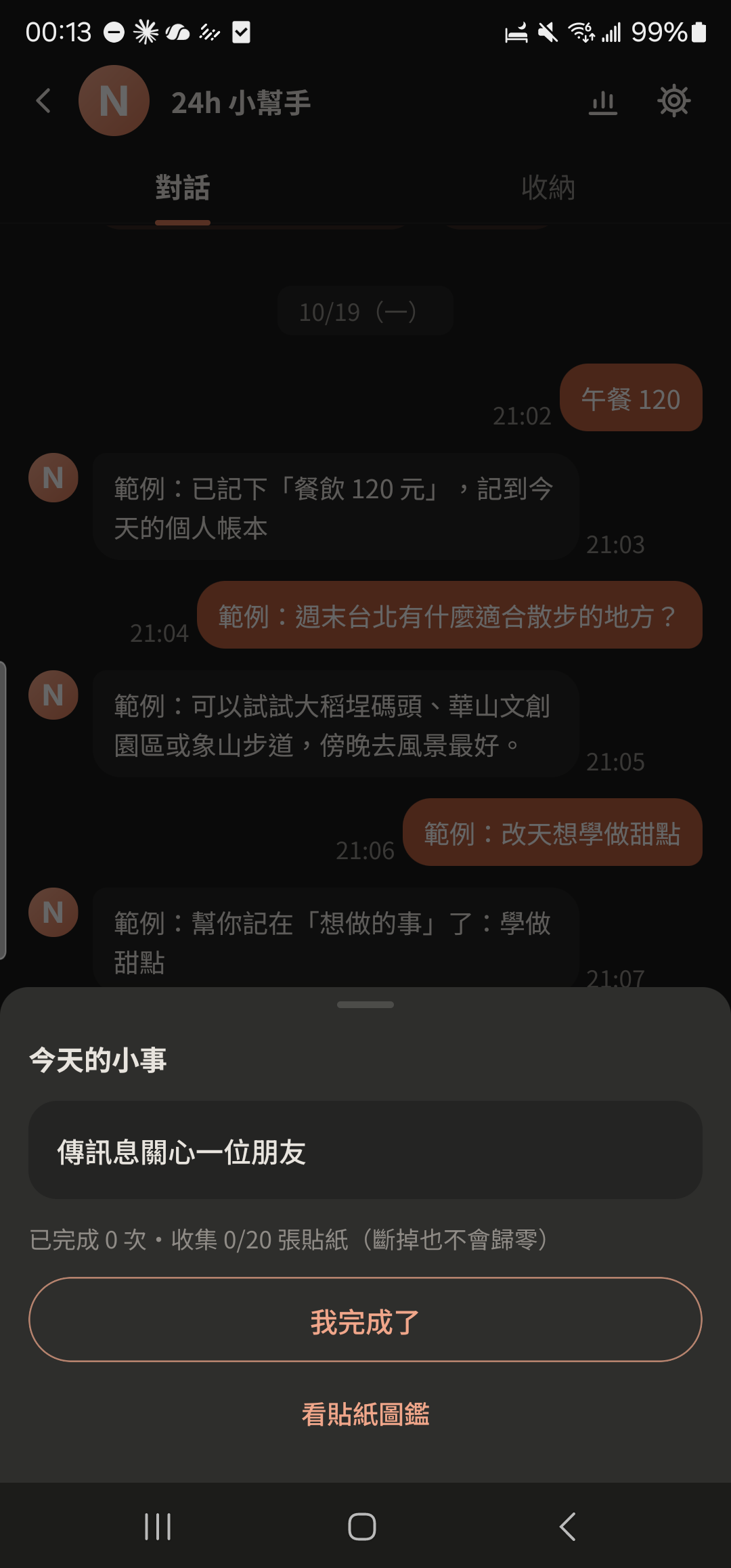
Tap the ⊕ on the right of the input bar and choose "Today's little thing" under "Daily". When you've done it, tap "I'm done" to collect a sticker.
- 3
Tap "View Sticker Collection" to see how many you've collected.
Screenshot comingSticker collection - 4
In the ⊕ feature panel, choose "One question a day" under "Daily", enter your answer, and tap "Save to today's Diary".
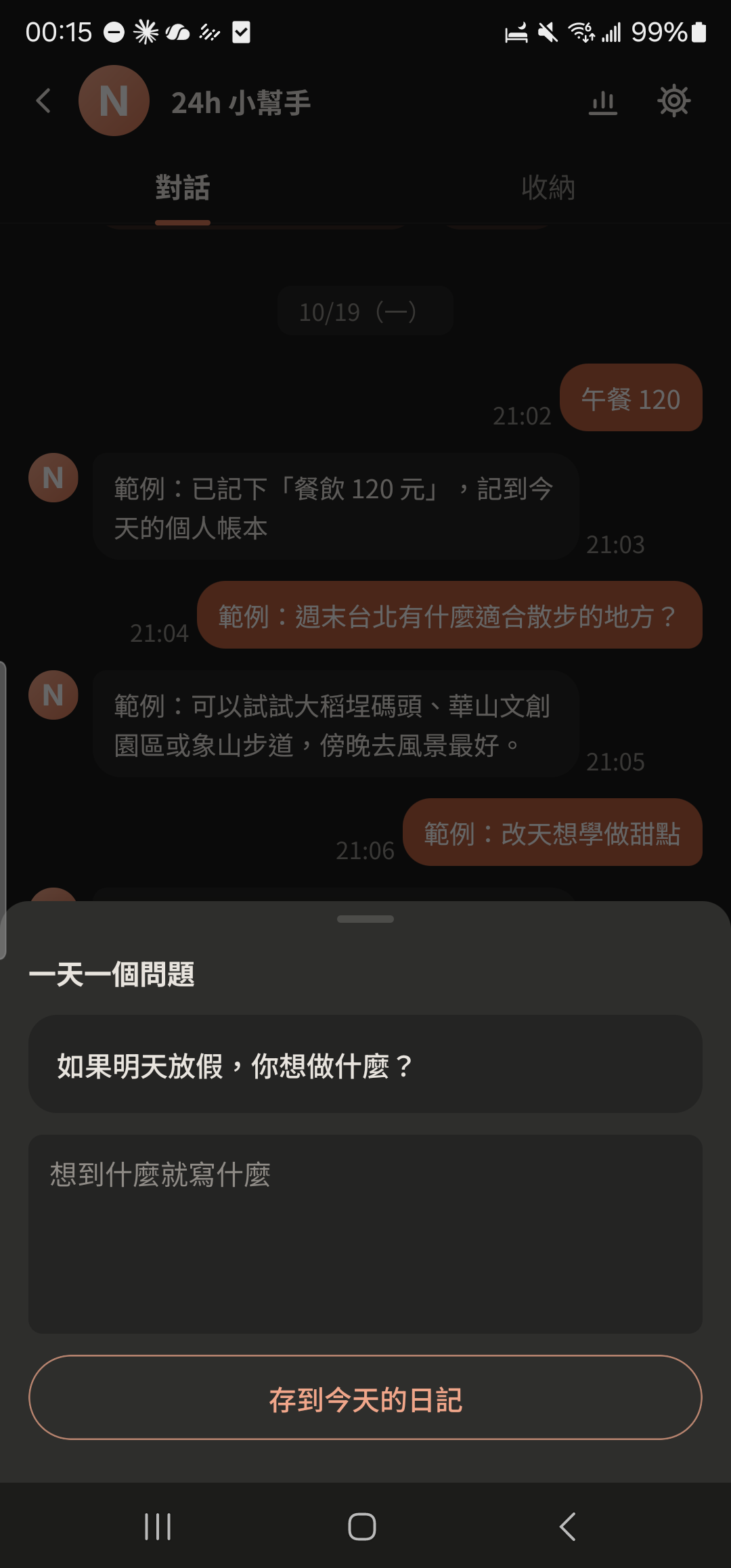
Full guide: Draw a Card, Today's little thing, and One question a day ›
Breathing before bed
- 1
Tap "Breathing" above the Assistant input box, or tap the ⊕ on the right of the input bar and choose "Breathing" under "Relax".
Screenshot comingShortcut chips above the Assistant input box, "Breathing" highlighted - 2
Choose 1, 3, or 5 minutes, and turn on "Light vibration alert" if you like.
Screenshot comingBreathing time options and vibration alert switch - 3
Tap "Start" and follow the full-screen ring: breathe in for 4 seconds, hold for 4, and breathe out for 6.
Screenshot comingFull-screen breathing ring showing "Breathe in" - 4
Tap "Done" to return to the Assistant, or tap "Do it again".
Screenshot comingBreathing complete screen
Other guides
Couples
Keep your days together in one place
Family and Parents
A family group that's easy for parents to use
Theater and Production Crews
One show, one group, with every team in its own lane
Beauty Professionals
Bookings, client preferences, and income, all on one phone
Tennis and Badminton Buddies
Get a game together and split court fees without asking one by one
Event Organizers
Sign-ups, waitlists, check-ins, and payments, all in one go
Travelers
Trip costs, plans, and photos, all settled when you get home
Roommates
Rent, utilities, and chores, without the awkwardness
Student Clubs and Study Groups
Officer teams, event sign-ups, and a smooth end of semester
Wedding Planning
From countdown to reception, with clear roles, budget, and RSVPs
Pet Parents
Vaccines, meds, costs, and every day with your furry friend
Freelancers
Clients, schedules, and income: run your own business your way