 24h
24hProducer Ken created a Main Group called "Summer Night Crew." The directing, art, and lighting teams each have their own Subgroup, and rehearsal calls go straight onto each Subgroup's Calendar. A Sign-up Card collects audition names, and a Project Ledger tracks props and lunch boxes. Important announcements are pinned and sent with @Everyone. After the last show, he taps "Freeze" to keep the whole project, ready to look back on next time.
Theater and Production Crews
One show, one group, with every team in its own lane
Features you'll use
- Main Group and Subgroups
- Subgroup approval
- Call schedules
- Sign-up Card
- Project Ledger
- Pinned messages
- @Everyone
- Freeze a project
Main Group and Subgroups
- 1
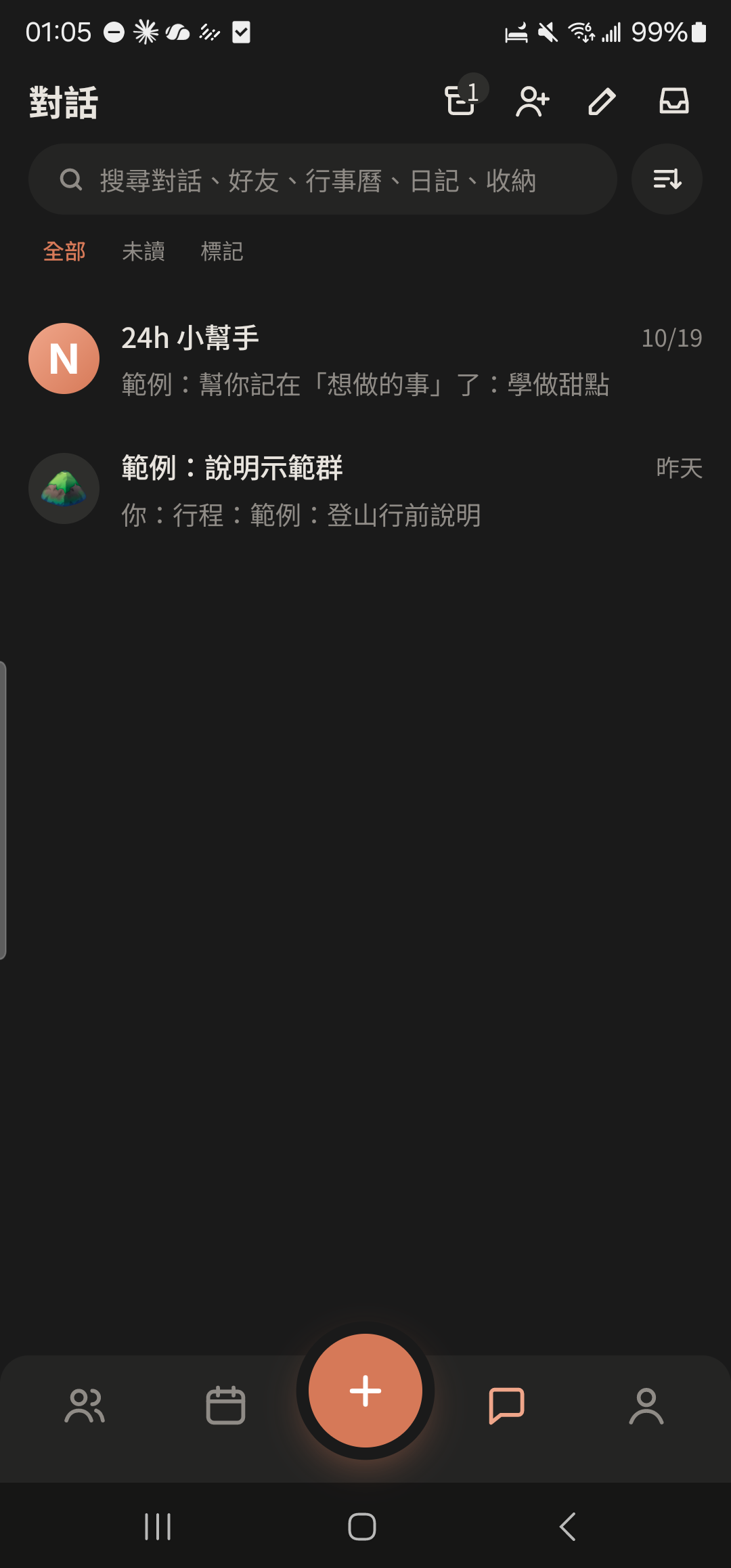
Tap the create group icon at the top right of the "Chats" tab.
- 2
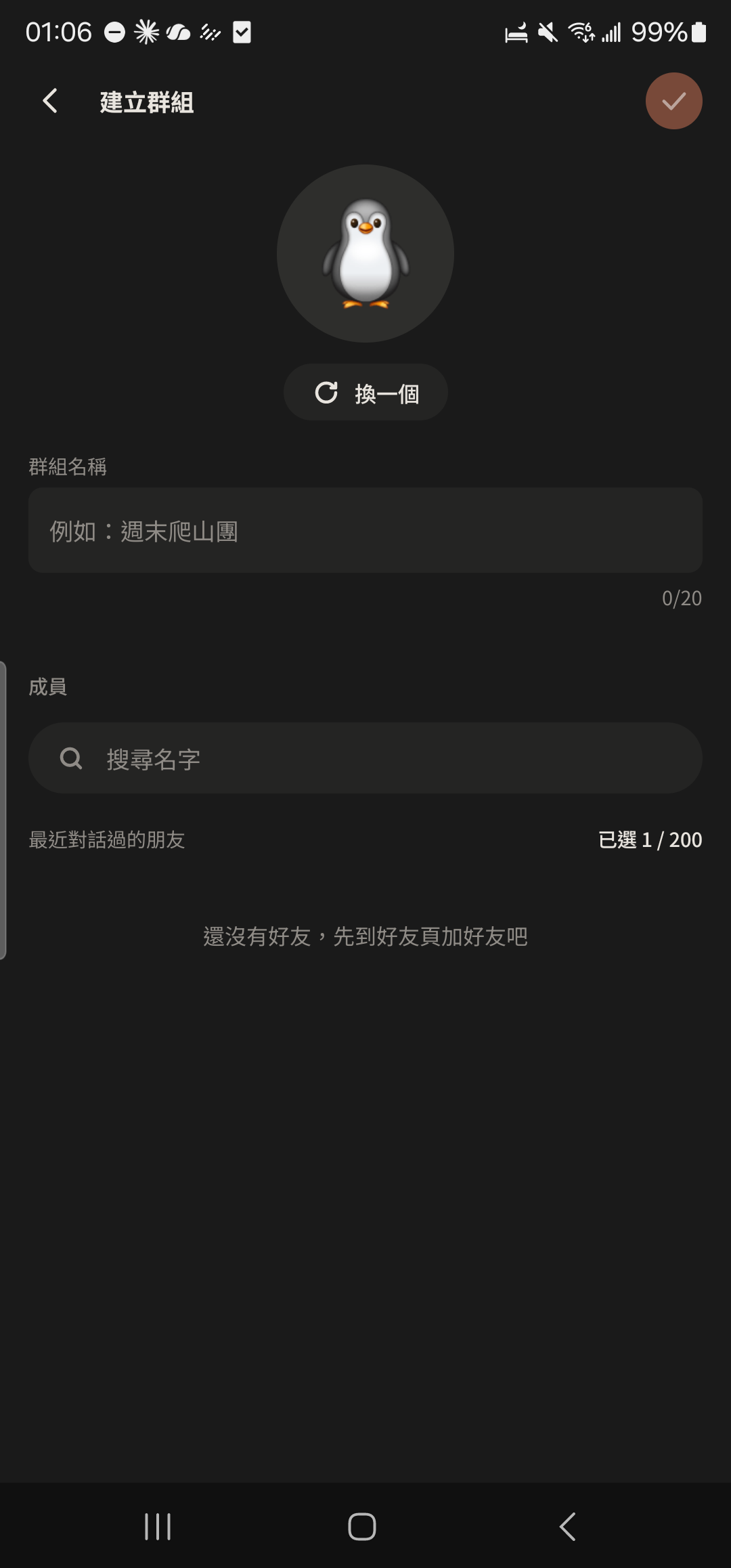
Enter a group name, such as "Weekend Hiking Crew".
- 3
Choose friends to add (you can create the Group even if you have no friends yet), then tap "Create" at the top right.
Screenshot comingCreate Group screen with a few friends selected - 4
In the "Your group is ready. Invite some members!" menu, choose "Share invite link", "Show QR Code", or "Choose from friends".
Screenshot comingInvite menu: Share invite link, Show QR Code, Choose from friends
Subgroup approval
- 1
Tap "Manage Group" in the menu at the top right of the Main Group, then tap "Create Subgroup".
Screenshot comingManage Group screen, "Create Subgroup" highlighted - 2
Enter a Subgroup name (up to 10 characters) and choose people from the Main Group members.
Screenshot comingCreate Subgroup screen - 3
Choose "Public" (Main Group members can join directly) or "Approval Required" (you must approve before they can join).
Screenshot comingJoin options on the Create Subgroup screen - 4
Tap "Pending" at the top right of the "Chats" tab, then tap "Agree" or "Decline" under "Join requests".
Screenshot coming"Join requests" in the Inbox - 5
Tap "Transfer Subgroup Ownership" on the Subgroup management screen and choose who takes over.
Screenshot comingSubgroup management screen, "Transfer Subgroup Ownership" highlighted
Call schedules
- 1
Tap the Calendar icon at the top right of a Subgroup. New events automatically invite the whole Subgroup.
Screenshot comingCalendar icon at the top right of a Subgroup chat - 2
Enter the call name, time, and place, then choose "Remind Me".
Screenshot comingAdd Event page, with invitees shown as "Main Group | Subgroup" - 3
Tap the check mark at the top right. Team members get an invite card and tap "Accept Invite" to add it to their Calendar.
Screenshot comingEvent invite card in the Subgroup - 4
Tap the Main Group at the top of "Calendar" to see events from every Subgroup at once.
Screenshot comingCalendar filtered by Main Group, showing "Main Group | Subgroup" labels
Sign-up Card
- 1
Tap the ⊕ on the right of the Group input bar, swipe left to page 2 (Create), and choose "Sign-up Card".
Screenshot coming⊕ feature panel page 2 (Create), "Sign-up Card" highlighted - 2
Enter the event name, date and time, location, headcount limit, and fee, then send.
Screenshot comingCreate Sign-up Card screen - 3
Tap "Sign Up" on the card. When it's full, tap "Join waitlist". If someone cancels, the first person on the waitlist moves up automatically.
Screenshot comingSign-up Card in the Group, showing 4/12 and the list - 4
Tap "Sign up a friend" and enter your friend's name (they don't need to have 24h).
Screenshot comingSign up a friend window - 5
Tap the Sign-up Card to open the list. The creator can check "Check In" and "Paid", or tap "Create Project Ledger in one tap".
Screenshot comingSign-up list, "Check In" and "Paid" highlighted
Project Ledger
- 1
Tap the "Ledger" button at the top of a chat, then tap "+ Add Project Ledger".
Screenshot comingChat Ledger screen, "Create Project Ledger" highlighted - 2
Enter a name (such as "6-Day Japan Trip"), start and end dates, and check the members taking part.
Screenshot comingCreate Project Ledger screen - 3
Choose the main currency (it can't be changed after creation).
Screenshot comingMain currency menu - 4
When logging in a foreign currency, enter the exchange rate as "1 foreign currency = ? main currency", and the amount converts instantly.
Screenshot comingForeign-currency expense entry showing the exchange rate and converted amount - 5
Tap "Add Virtual Member" in the Ledger settings to add friends who don't use 24h yet (up to 20 per Ledger).
Screenshot comingProject Ledger members screen, Virtual Members highlighted
Pinned messages
- 1
Long-press an important announcement and choose "Pin".
Screenshot comingMessage long-press menu, with "Pin" highlighted - 2
Tap the pinned message at the top of the chat. Every member can see it, along with who pinned it.
Screenshot comingPinned message at the top of the chat - 3
Tap the options next to the pinned message to unpin it.
Screenshot comingUnpin option
@Everyone
- 1
Type "@" to bring up the list of group members.
Screenshot comingMember list that appears after typing @ - 2
Choose "Everyone" at the top, then type your announcement.
Screenshot coming"Everyone (member count)" at the top of the member list - 3
Tap Send. It shows up under "@Me" in every member's chat list.
Screenshot comingThe "@Me" category in the chat list
Freeze a project
- 1
Tap "Manage Group" in the menu at the top right of the Main Group.
Screenshot comingManage Group screen - 2
Tap "Freeze Project" and confirm. The Main Group and all Subgroups become read-only.
Screenshot comingFreeze Project confirmation - 3
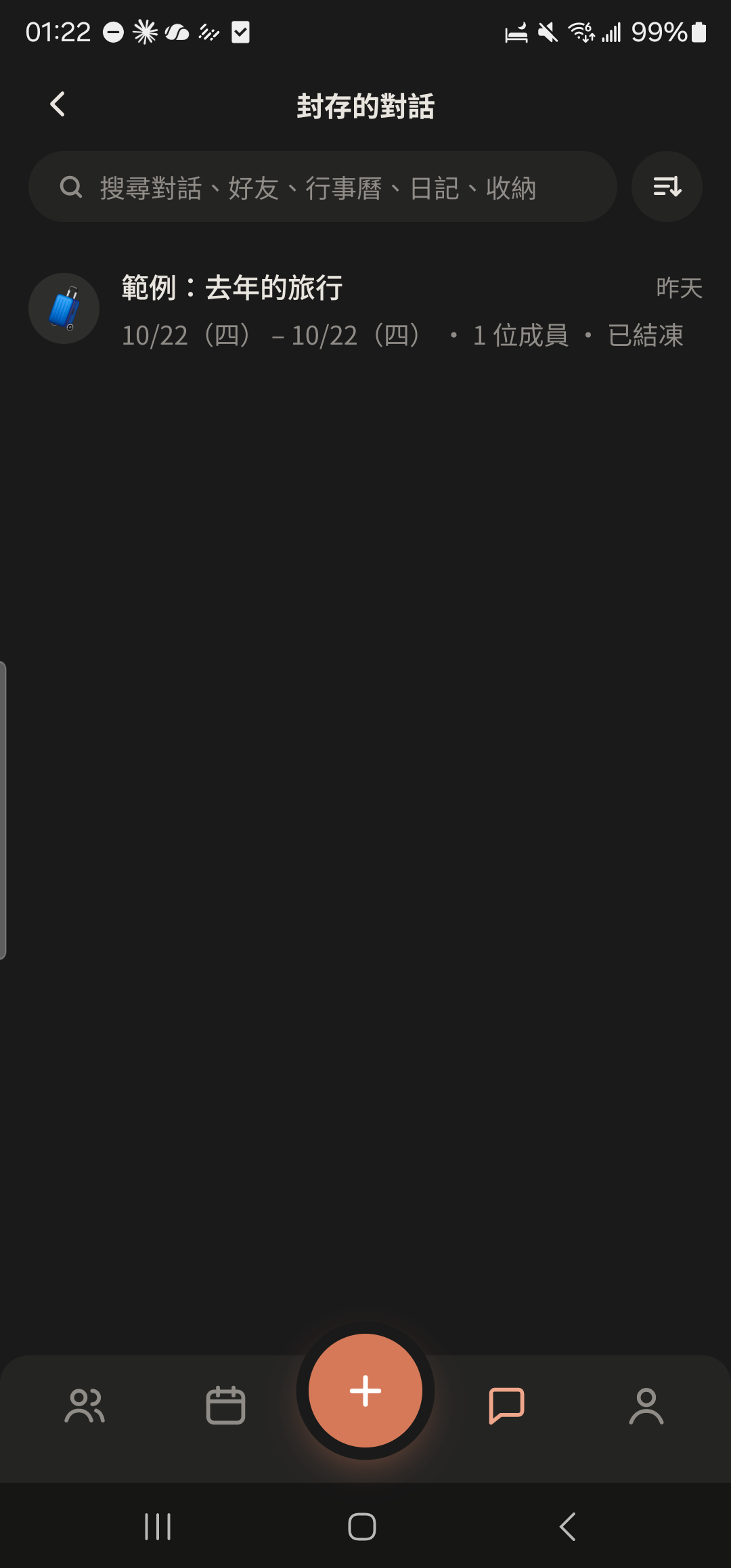
Tap the archive icon at the top right of the "Chats" tab to find Frozen projects.
- 4
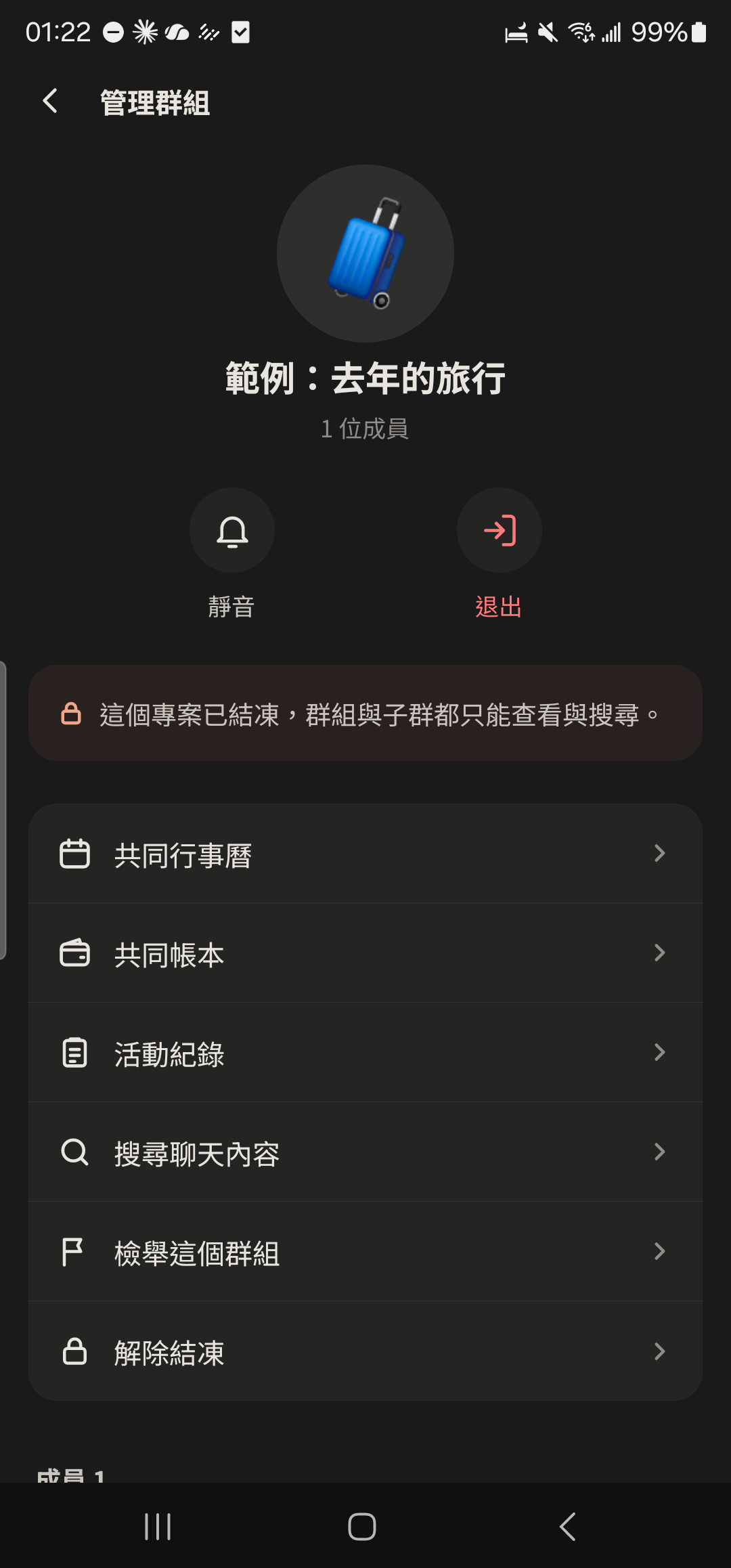
Tap "Unfreeze" (only the Main Group creator sees this) to let the Group send messages again.
Other guides
Individuals
Life on your own is worth keeping track of, too
Couples
Keep your days together in one place
Family and Parents
A family group that's easy for parents to use
Beauty Professionals
Bookings, client preferences, and income, all on one phone
Tennis and Badminton Buddies
Get a game together and split court fees without asking one by one
Event Organizers
Sign-ups, waitlists, check-ins, and payments, all in one go
Travelers
Trip costs, plans, and photos, all settled when you get home
Roommates
Rent, utilities, and chores, without the awkwardness
Student Clubs and Study Groups
Officer teams, event sign-ups, and a smooth end of semester
Wedding Planning
From countdown to reception, with clear roles, budget, and RSVPs
Pet Parents
Vaccines, meds, costs, and every day with your furry friend
Freelancers
Clients, schedules, and income: run your own business your way