 24h
24hJack's Shiba Inu, Mochi, turns three this year. Vaccine and deworming dates go on the Calendar with reminders, and daily meds are a repeating to-do to check off. "Days with Mochi" is pinned on the "Me" page, food and vet costs go under the "Pets" category in his Personal Ledger, and Mochi's photos live in the family group's Album.
Pet Parents
Vaccines, meds, costs, and every day with your furry friend
Features you'll use
Days together
- 1
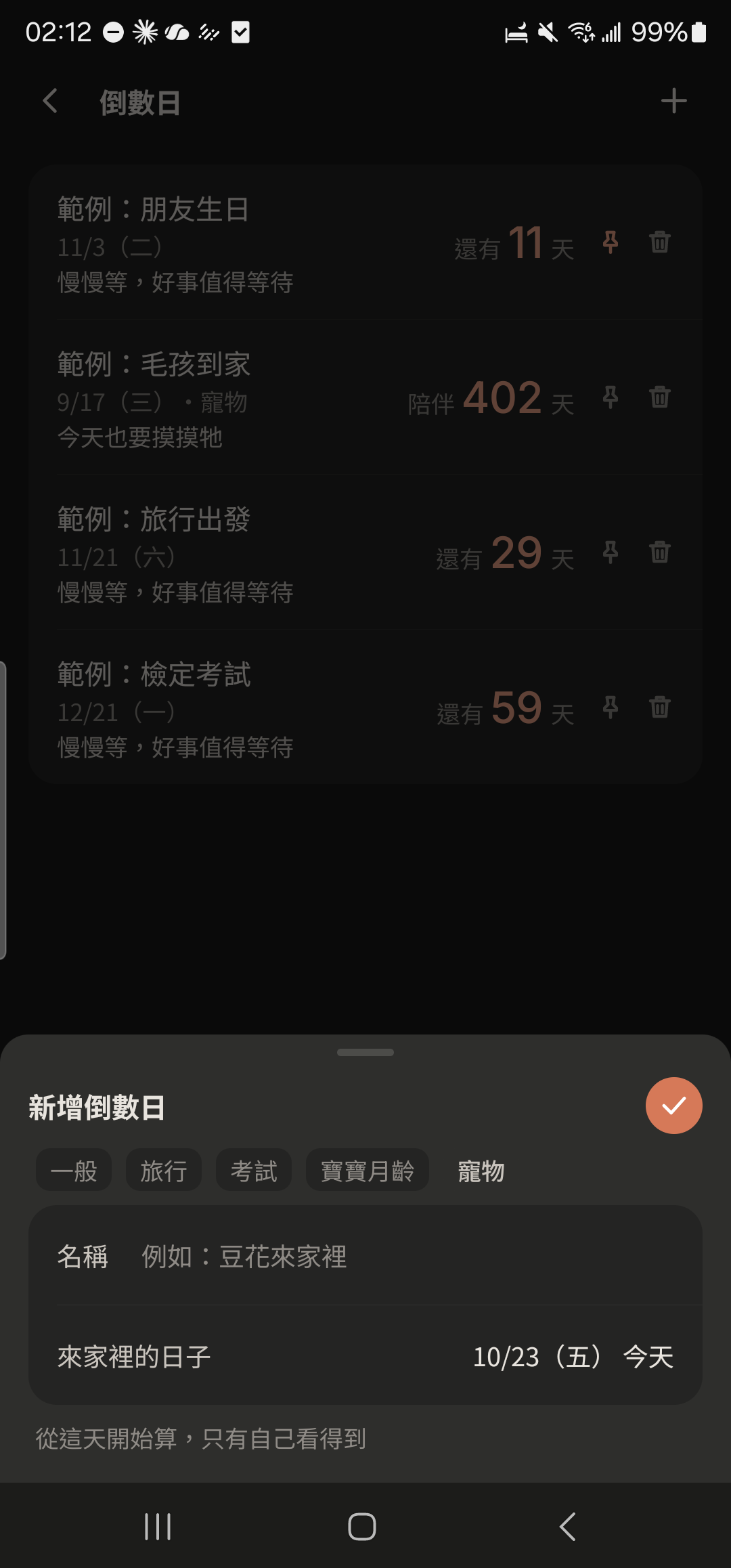
Tap "Countdowns" in "Me", then tap + at the top right.

- 2
Choose the "Pet" template, enter a name, and pick the day your pet came home.
- 3
Tap the pin icon on the right, and "Days together" shows on the "Me" page.
Screenshot comingPet countdown showing days together
Daily meds check-in
- 1
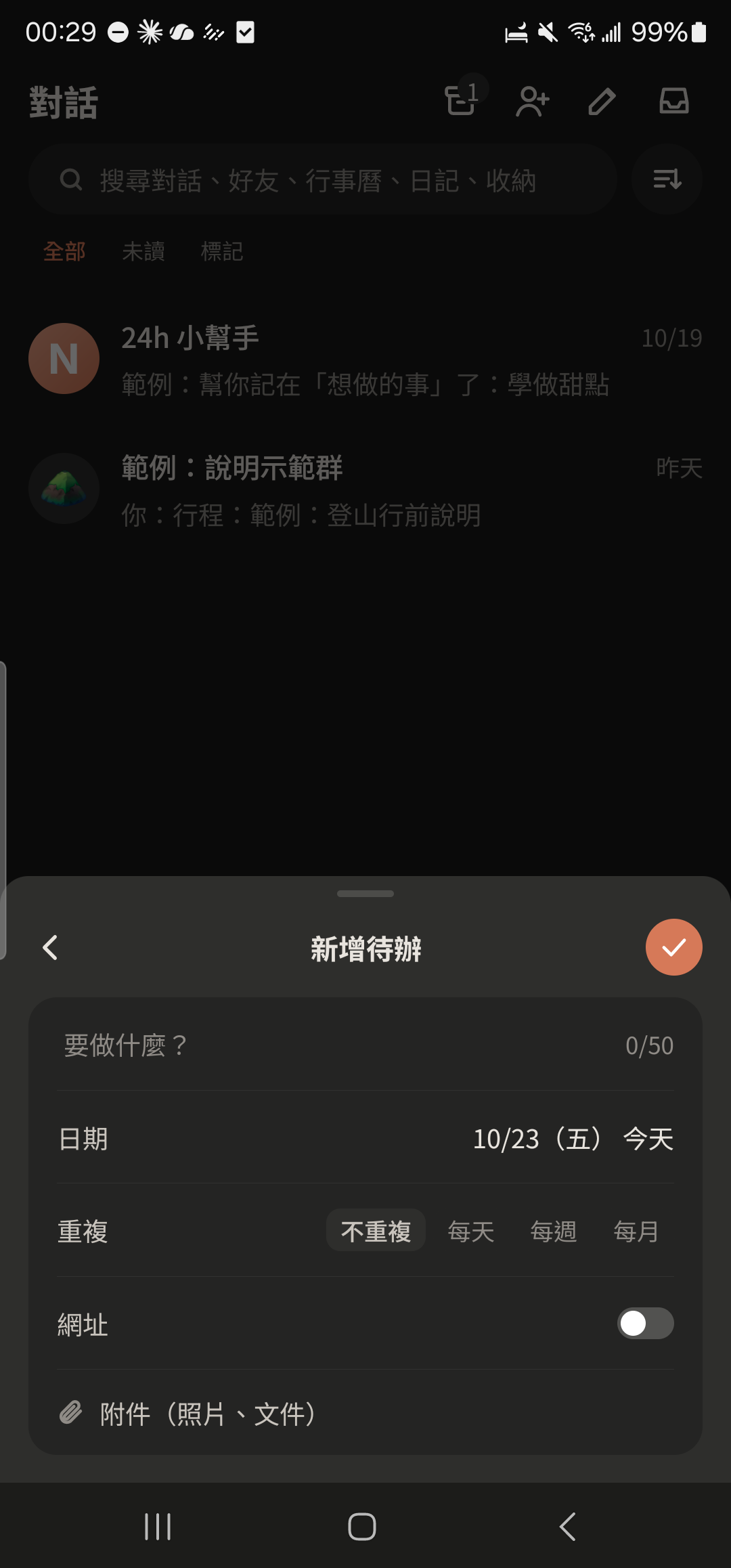
Tap + at the bottom center, choose "To-do", and enter "Mochi's meds".

- 2
Tap "Repeat", choose "Daily", and save.
- 3
Tap the to-do to check it off (after each day's meds). The small circle on the right fills in.
Vaccine and vet visit reminders
- 1
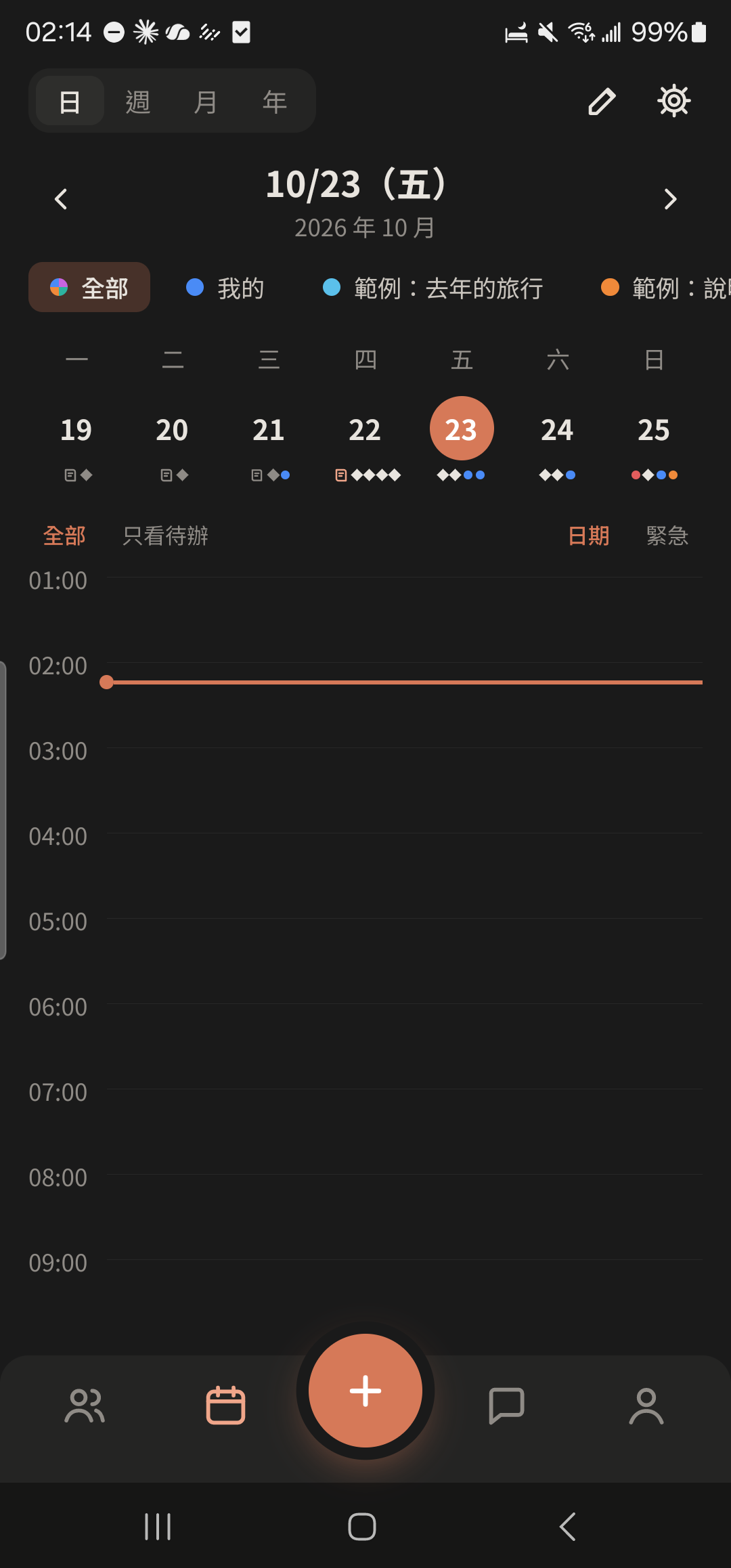
Tap the + at the bottom center and choose "Event".

- 2
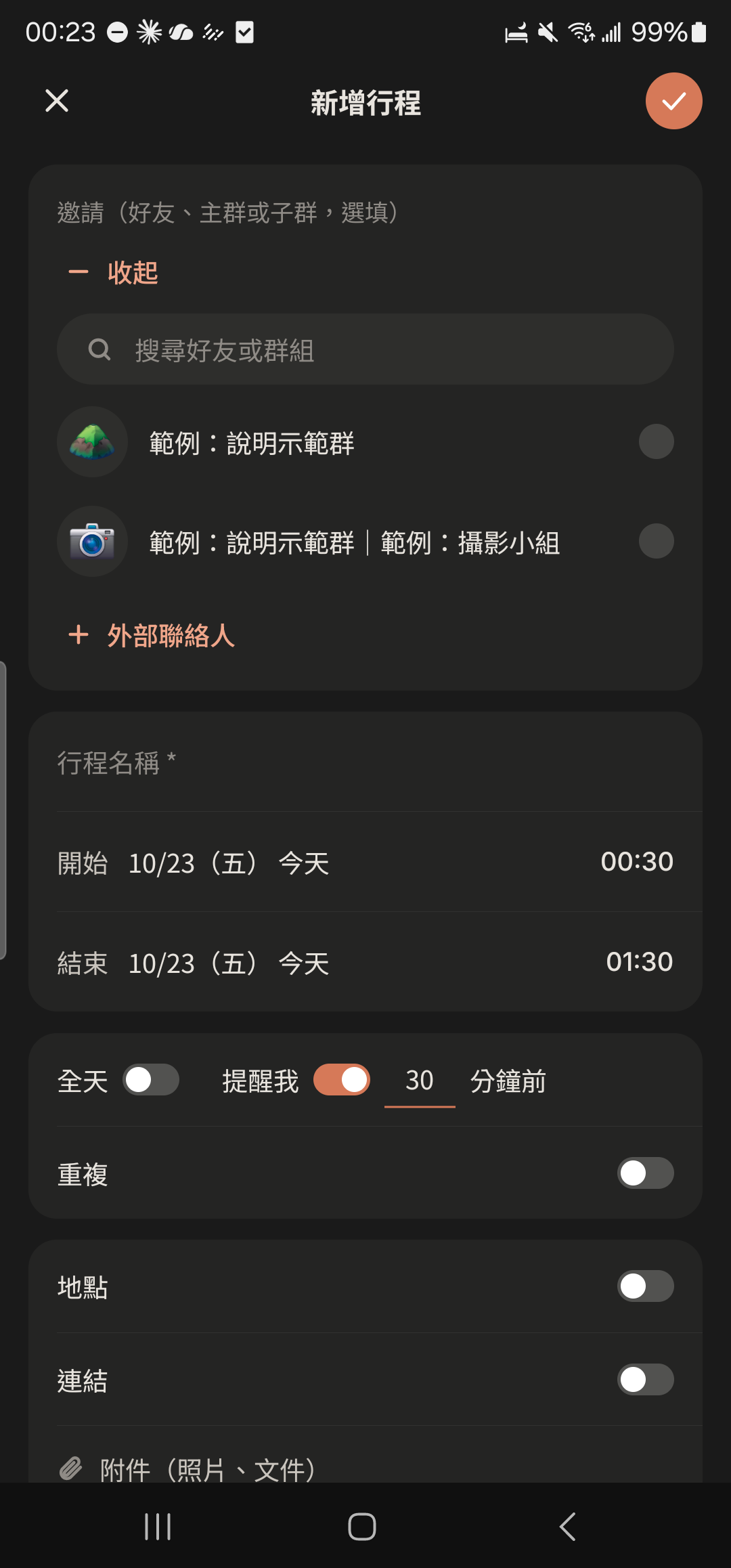
Tap "Invite" in the first row and choose friends, Groups, or Subgroups.
- 3
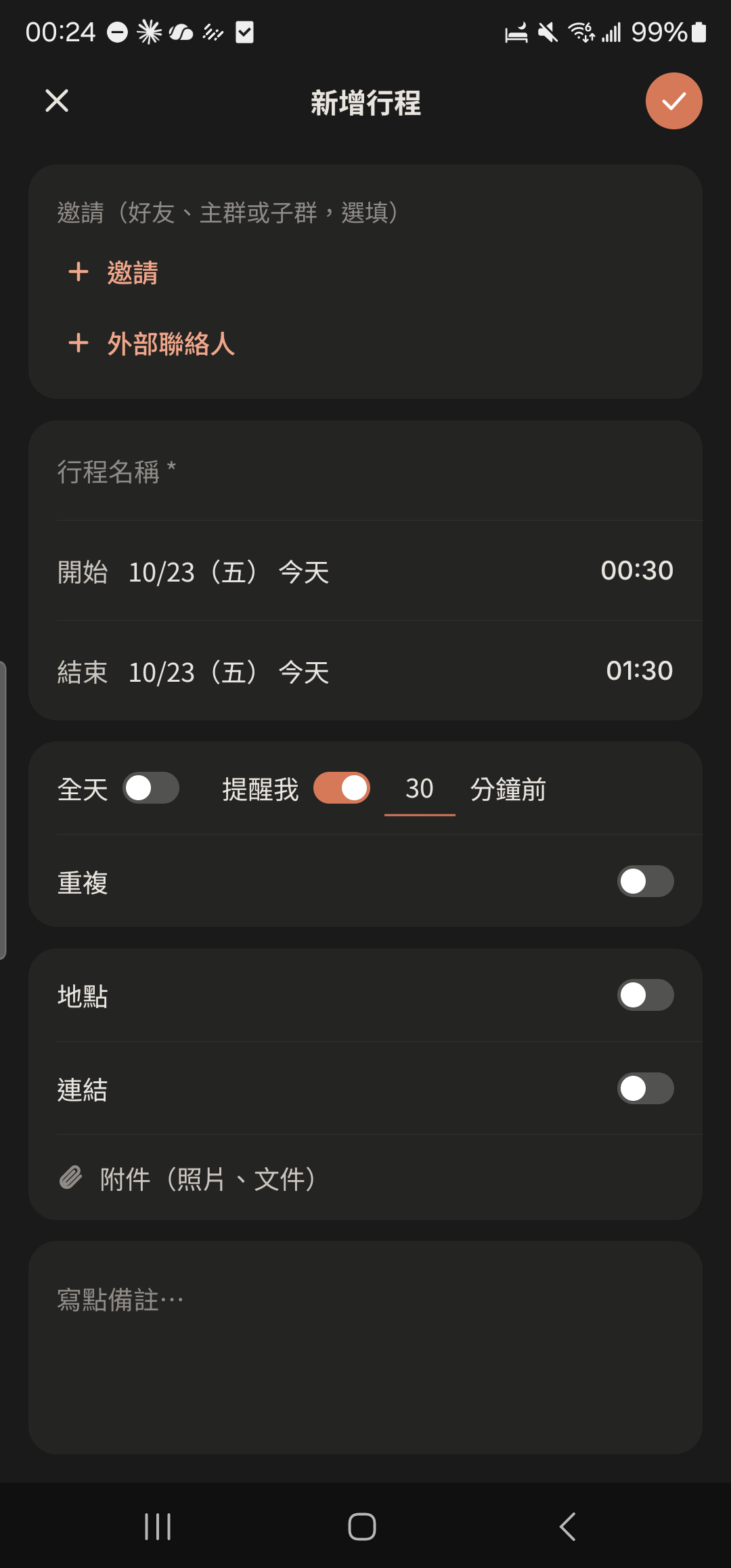
Enter the Event name and choose the start and end dates and times.
- 4
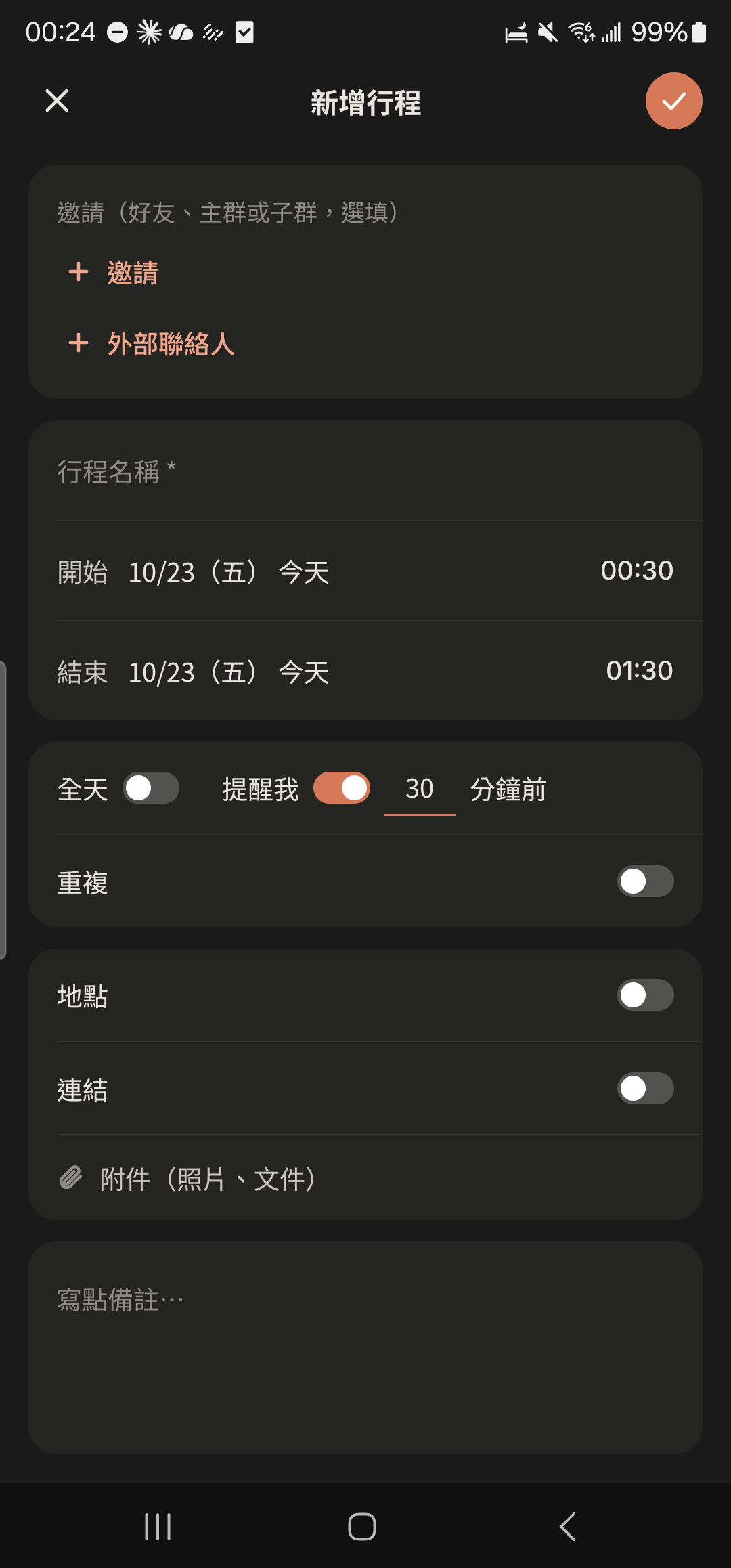
Choose "Remind Me" and "Repeat" (daily, weekly, monthly), and turn on "Location" or "Link" if needed.
- 5
Tap the check mark at the top right to save. They'll get an invite card in the chat, and once they tap "Accept Invite", you're all set.
Screenshot comingEvent invite card in a chat, "Accept Invite" highlighted
Track pet expenses
- 1
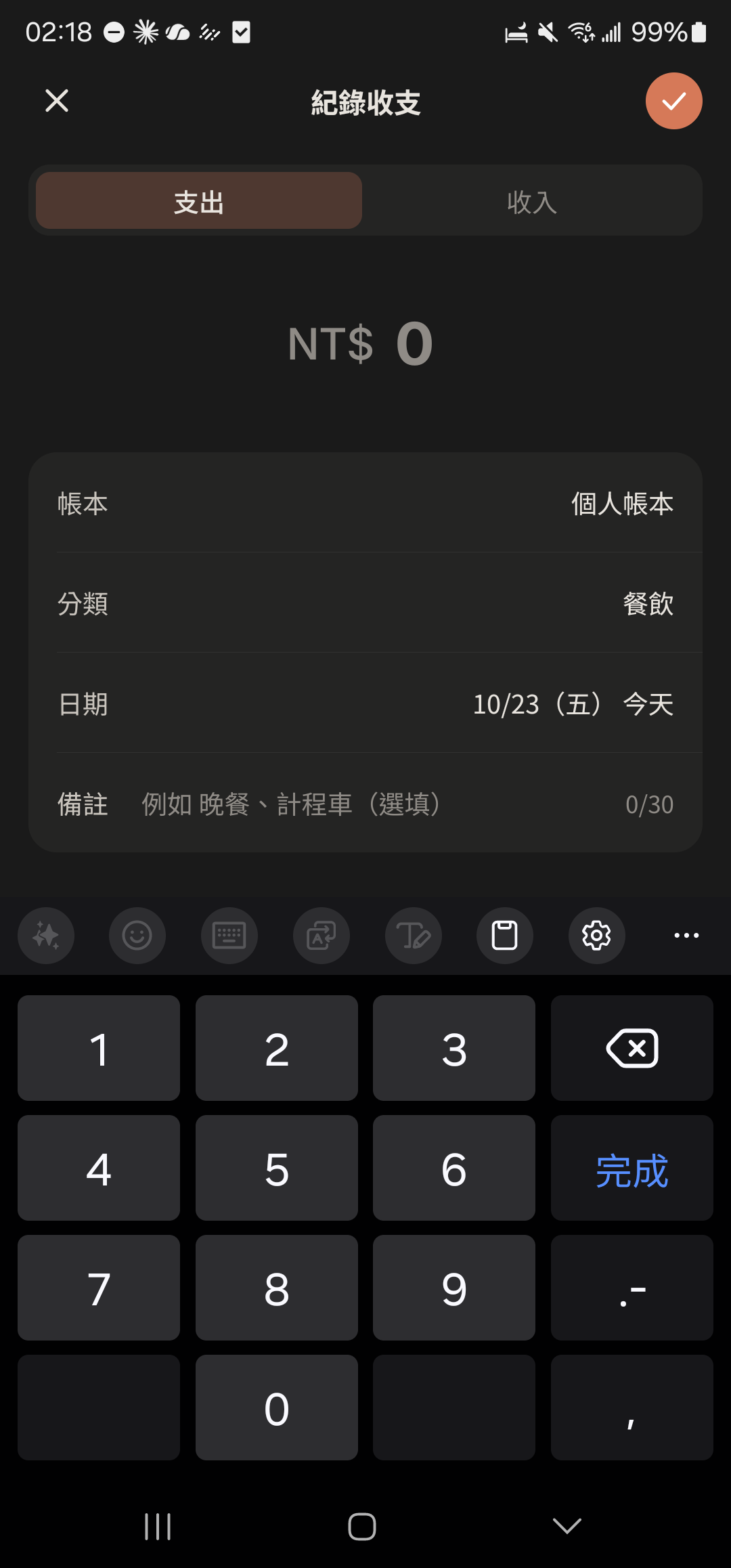
Tap the + at the bottom center and choose "Expenses".
- 2
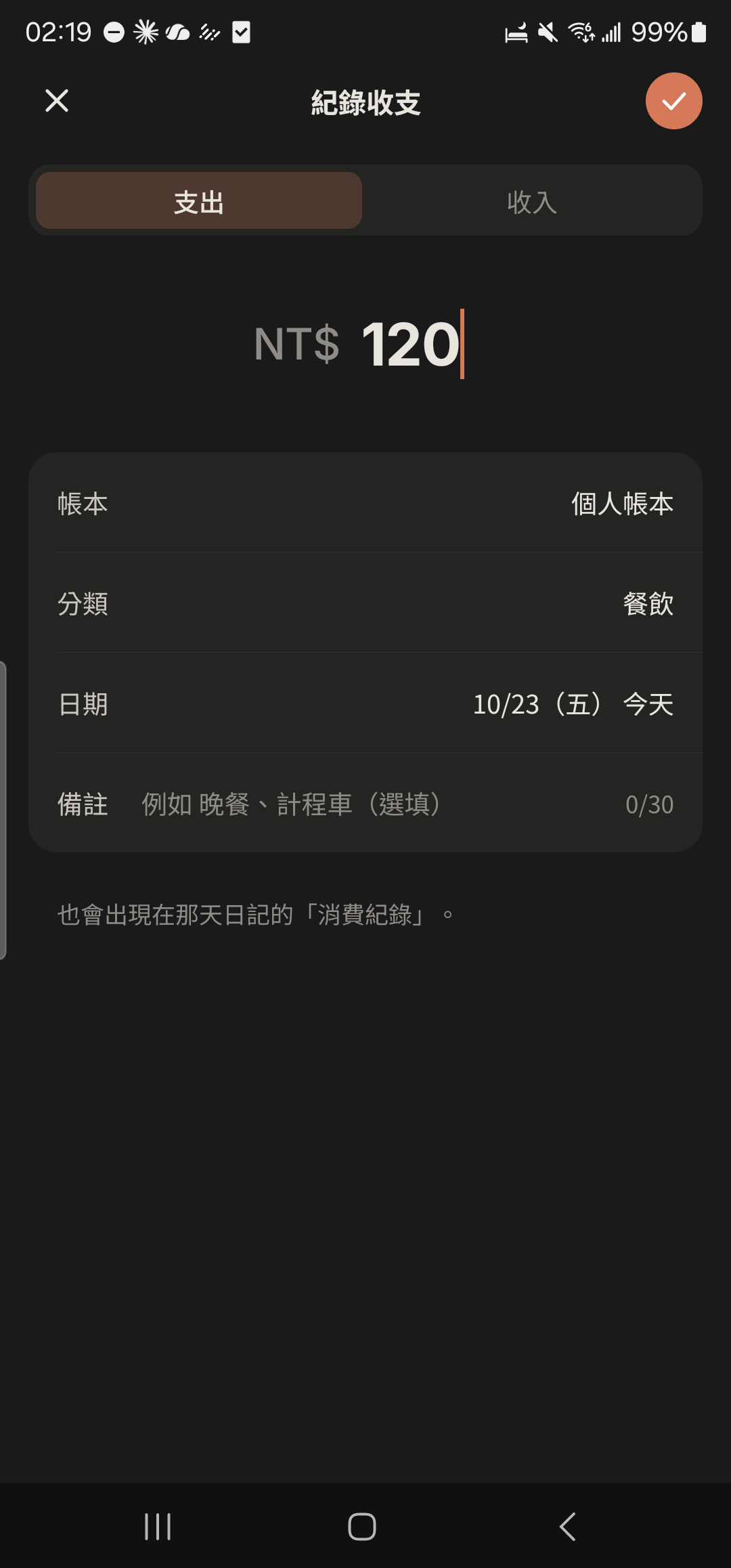
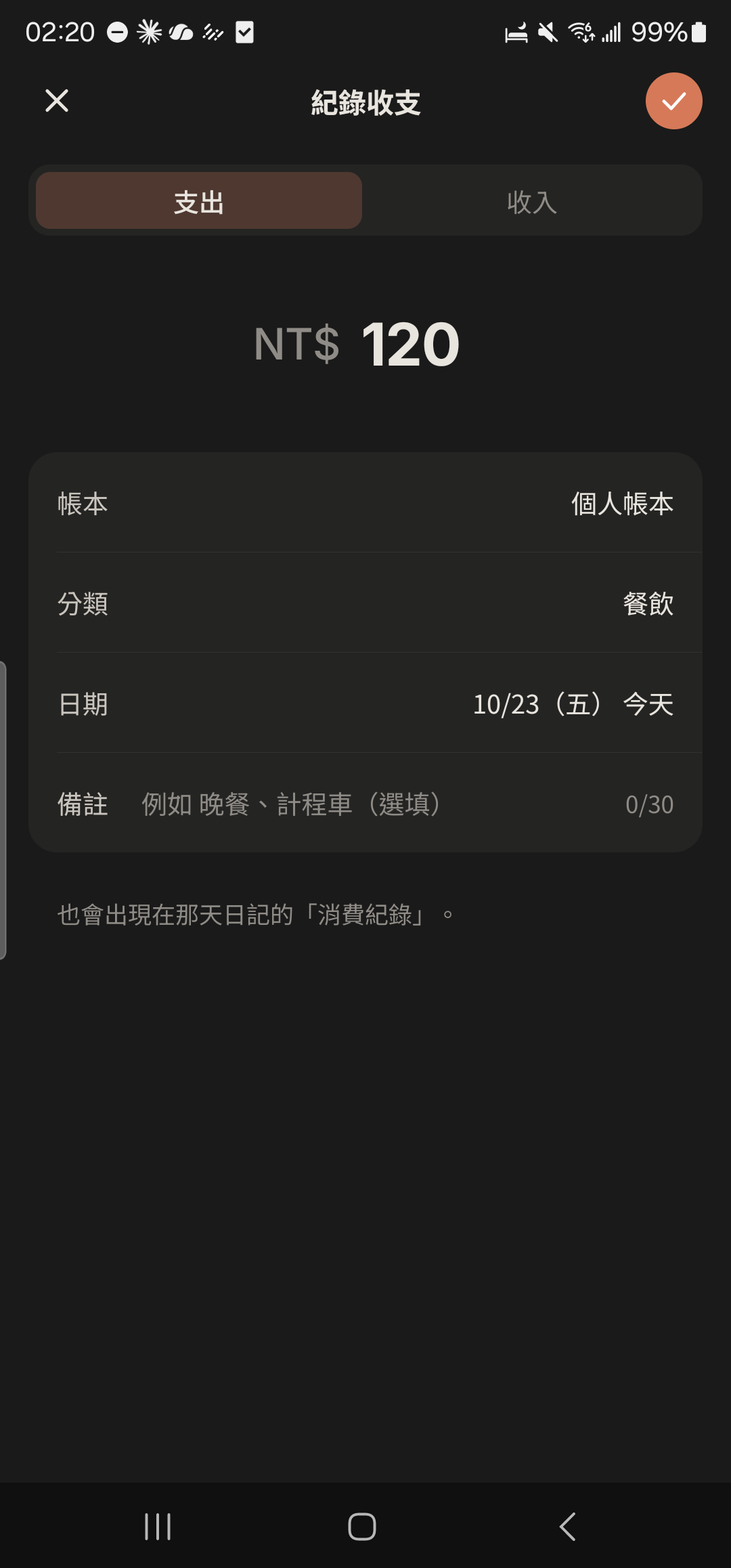
Choose "Expense" or "Income", enter the amount, and choose a category (or type a new one).
- 3
Tap the check mark at the top right to save.
- 4
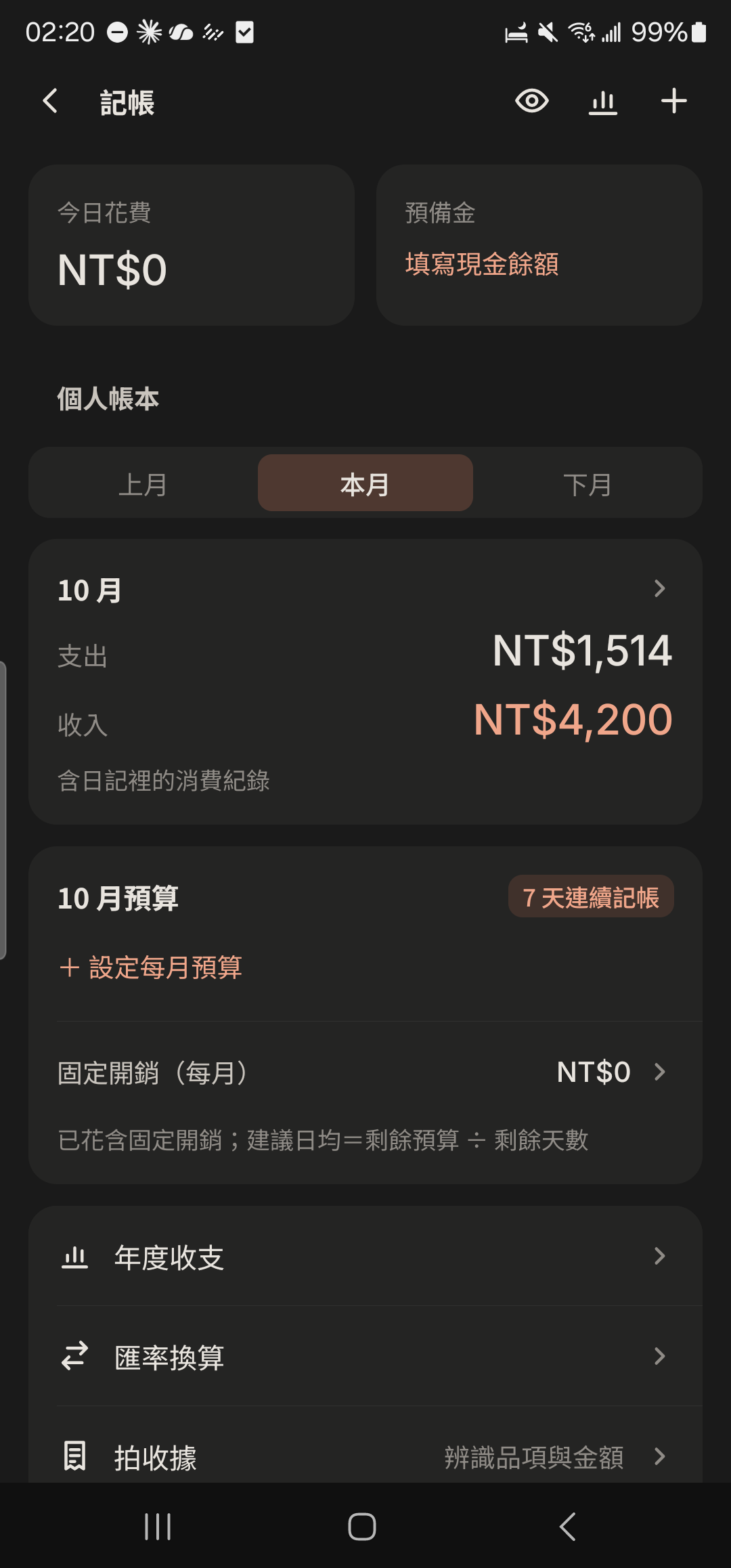
Tap "Expenses" in "Me", then tap "+ Set Monthly Budget".
- 5
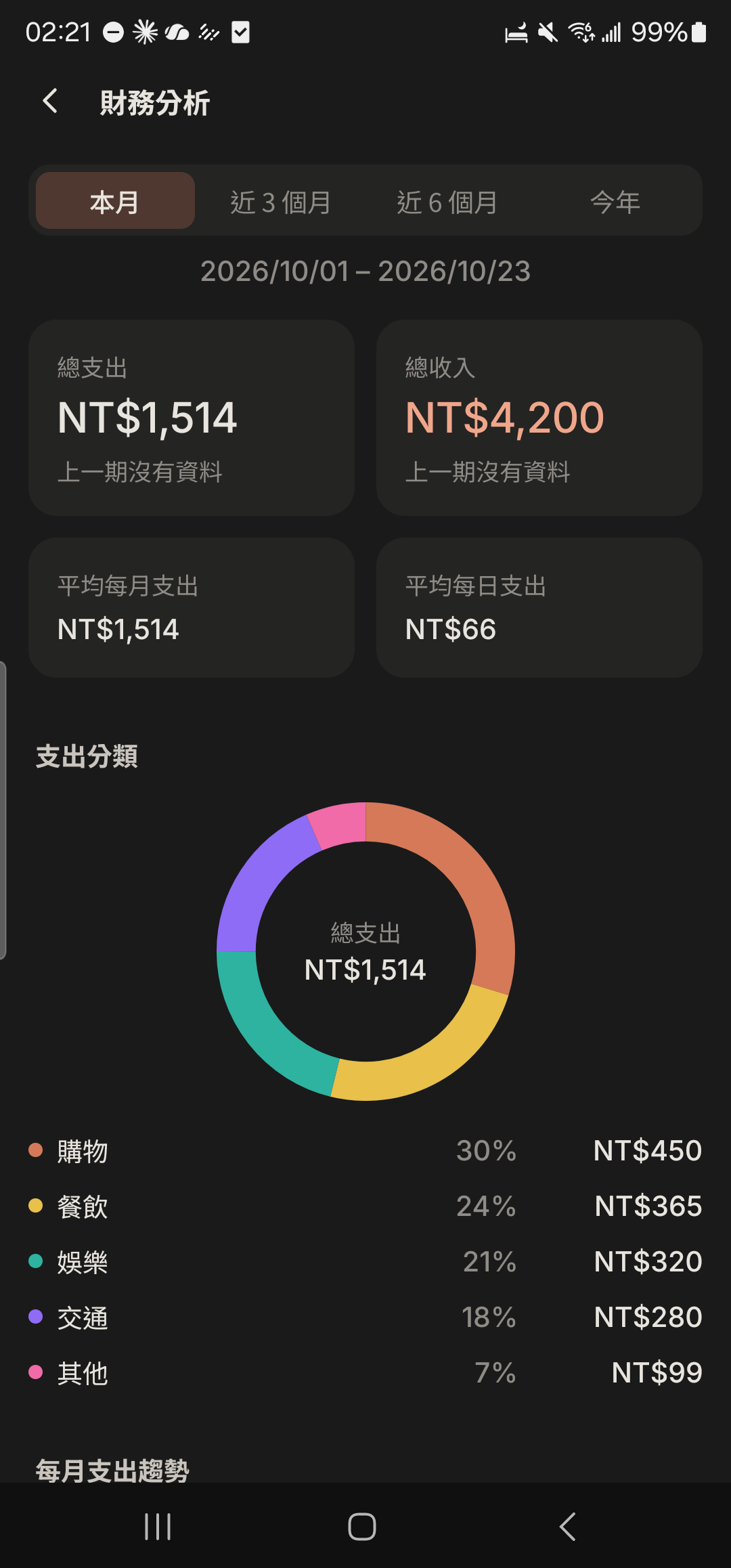
Tap the "Analysis" icon at the top right of the Expenses home screen to switch between the "Finances", "Yearly", and "Monthly Net Worth Report" tabs.
Pet Album
- 1
Tap the + at the top right of the Album screen.
Screenshot comingAlbum screen, + at the top right highlighted - 2
Choose photos or videos, up to 9 at a time (each video up to 5 minutes long).
Screenshot comingPhoto and video picker - 3
Tap the agree button for the Community Guidelines (this only appears before your first upload).
Screenshot comingCommunity Guidelines agreement window - 4
Tap the photo you just uploaded in the Album to make sure the upload is complete.
Screenshot comingAlbum grid after uploading
Other guides
Individuals
Life on your own is worth keeping track of, too
Couples
Keep your days together in one place
Family and Parents
A family group that's easy for parents to use
Theater and Production Crews
One show, one group, with every team in its own lane
Beauty Professionals
Bookings, client preferences, and income, all on one phone
Tennis and Badminton Buddies
Get a game together and split court fees without asking one by one
Event Organizers
Sign-ups, waitlists, check-ins, and payments, all in one go
Travelers
Trip costs, plans, and photos, all settled when you get home
Roommates
Rent, utilities, and chores, without the awkwardness
Student Clubs and Study Groups
Officer teams, event sign-ups, and a smooth end of semester
Wedding Planning
From countdown to reception, with clear roles, budget, and RSVPs
Freelancers
Clients, schedules, and income: run your own business your way