 24h
24hMay set up 24h for her parents and created a group called "Our Family." Photos of the grandkids go into the Album, so they never expire. Her dad has trouble reading small text, so he turned on Care Mode for bigger text and bigger buttons. Her mom isn't used to typing, so she just holds to talk and sends a voice message. Seeing the Mood Bubbles on everyone's profile pictures each day, May knows how everyone is doing.
Family and Parents
A family group that's easy for parents to use
Features you'll use
- Family group
- Save photos to the Album
- Care Mode
- Voice messages
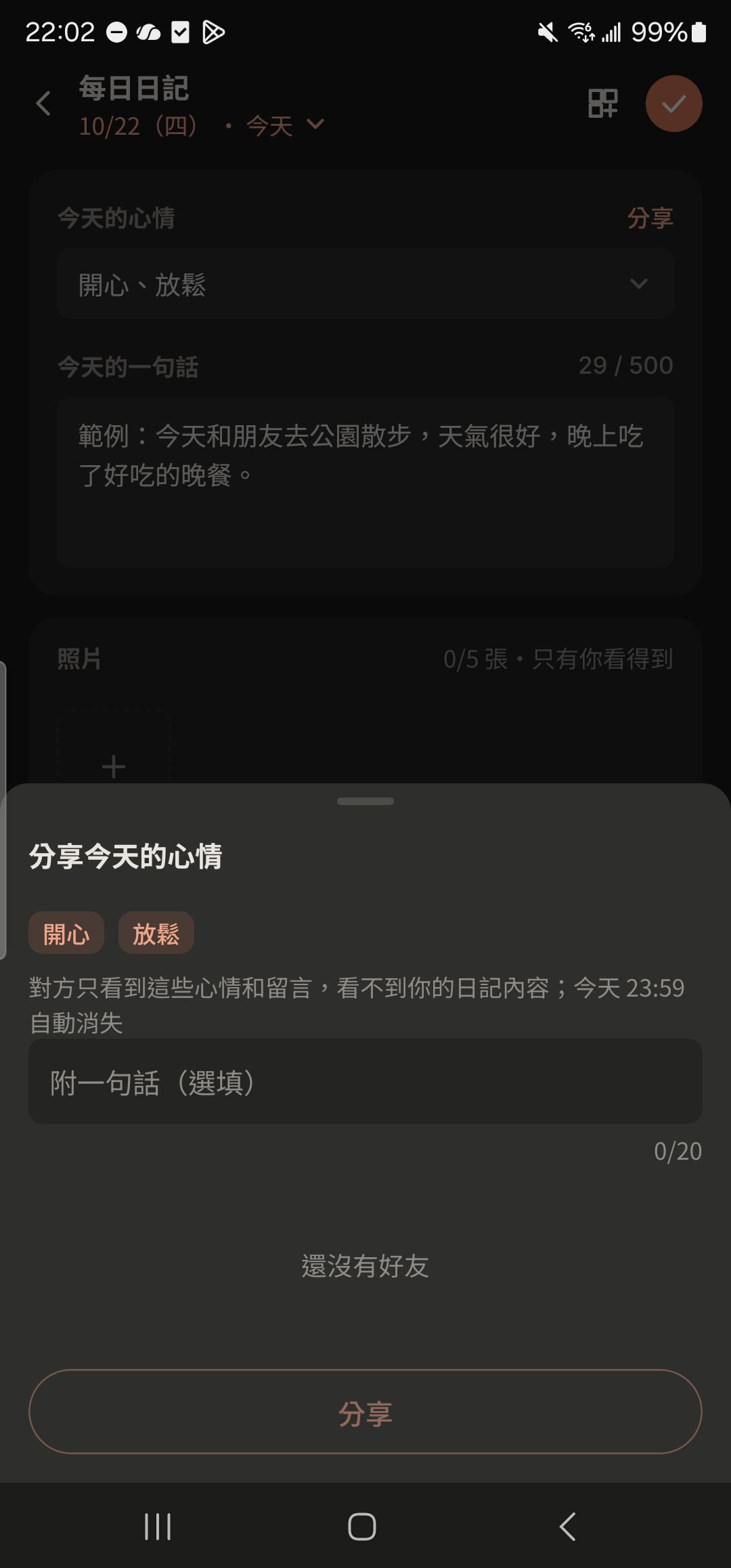
- Today's Mood
- Give your parents a Pro gift card (Coming Soon)
- Massage for your parents
Family group
- 1
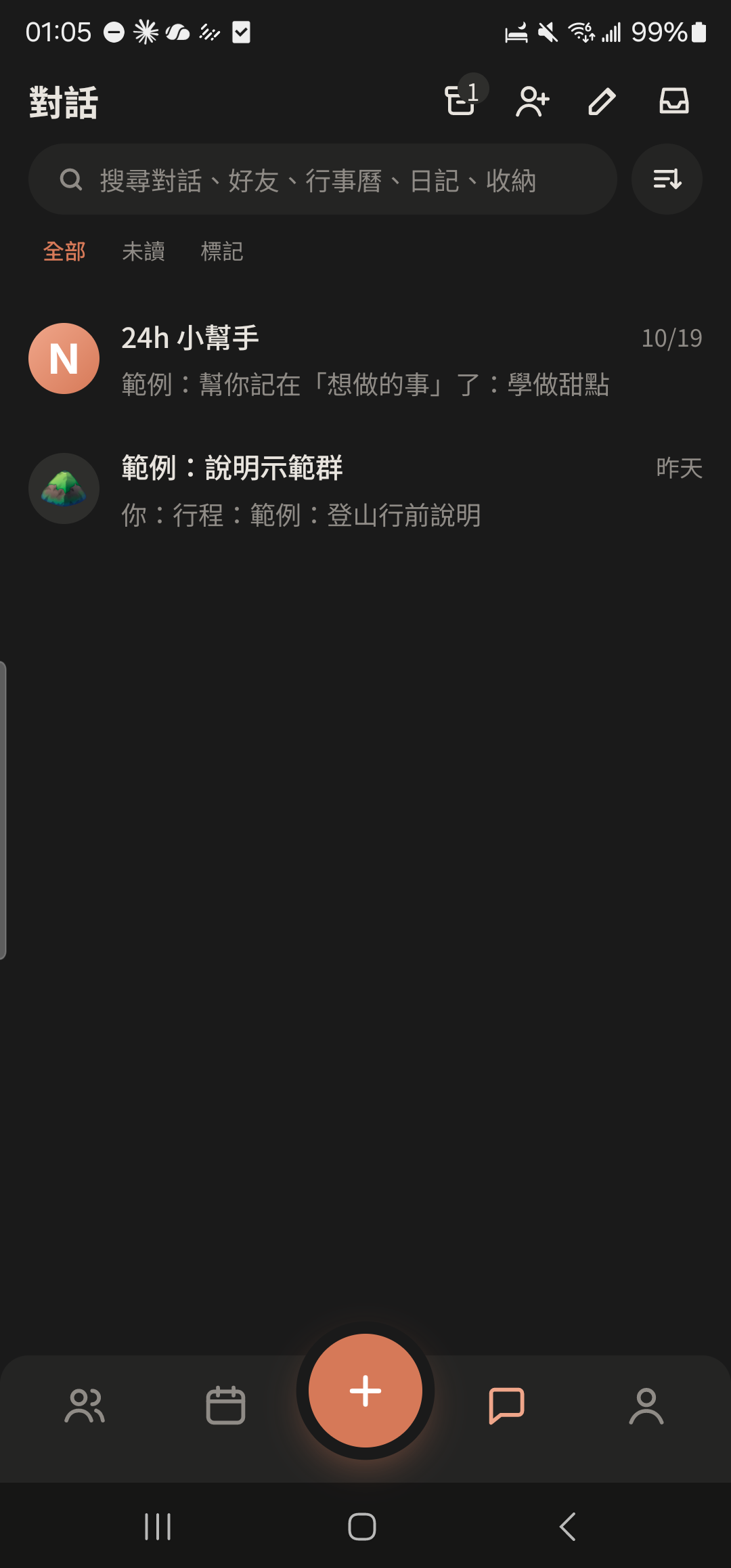
Tap the create group icon at the top right of the "Chats" tab.
- 2
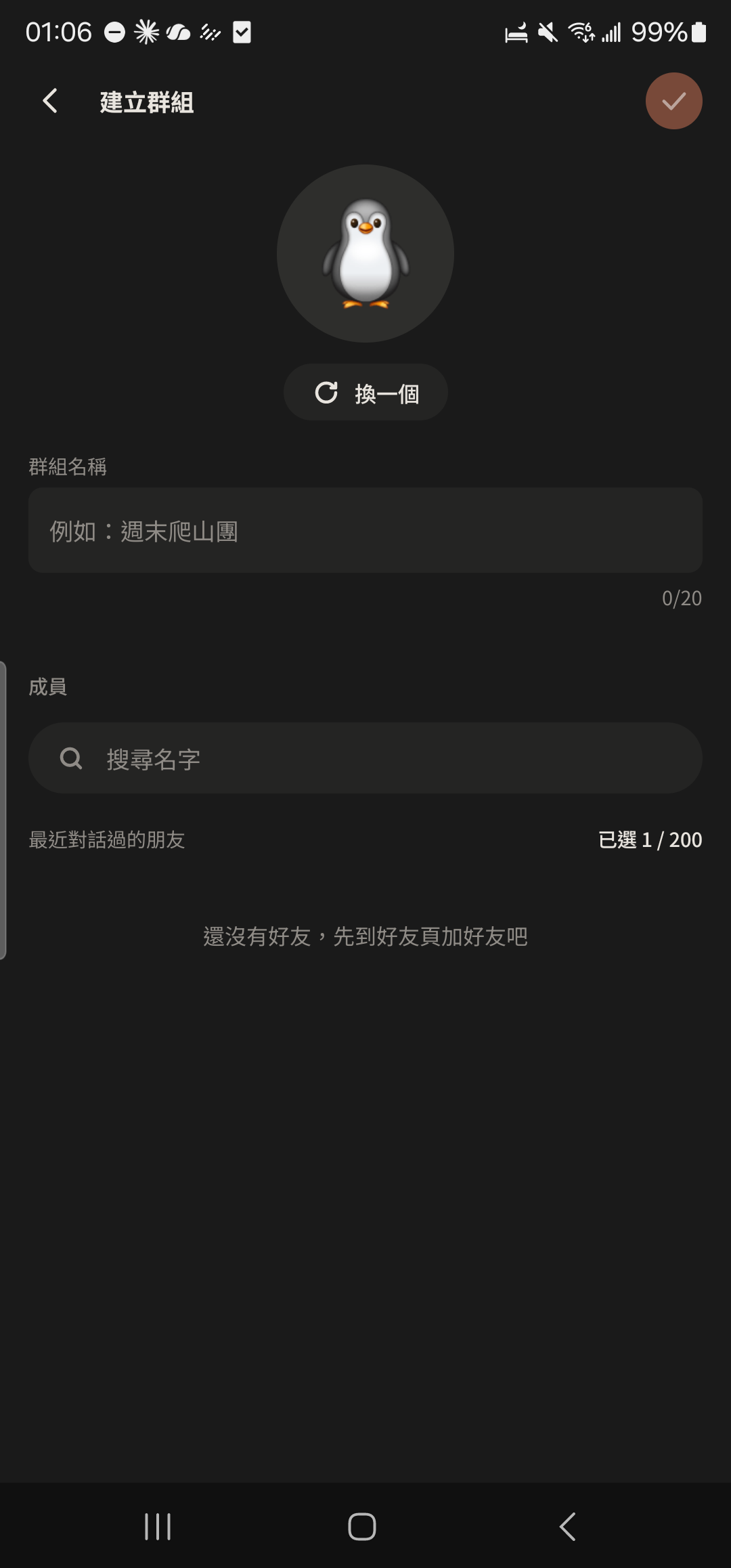
Enter a group name, such as "Weekend Hiking Crew".
- 3
Choose friends to add (you can create the Group even if you have no friends yet), then tap "Create" at the top right.
Screenshot comingCreate Group screen with a few friends selected - 4
In the "Your group is ready. Invite some members!" menu, choose "Share invite link", "Show QR Code", or "Choose from friends".
Screenshot comingInvite menu: Share invite link, Show QR Code, Choose from friends
Save photos to the Album
- 1
Press and hold a photo, video, or voice message in a chat.
Screenshot comingPressing and holding a photo message - 2
Choose "Save to Album".
Screenshot comingPress-and-hold menu, "Save to Album" highlighted - 3
Tap the "Album" button at the top to see the photo you just saved.
Screenshot comingNewly saved photo in the Album
Care Mode
- 1
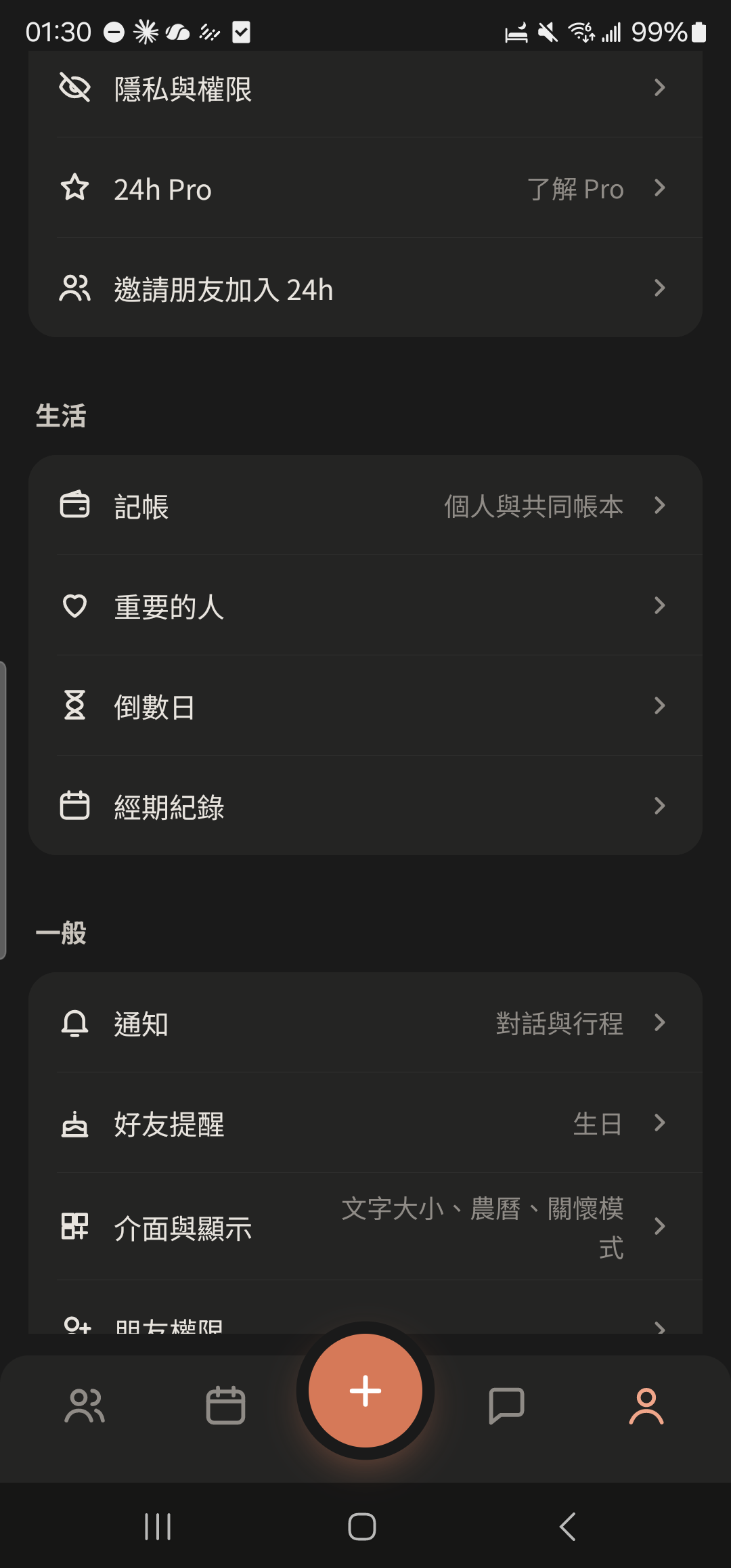
Tap "Display" in "Me".
- 2
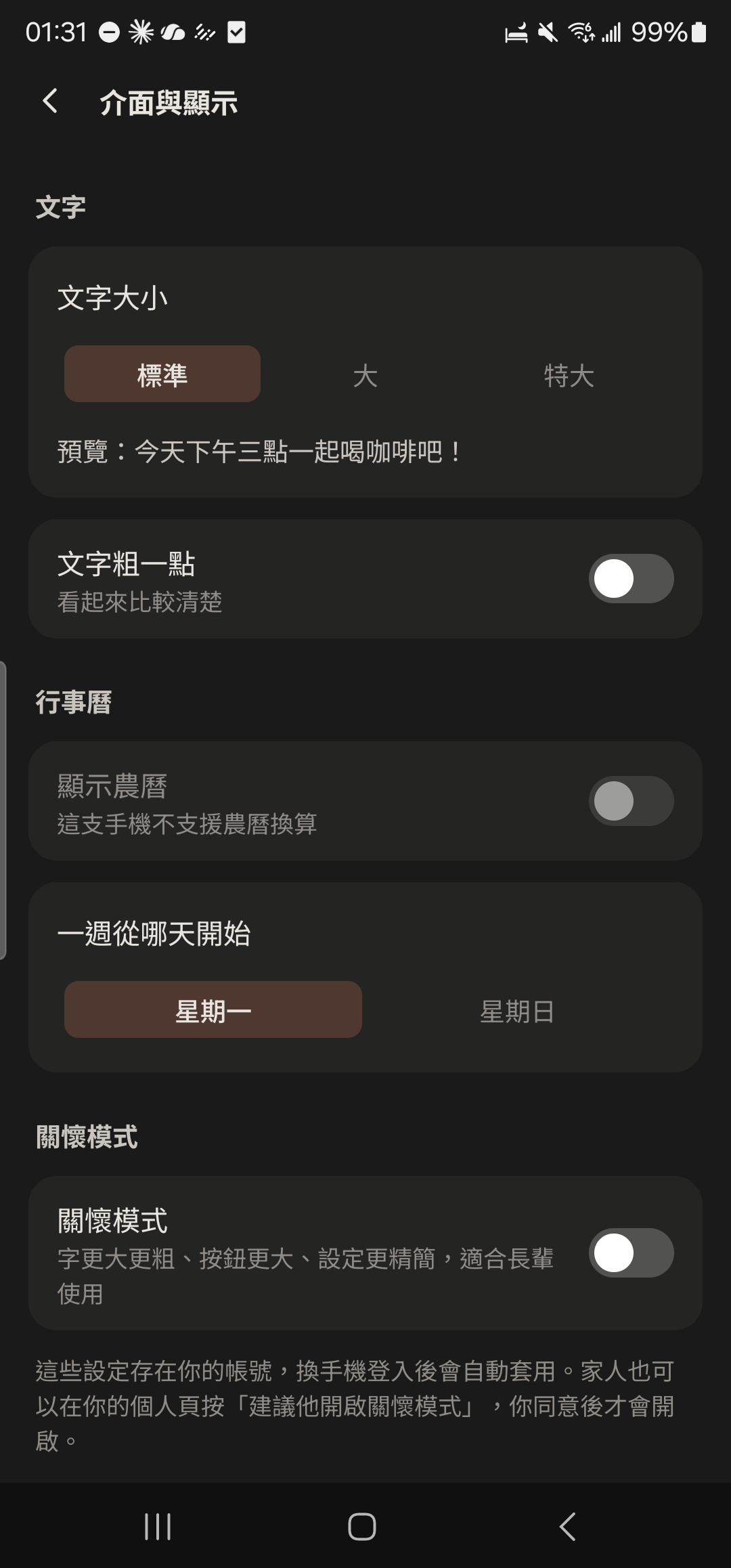
Tap the "Care Mode" switch. Text becomes extra large, buttons get bigger, and "Me" keeps only the 6 most-used items.
- 3
Choose whether to turn on the Morning Greeting and life reminders for drinking water, taking medicine, and going to bed early.
Screenshot comingCare Mode life reminder settings - 4
Tap "Agree & turn on" at the top of "Me". This card appears after a family member taps "Suggest Care Mode" on your profile.
Screenshot comingCare Mode invitation card at the top of "Me"
Voice messages
- 1
Tap the voice button on the left of the input bar. The input box turns into "Hold to Talk".
Screenshot comingChat input bar, voice button on the left highlighted - 2
Press and hold "Hold to Talk" while you speak, and let go to send right away. To cancel, keep holding and slide up until you see "Release to cancel", then let go.
Screenshot comingHold to Talk screen showing the recording time and sound waves - 3
To preview before sending: tap the ⊕ on the right of the input bar, choose "Record", then tap "Preview" to check it and tap "Send".
Screenshot coming⊕ feature panel, "Record" highlighted - 4
Choose "Voice + Text" or "Voice to text" in the ⊕ feature panel to turn what you say into text.
Screenshot coming⊕ feature panel, "Voice + Text" and "Voice to text" highlighted
Today's Mood
- 1
Tap "Write Diary" on that day in the "Calendar", or tap + and choose "Diary".
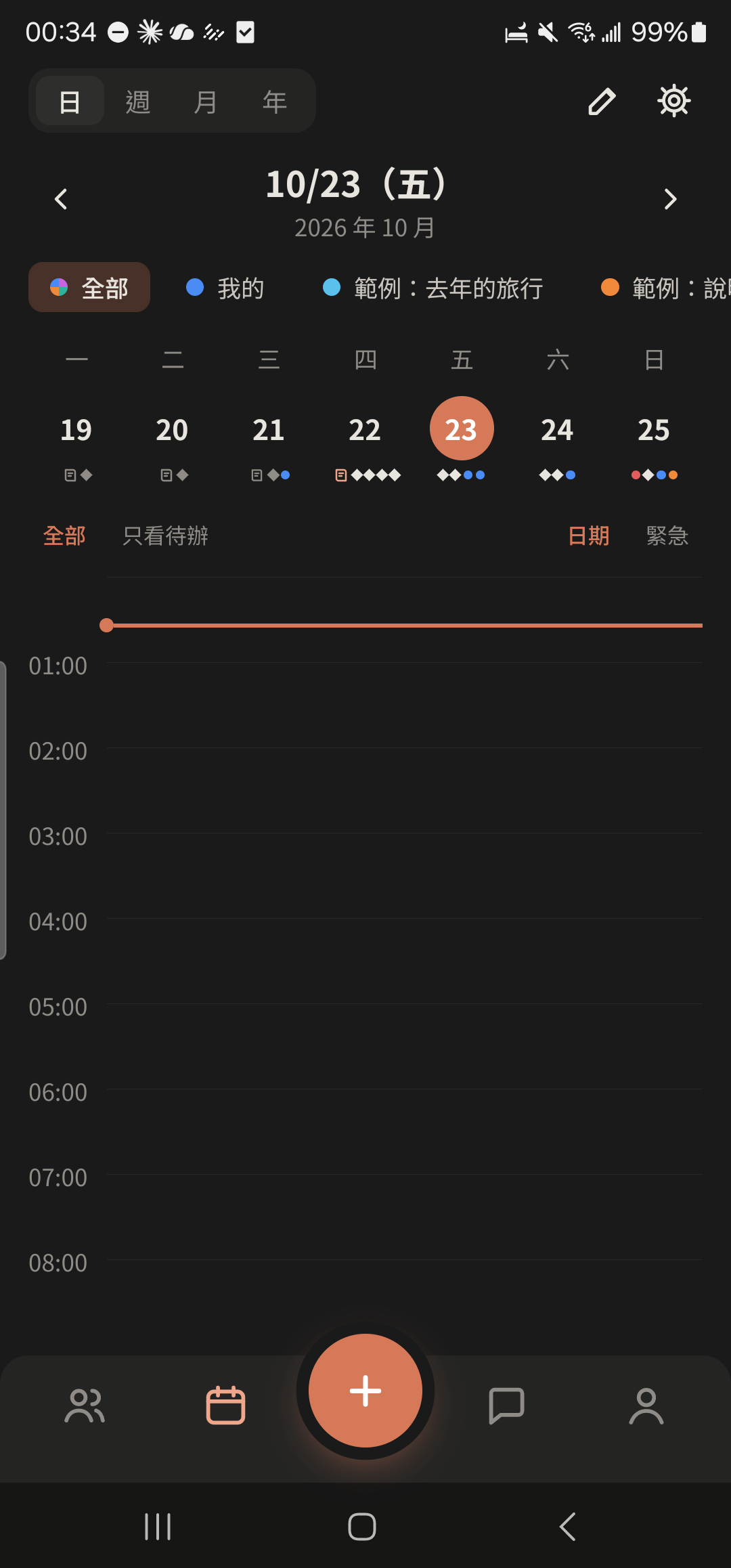
- 2
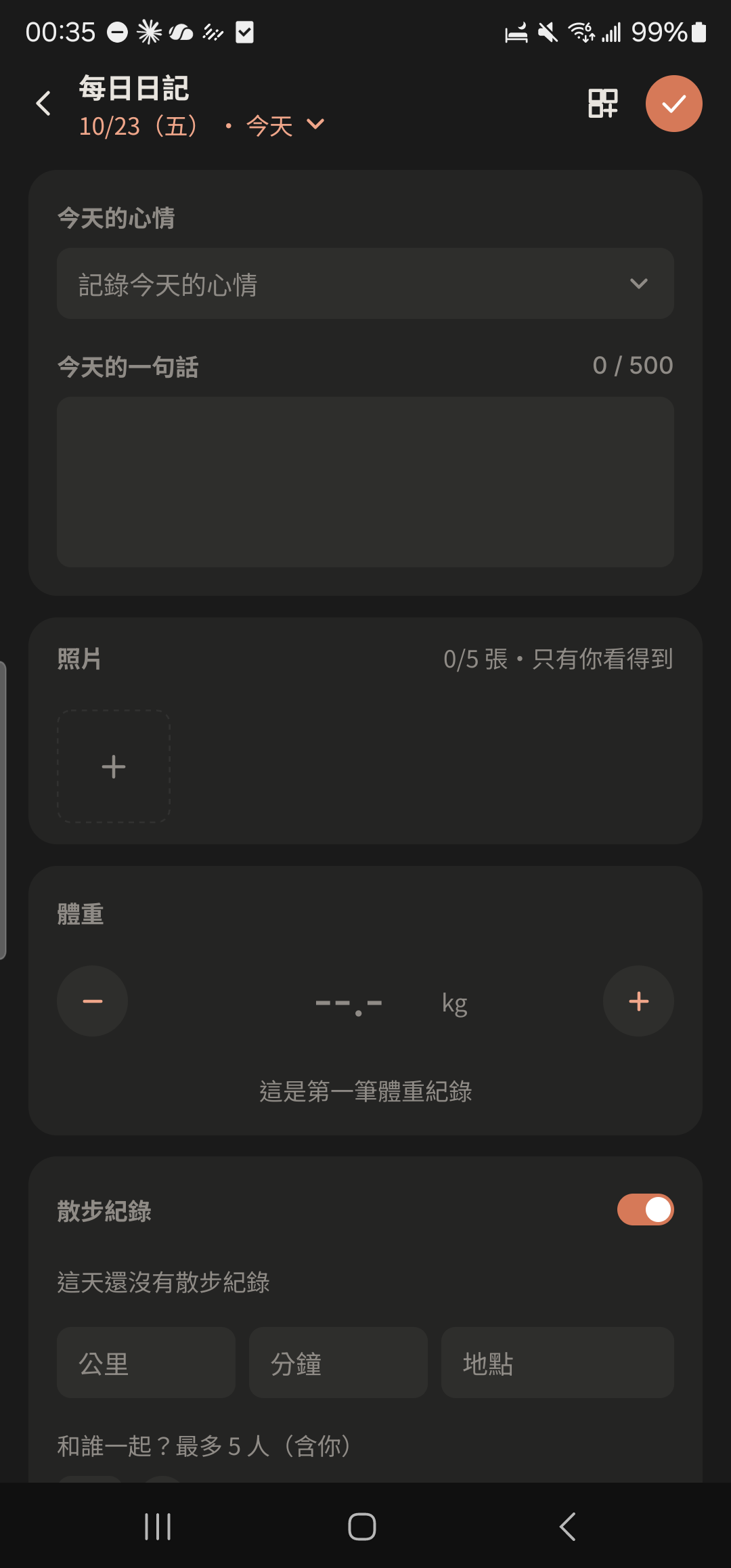
Tap "Today's Mood" and choose from three groups: sunny, cloudy, and rainy (you can pick more than one).
- 3
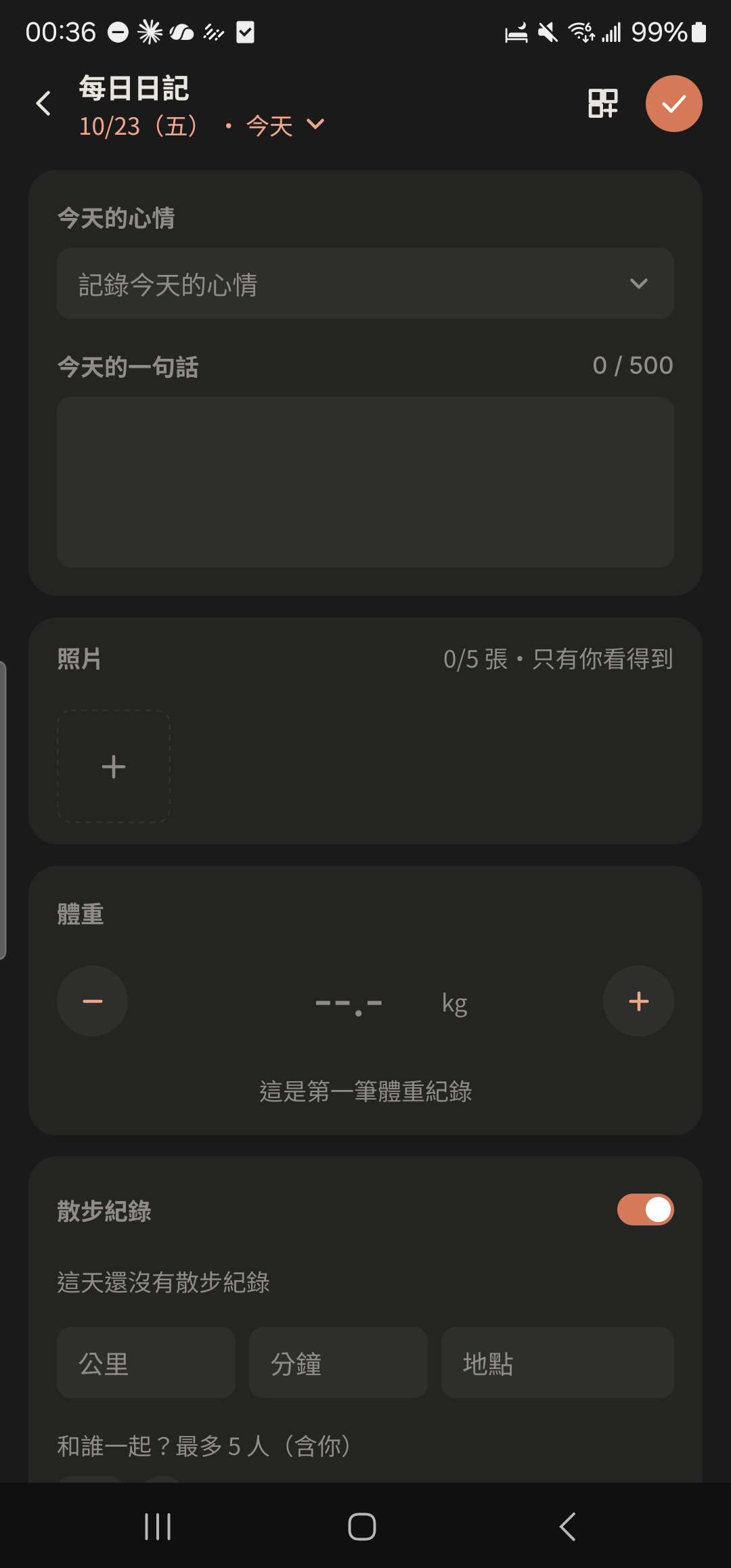
Enter "Today's quote", and log your weight, BBT, walk, or spending if you like.
- 4
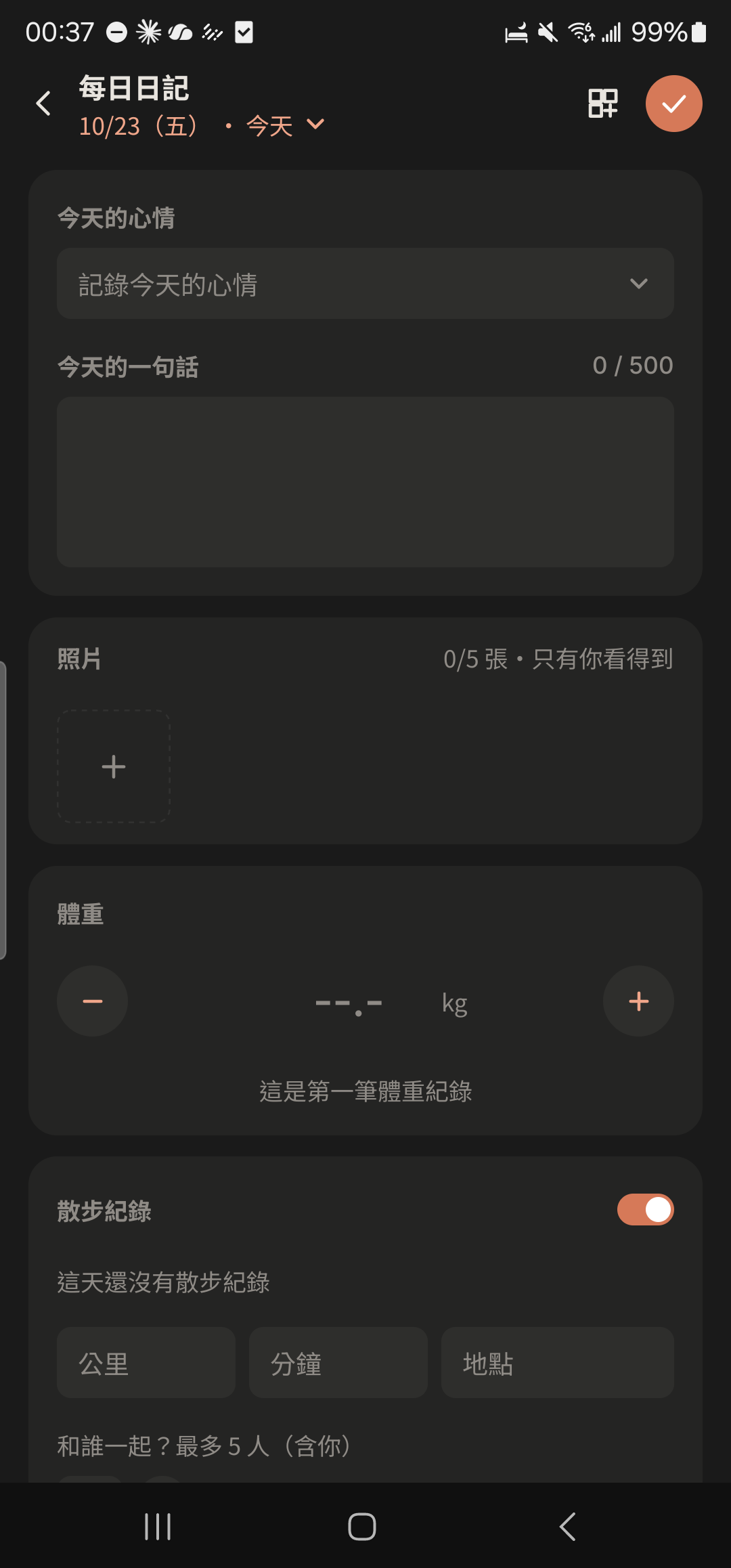
Just tap back to leave. Your Diary saves automatically when you stop typing.
- 5
Tap "Share" and choose Close Ones or friends. They'll see a Mood Bubble on your profile photo, which disappears automatically at 23:59 that day.
Give your parents a Pro gift card Coming Soon
This feature is coming soon and isn't available yet. Here's how it will work once it launches; the actual screens in the app may differ.
- 1
Tap Gift Cards on the Pro screen, choose "Pro 3 months" or "Pro 1 year", and buy it.
Screenshot comingGift Card section on the Pro screen - 2
Tap "Gift Cards I Bought" and tap share to send the code to them.
Screenshot comingGift Cards I Bought list - 3
The recipient enters the 12-character code on the Pro screen and taps "Claim" to activate it.
Screenshot comingGift Card code entry screen
Massage for your parents
- 1
In the Assistant, tap the ⊕ on the right of the input bar and choose "Massage" under "Relax".
Screenshot coming"Relax" in the ⊕ feature panel: Breathing, Meditation, Massage - 2
Choose the area you want to relax: neck and shoulders, head and temples, around the eyes, hands and wrists, lower back, or calves and soles of the feet.
Screenshot coming"Where do you want to relax?" area selection, each tile with an illustration and approximate minutes - 3
Choose who's getting the massage: Me, Partner, or Family Elders.
Screenshot coming"Who's getting the massage?" options - 4
Before tapping "Start", read the instructions and tips, then follow the illustrations. Every step has a timer.
Screenshot comingMassage step screen showing the step number, illustration, and timer - 5
Tap "Next" to continue, and tap "Done" on the last step. To try a different spot, tap "Another Area".
Screenshot comingMassage complete screen, "Done" and "Another Area" highlighted
Other guides
Individuals
Life on your own is worth keeping track of, too
Couples
Keep your days together in one place
Theater and Production Crews
One show, one group, with every team in its own lane
Beauty Professionals
Bookings, client preferences, and income, all on one phone
Tennis and Badminton Buddies
Get a game together and split court fees without asking one by one
Event Organizers
Sign-ups, waitlists, check-ins, and payments, all in one go
Travelers
Trip costs, plans, and photos, all settled when you get home
Roommates
Rent, utilities, and chores, without the awkwardness
Student Clubs and Study Groups
Officer teams, event sign-ups, and a smooth end of semester
Wedding Planning
From countdown to reception, with clear roles, budget, and RSVPs
Pet Parents
Vaccines, meds, costs, and every day with your furry friend
Freelancers
Clients, schedules, and income: run your own business your way