 24h
24hDave books a badminton court every Wednesday night. He used to ask everyone in the group one by one who was coming. Now he posts a Sign-up Card, and once it hits 8 people, others go on the waitlist automatically. A Poll decides whether next month moves to Wednesday or Thursday, court fees go in a Project Ledger, and at the end of the month one tap settles up so it's clear who still hasn't paid.
Tennis and Badminton Buddies
Get a game together and split court fees without asking one by one
Features you'll use
- Group Polls
- Sign-up Card limits and waitlist
- Split court fees with a Project Ledger
- Weekly games
- Settle up court fees
Group Polls
- 1
Tap the ⊕ on the right of the Group input bar, swipe left to page 2 (Create), and choose "Poll".
Screenshot coming⊕ feature panel page 2 (Create), "Poll" highlighted - 2
Enter the question and options (at least 2). Tap "Add Option" to add more.
Screenshot comingStart Poll screen - 3
Choose whether to allow "Multiple choice" or make it an "Anonymous Poll", and set a deadline.
Screenshot comingOptions at the bottom of the Start Poll screen - 4
Tap "Start Poll". Members tap an option to vote, and results update in real time.
Screenshot comingPoll card in the Group
Sign-up Card limits and waitlist
- 1
Tap the ⊕ on the right of the Group input bar, swipe left to page 2 (Create), and choose "Sign-up Card".
Screenshot coming⊕ feature panel page 2 (Create), "Sign-up Card" highlighted - 2
Enter the event name, date and time, location, headcount limit, and fee, then send.
Screenshot comingCreate Sign-up Card screen - 3
Tap "Sign Up" on the card. When it's full, tap "Join waitlist". If someone cancels, the first person on the waitlist moves up automatically.
Screenshot comingSign-up Card in the Group, showing 4/12 and the list - 4
Tap "Sign up a friend" and enter your friend's name (they don't need to have 24h).
Screenshot comingSign up a friend window - 5
Tap the Sign-up Card to open the list. The creator can check "Check In" and "Paid", or tap "Create Project Ledger in one tap".
Screenshot comingSign-up list, "Check In" and "Paid" highlighted
Split court fees with a Project Ledger
- 1
Tap the "Ledger" button at the top of a chat, then tap "+ Add Project Ledger".
Screenshot comingChat Ledger screen, "Create Project Ledger" highlighted - 2
Enter a name (such as "6-Day Japan Trip"), start and end dates, and check the members taking part.
Screenshot comingCreate Project Ledger screen - 3
Choose the main currency (it can't be changed after creation).
Screenshot comingMain currency menu - 4
When logging in a foreign currency, enter the exchange rate as "1 foreign currency = ? main currency", and the amount converts instantly.
Screenshot comingForeign-currency expense entry showing the exchange rate and converted amount - 5
Tap "Add Virtual Member" in the Ledger settings to add friends who don't use 24h yet (up to 20 per Ledger).
Screenshot comingProject Ledger members screen, Virtual Members highlighted
Weekly games
- 1
Tap the Calendar icon at the top right of your group and add an event.
Screenshot comingCalendar icon at the top right of the group chat - 2
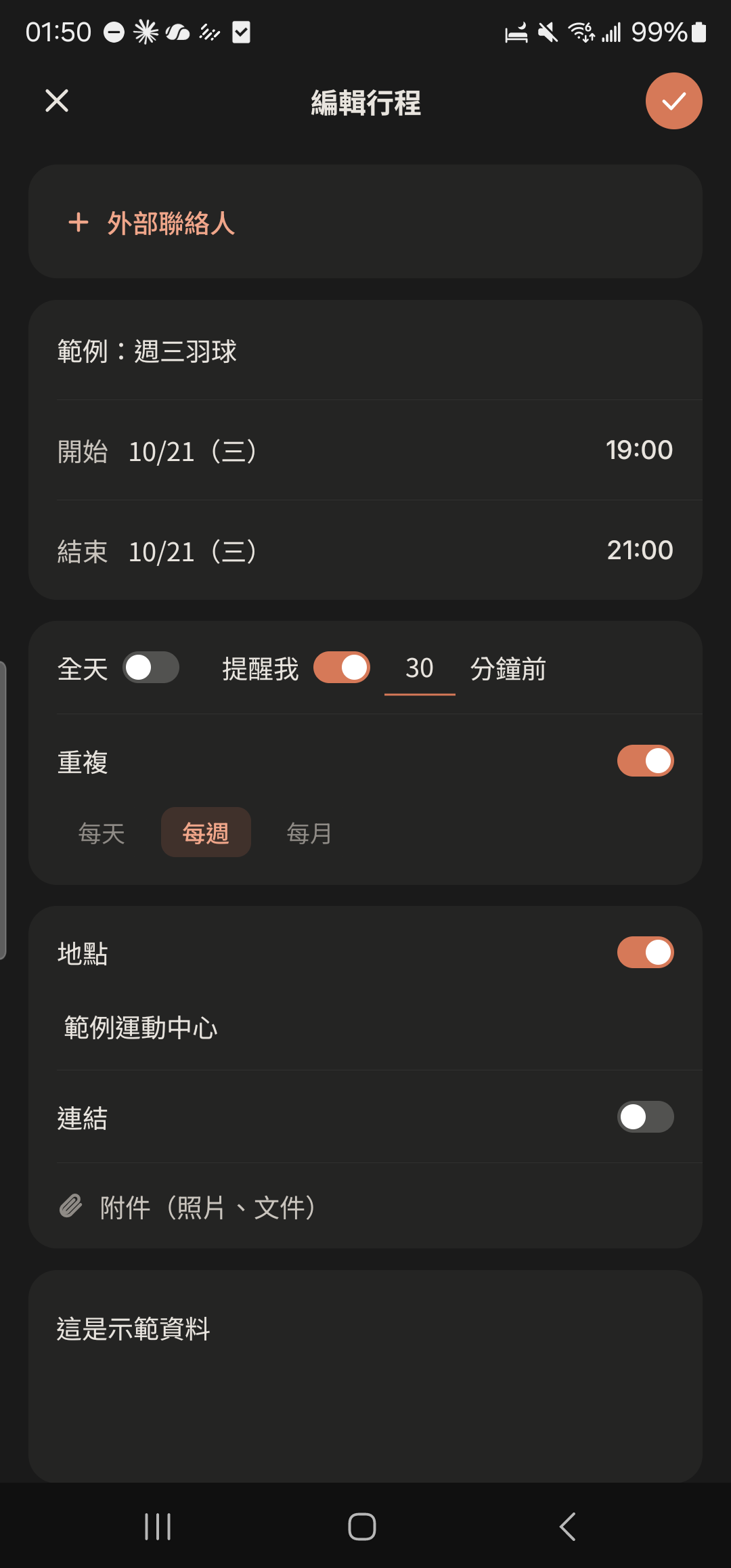
Enter "Wednesday badminton" and pick a time and place.
- 3
Tap "Repeat" and choose "Weekly".
Screenshot comingRepeat options on the Add Event page - 4
Tap the check mark at the top right. Once your buddies tap "Accept Invite", the game shows up on their Calendar every week.
Screenshot comingCalendar week view with a game every Wednesday
Settle up court fees
- 1
Tap "Settle Up" in the Ledger.
Screenshot comingLedger screen, "Settle Up" highlighted - 2
Choose the transfer involving you under "Transfers Needed", such as "Alex → You NT$350".
Screenshot coming"Transfers Needed" on the Settle Up screen - 3
Tap "Mark as Paid" (after the payment is actually made, either the payer or the recipient can tap it).
Screenshot comingSettle Up screen, "Mark as Paid" highlighted - 4
Tap "Copy Settlement" to paste the settlement text to your friends.
Screenshot comingSettle Up screen, "Copy Settlement" highlighted
Other guides
Individuals
Life on your own is worth keeping track of, too
Couples
Keep your days together in one place
Family and Parents
A family group that's easy for parents to use
Theater and Production Crews
One show, one group, with every team in its own lane
Beauty Professionals
Bookings, client preferences, and income, all on one phone
Event Organizers
Sign-ups, waitlists, check-ins, and payments, all in one go
Travelers
Trip costs, plans, and photos, all settled when you get home
Roommates
Rent, utilities, and chores, without the awkwardness
Student Clubs and Study Groups
Officer teams, event sign-ups, and a smooth end of semester
Wedding Planning
From countdown to reception, with clear roles, budget, and RSVPs
Pet Parents
Vaccines, meds, costs, and every day with your furry friend
Freelancers
Clients, schedules, and income: run your own business your way