 24h
24hJake and Mia have been together for two years. One works early shifts, the other works late. Every day they answer the same daily question in 24h and drop things they want to do together into the Wish Box. Dates go on their shared Calendar, trip expenses go in a Shared Ledger, and photos go in their Album. When an Anniversary is coming up, the countdown reminds them.
Couples
Keep your days together in one place
Features you'll use
- Close Ones
- Anniversaries and Countdowns
- Daily question
- Wish Box
- Letter to the Future
- Shared Calendar
- Shared Ledger
- An Album for two
Close Ones
- 1
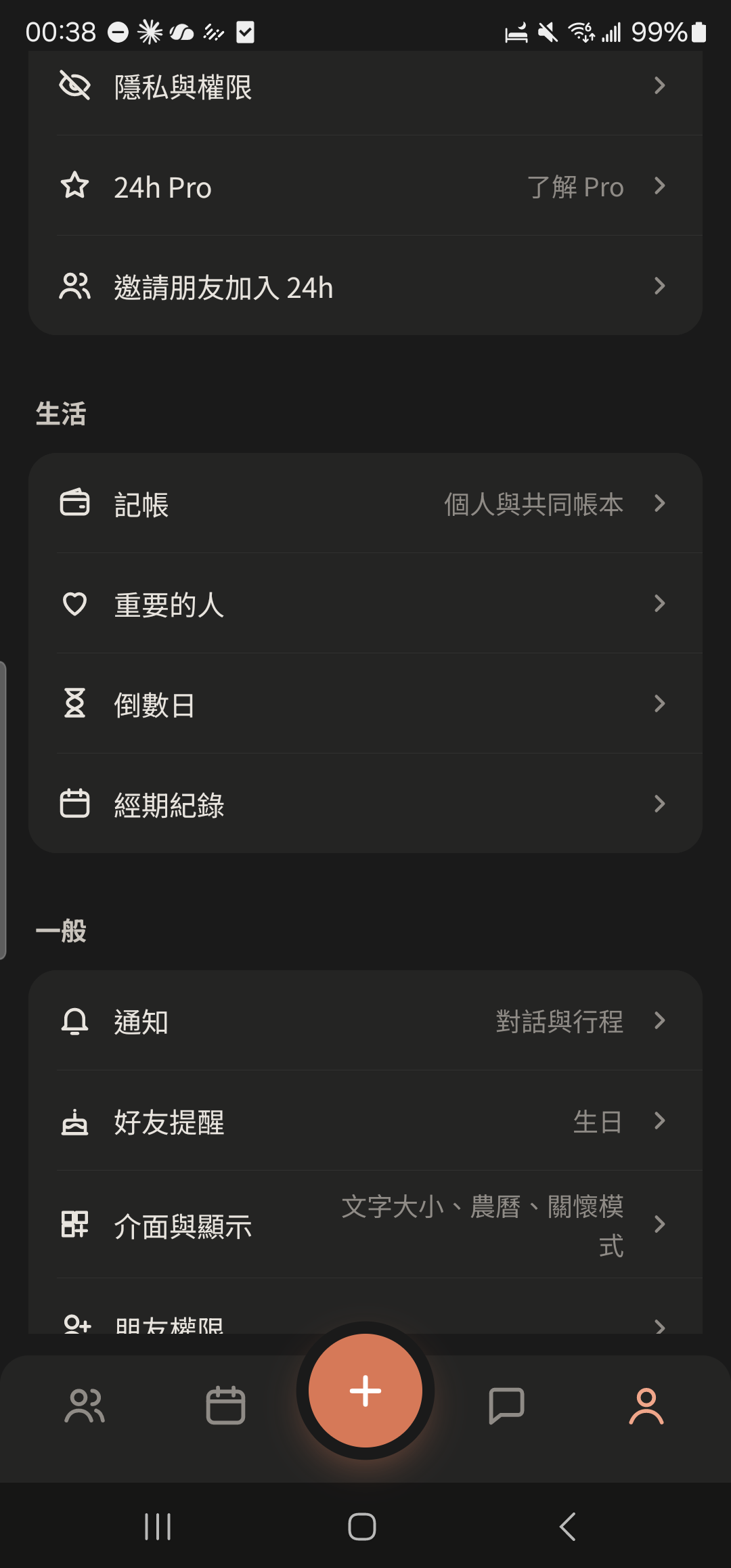
Tap "Close Ones" in "Me".
- 2
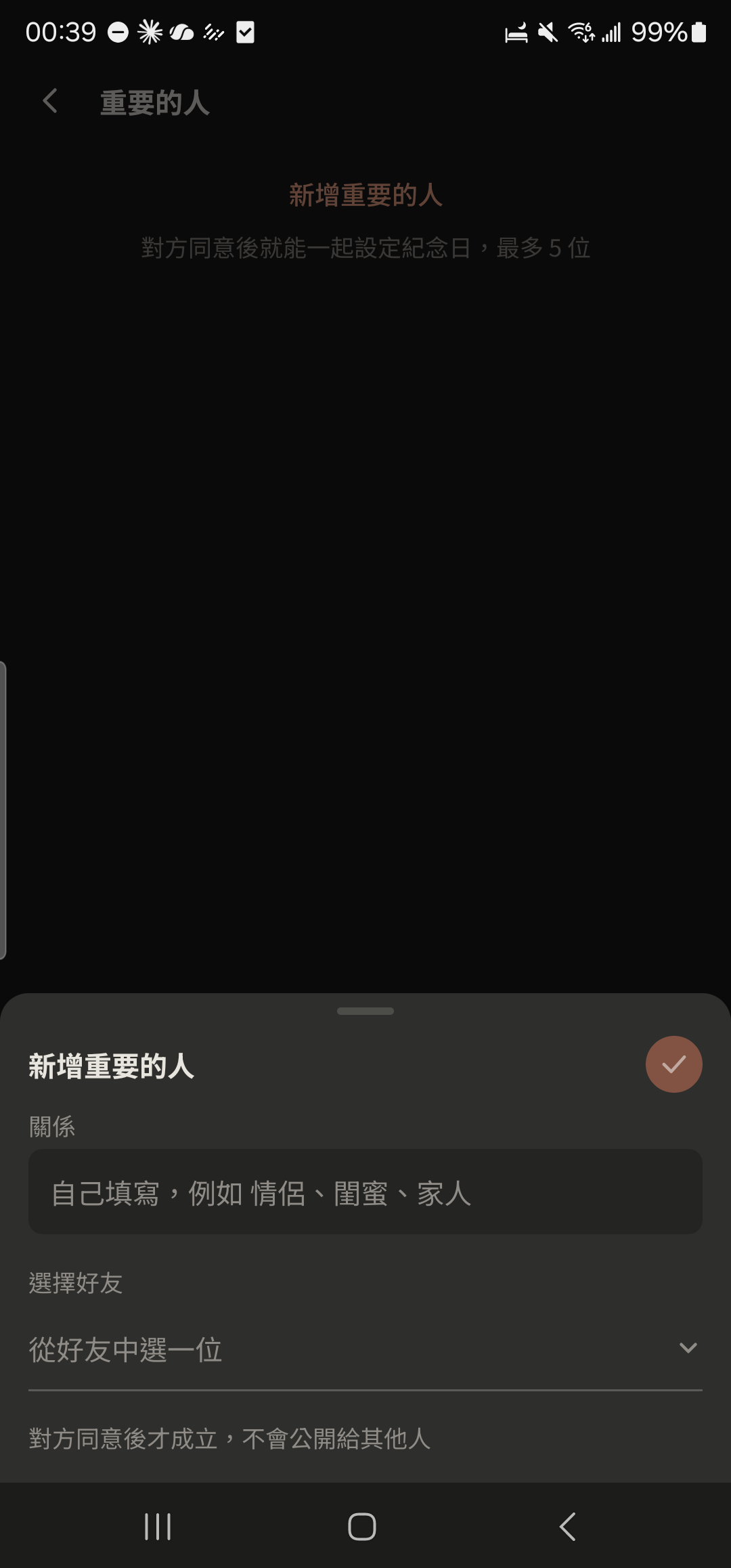
Tap "+ Add Close One", enter your relationship, choose a friend, and send the invite.
- 3
Choose a profile photo at the top of the Close Ones screen to switch to that Close One (they appear only after they tap "Agree").
Screenshot comingClose Ones invite card in a chat - 4
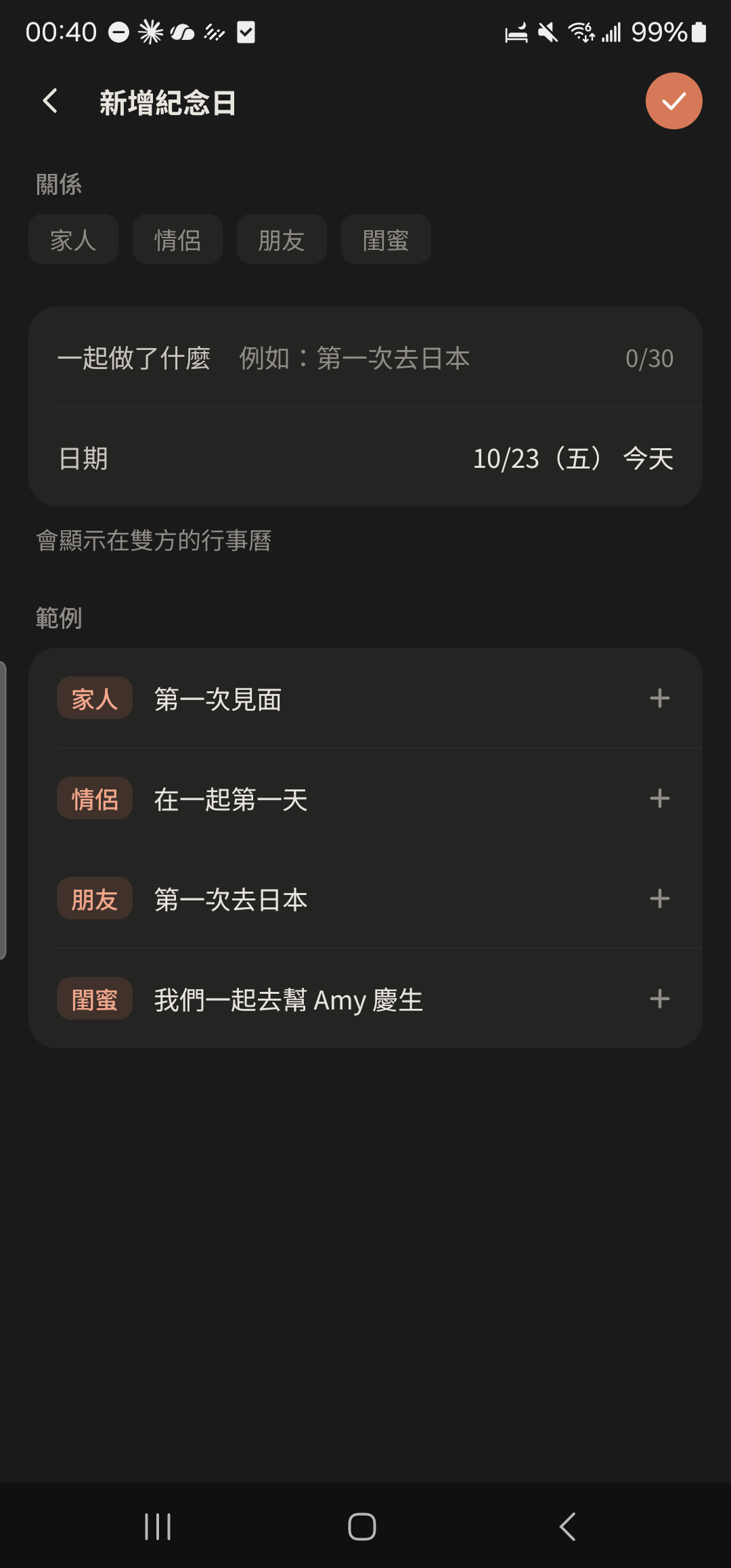
Tap the + at the top right of the Close Ones screen, choose the relationship, and enter what you did together and the date to add an Anniversary.
Anniversaries and Countdowns
- 1
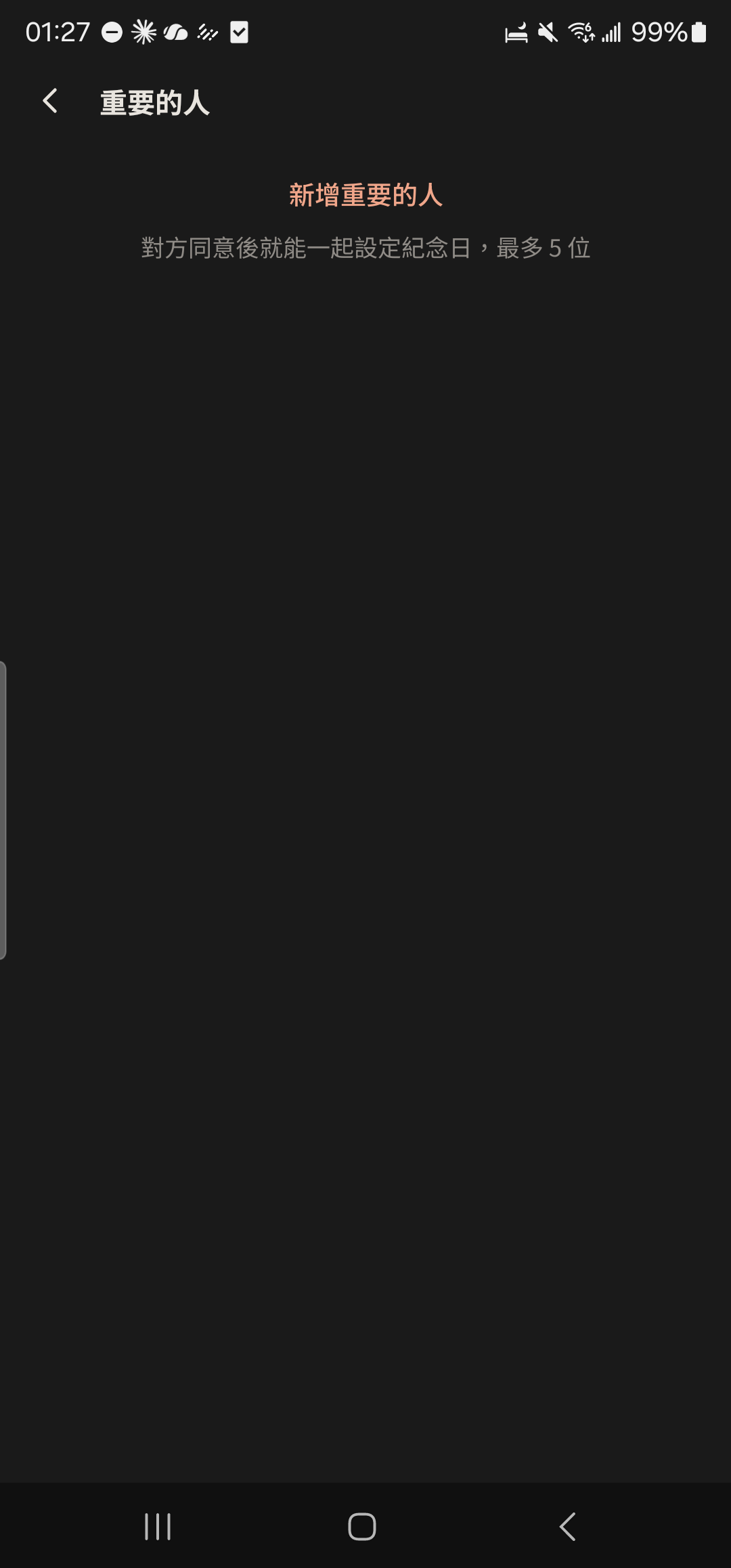
Tap + at the top right of the Close Ones page to open "Add Anniversary".
- 2
Choose your relationship, enter what you did together (up to 30 characters), pick a date, and save.
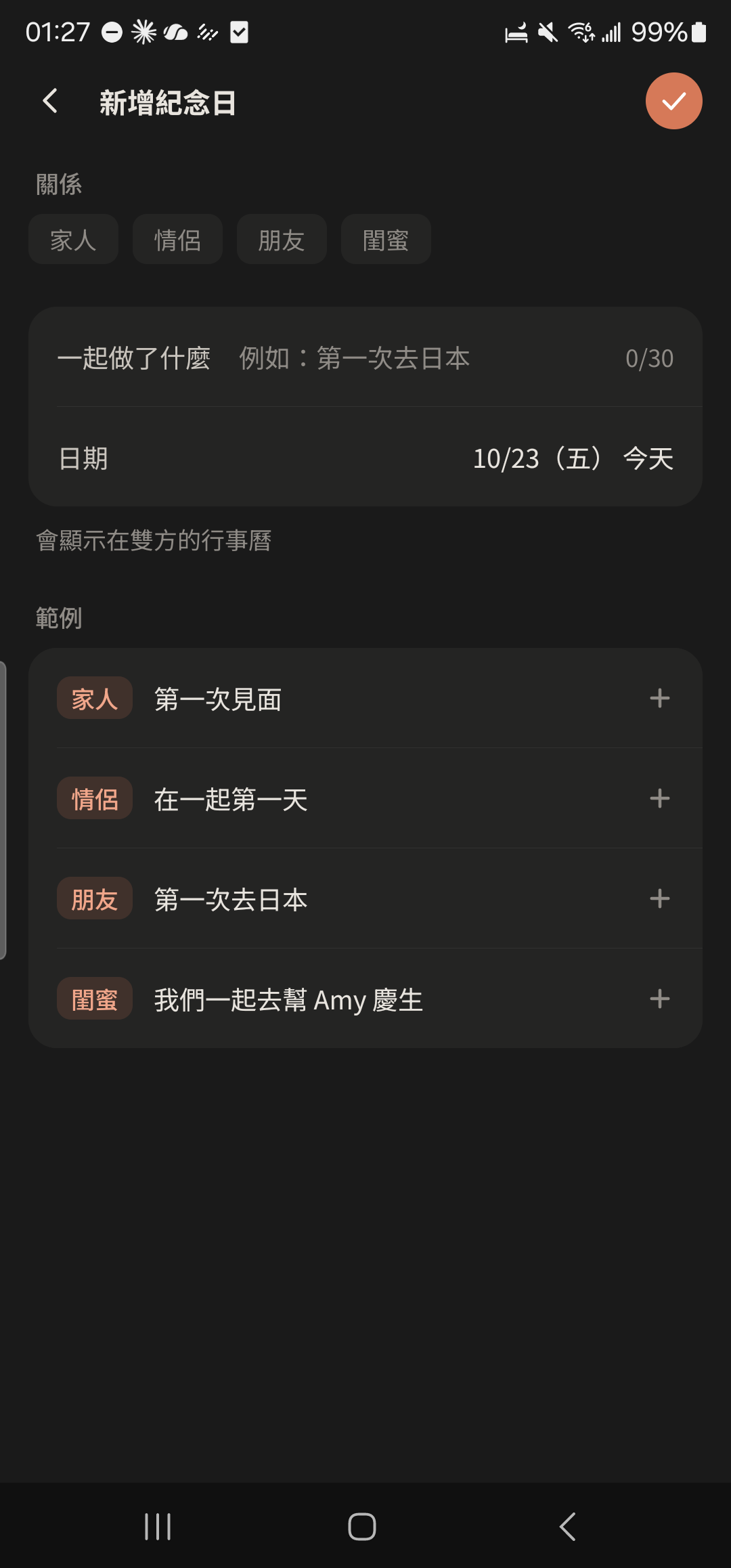
- 3
Tap "Countdowns" in "Me", then tap + at the top right to add a countdown (for example, your next trip).
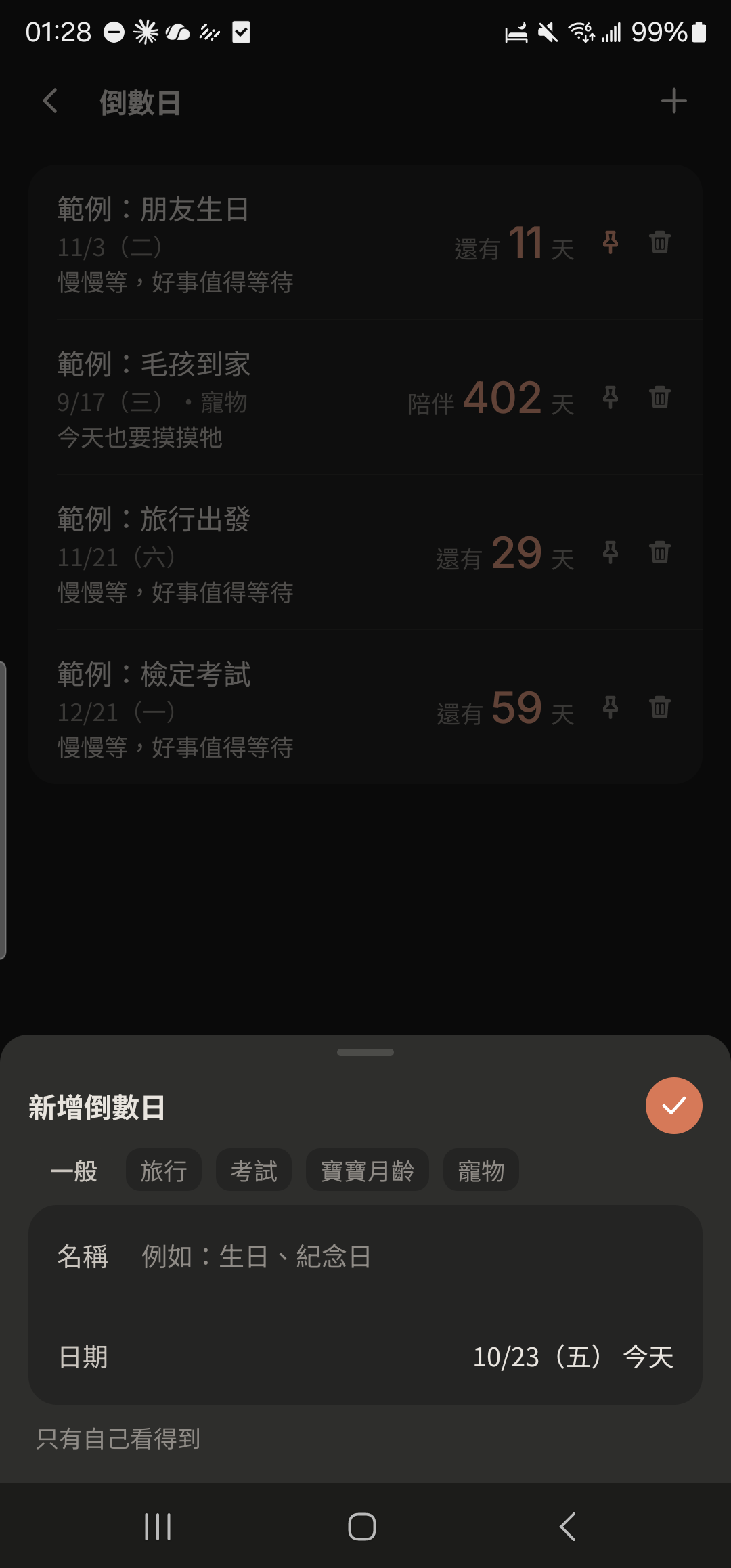
- 4
Tap the pin icon to the right of a countdown to show it on the "Me" page.
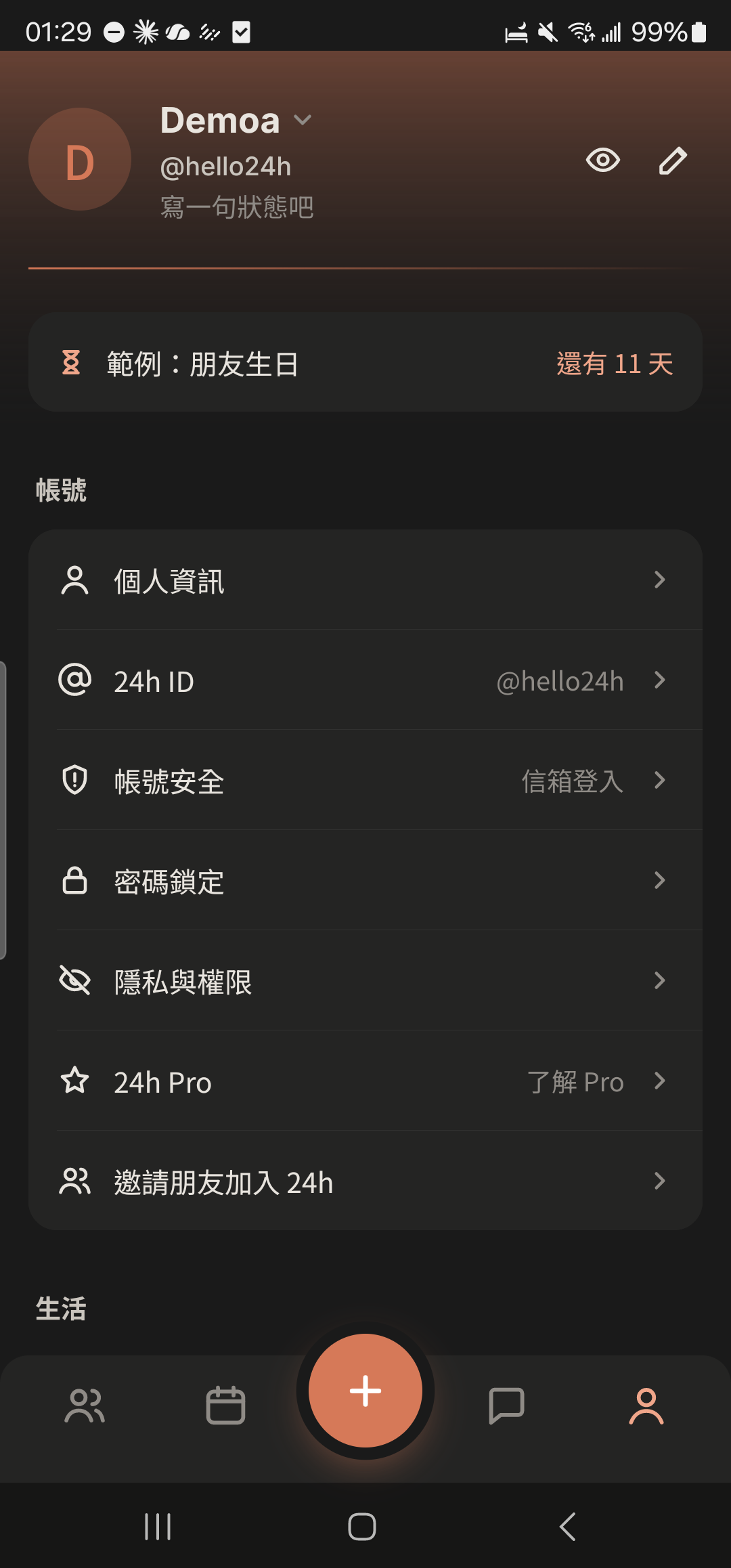
Daily question
- 1
Tap "Close Ones" in "Me" and choose your partner.
Screenshot comingYour partner's Close Ones page - 2
Tap the daily question in "Today's card" and enter your answer.
Screenshot comingDaily question answer screen - 3
Tap the daily question. Once your partner answers too, both answers are revealed together.
Screenshot comingDaily question reveal screen
Answering together day after day builds a streak. You get 2 freezes each month, so missing one day won't break it.
Wish Box
- 1
Tap "Wish Box" under "Gesture" on the Close Ones page.
Screenshot comingThe "Gesture" section on the Close Ones page - 2
Enter something you want to do together, like "See the northern lights".
Screenshot comingAdding a wish to the Wish Box - 3
Tap a wish to check it off when it comes true. Long-press to delete it.
Screenshot comingWish Box list with one item checked
Letter to the Future
- 1
Tap "Letter to the Future" under "Gesture" on the Close Ones page.
Screenshot comingLetter to the Future entry - 2
Write what you want to say and choose when it opens: in 1 month, in 6 months, in 1 year, or next New Year's Day.
Screenshot comingLetter writing screen and open-date options - 3
Tap Send. Your partner can only read it on that date, and you can unsend it before then.
Screenshot comingSent letter showing its open date
Shared Calendar
- 1
Tap "Shared Calendar" on a friend's profile to see when they're "Busy" (without the details).
Screenshot comingShared Calendar showing busy blocks - 2
Tap "Share Free Days" in "Me".
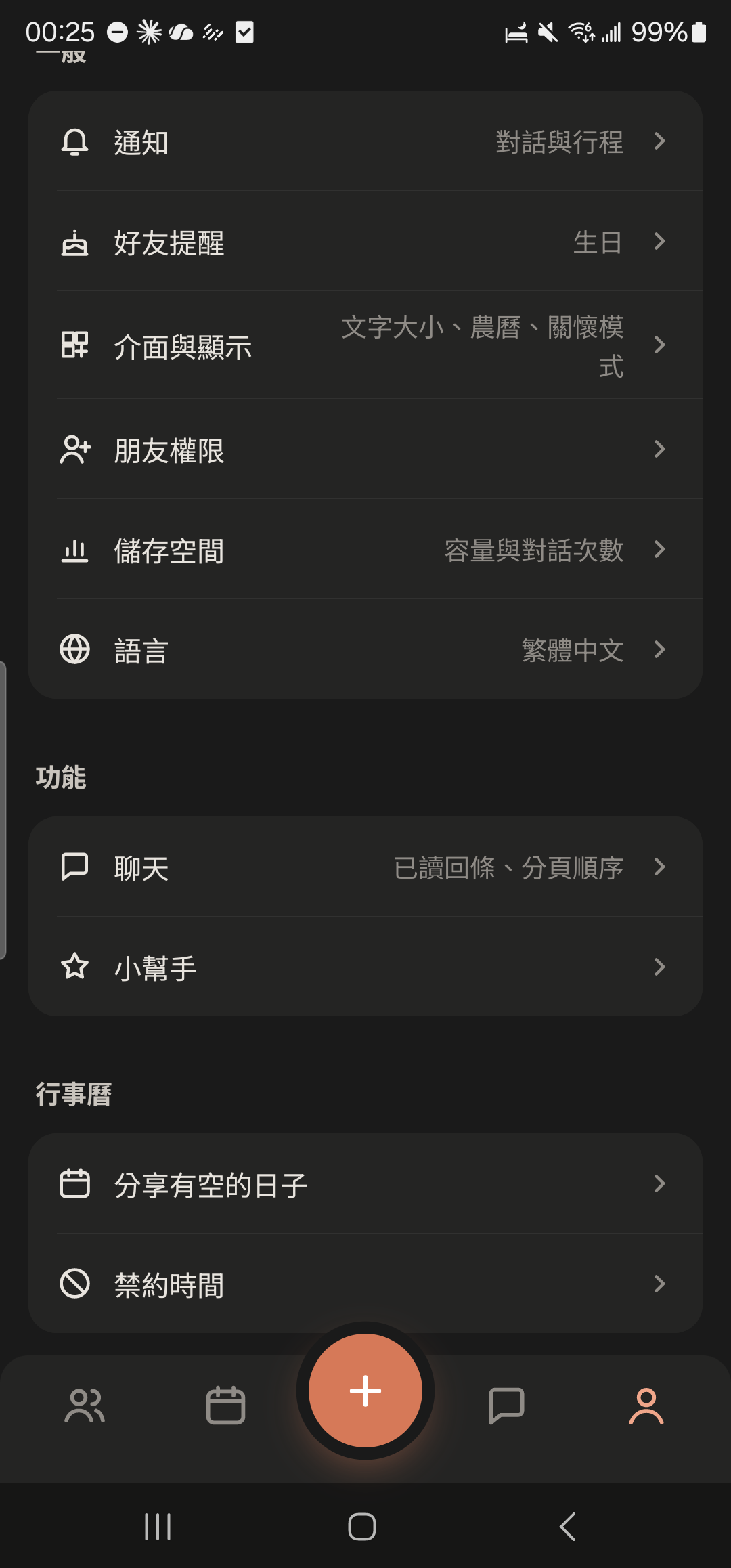
- 3
Choose a time of day (All day, Daytime, Evening), then choose the dates.
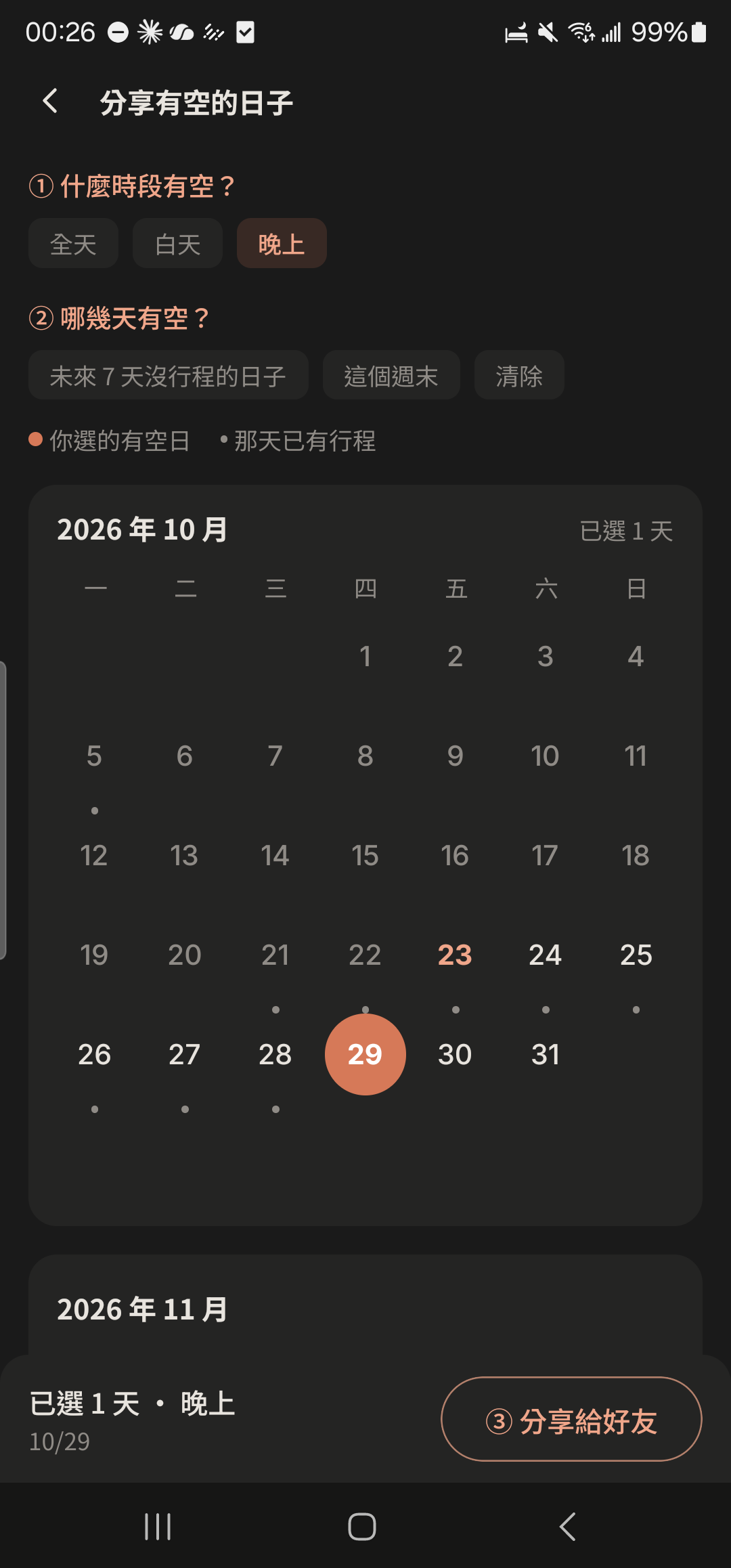
- 4
Choose the chat to share to. Friends can tap a date to make plans with you right away.
Screenshot coming"Free Days" card in a chat
Shared Ledger
- 1
Tap the "Ledger" button at the top of a chat.
Screenshot comingAlbum, Ledger, and Calendar buttons at the top of a chat - 2
Tap "+ Add Entry" and enter the amount and category.
Screenshot comingLog income and expenses screen in a Shared Ledger - 3
Choose "Whose entry is this": Mine, Member's, or Share. For a shared cost, choose who paid and which members to split it with.
Screenshot comingWhose entry is this: Mine / Member's / Share - 4
Choose how to split: Average, Custom Amount, or By Ratio, then tap the check mark at the top right to save.
Screenshot comingSplit options and "Assigned / Unassigned"
An Album for two
- 1
Tap the + at the top right of the Album screen.
Screenshot comingAlbum screen, + at the top right highlighted - 2
Choose photos or videos, up to 9 at a time (each video up to 5 minutes long).
Screenshot comingPhoto and video picker - 3
Tap the agree button for the Community Guidelines (this only appears before your first upload).
Screenshot comingCommunity Guidelines agreement window - 4
Tap the photo you just uploaded in the Album to make sure the upload is complete.
Screenshot comingAlbum grid after uploading
Other guides
Individuals
Life on your own is worth keeping track of, too
Family and Parents
A family group that's easy for parents to use
Theater and Production Crews
One show, one group, with every team in its own lane
Beauty Professionals
Bookings, client preferences, and income, all on one phone
Tennis and Badminton Buddies
Get a game together and split court fees without asking one by one
Event Organizers
Sign-ups, waitlists, check-ins, and payments, all in one go
Travelers
Trip costs, plans, and photos, all settled when you get home
Roommates
Rent, utilities, and chores, without the awkwardness
Student Clubs and Study Groups
Officer teams, event sign-ups, and a smooth end of semester
Wedding Planning
From countdown to reception, with clear roles, budget, and RSVPs
Pet Parents
Vaccines, meds, costs, and every day with your furry friend
Freelancers
Clients, schedules, and income: run your own business your way