 24h
24hShared Calendar and sharing your Free Days
See when friends are busy, or share your Free Days to a chat so friends can tap a date to make plans.
- 1
Tap "Shared Calendar" on a friend's profile to see when they're "Busy" (without the details).
Screenshot comingShared Calendar showing busy blocks - 2
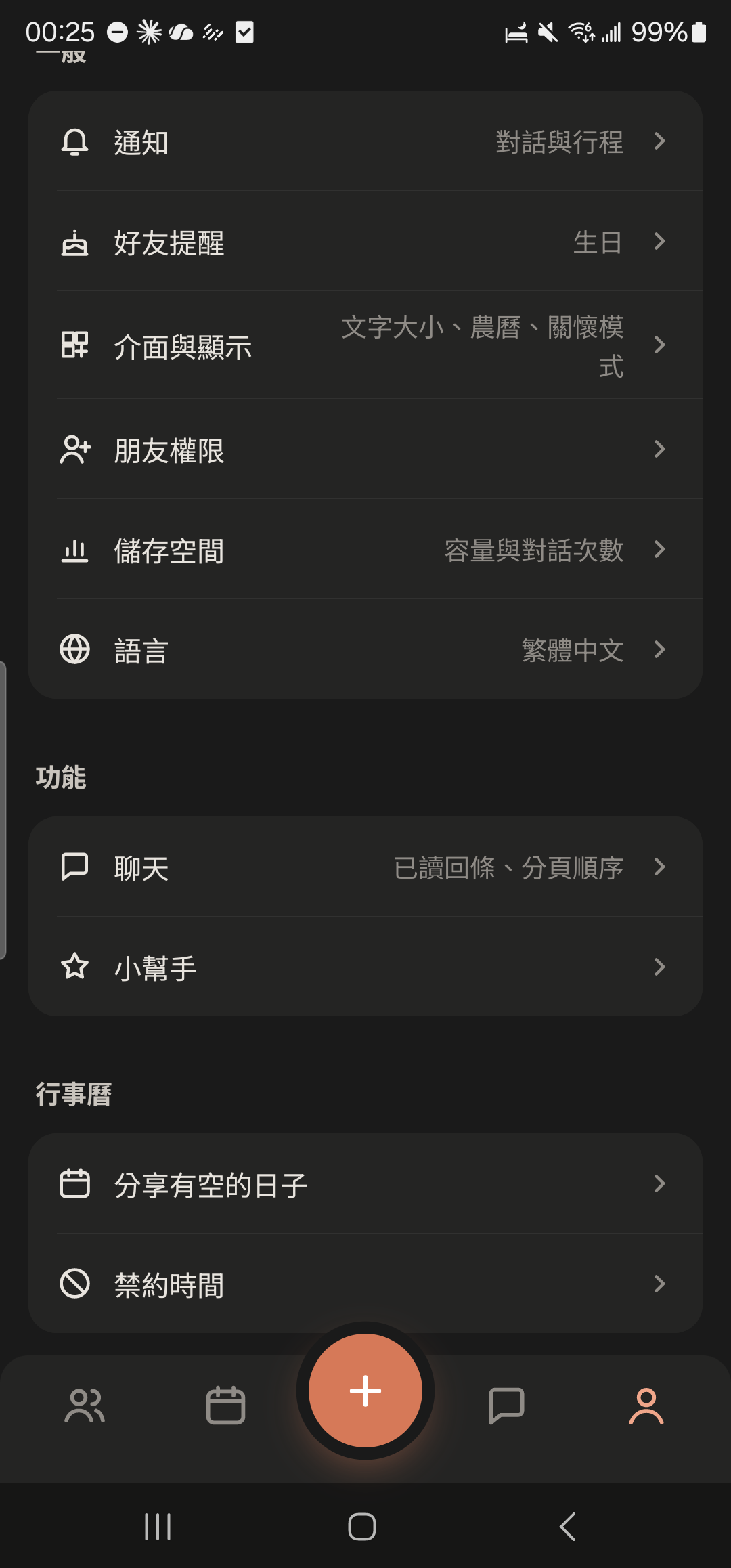
Tap "Share Free Days" in "Me".
- 3
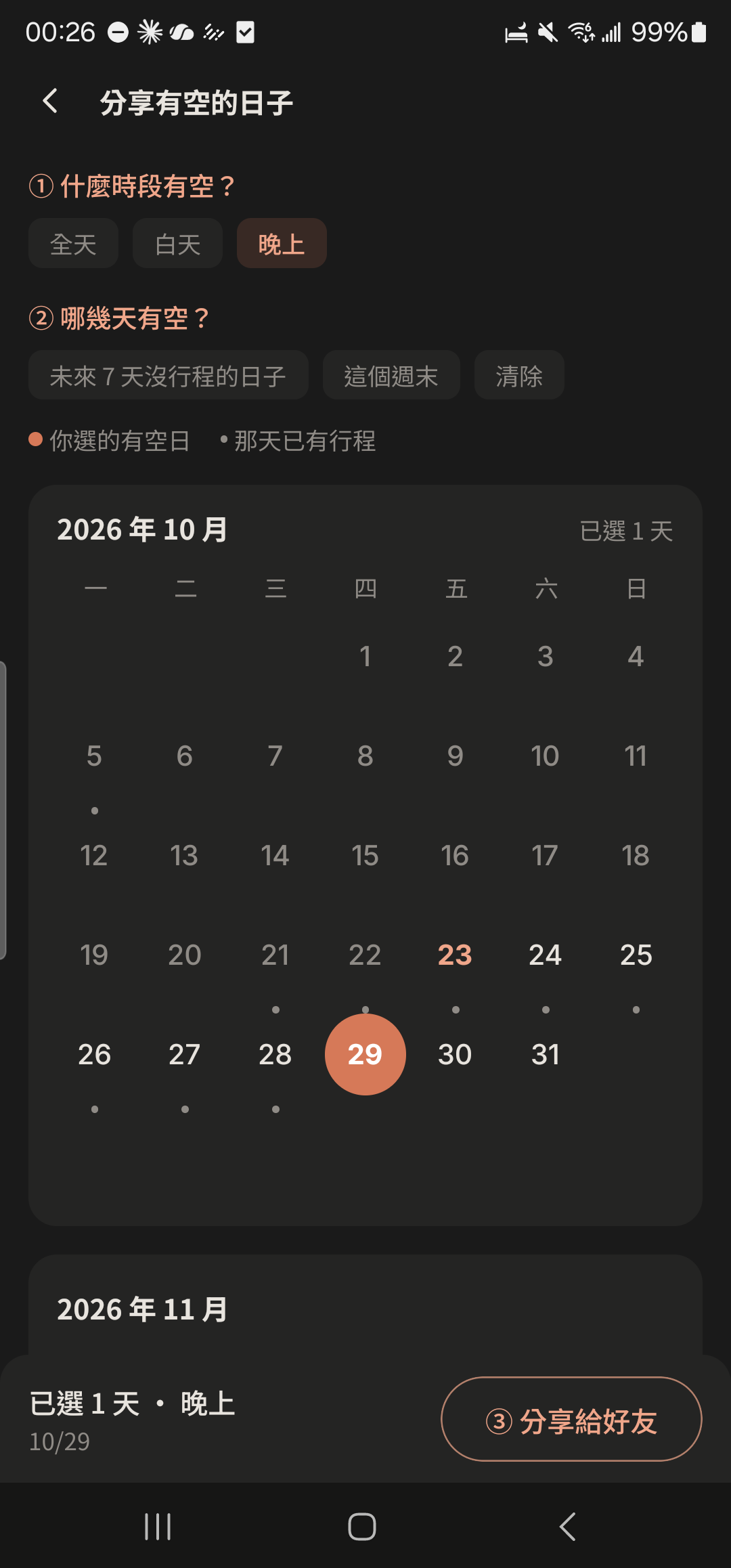
Choose a time of day (All day, Daytime, Evening), then choose the dates.
- 4
Choose the chat to share to. Friends can tap a date to make plans with you right away.
Screenshot coming"Free Days" card in a chat
- "Share Free Days" is also in the settings at the top right of the Calendar.
- For events imported from Google, friends also see only that you're "Busy" at that time, not the details.