 24h
24hAdd an Event and invite friends
Invite friends or Groups when adding an Event. Once they accept, it appears on both of your Calendars.
- 1
Tap the + at the bottom center and choose "Event".
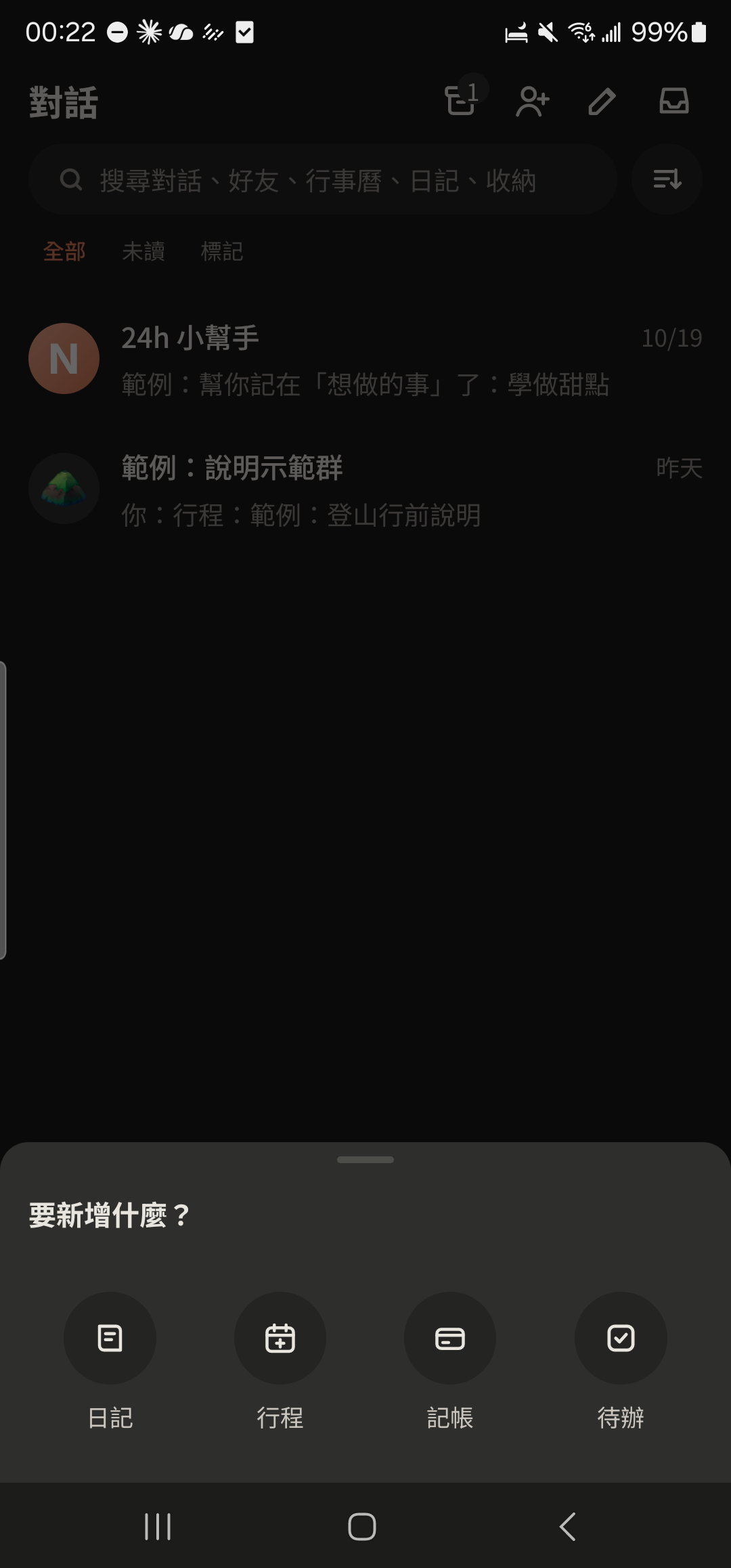
- 2
Tap "Invite" in the first row and choose friends, Groups, or Subgroups.
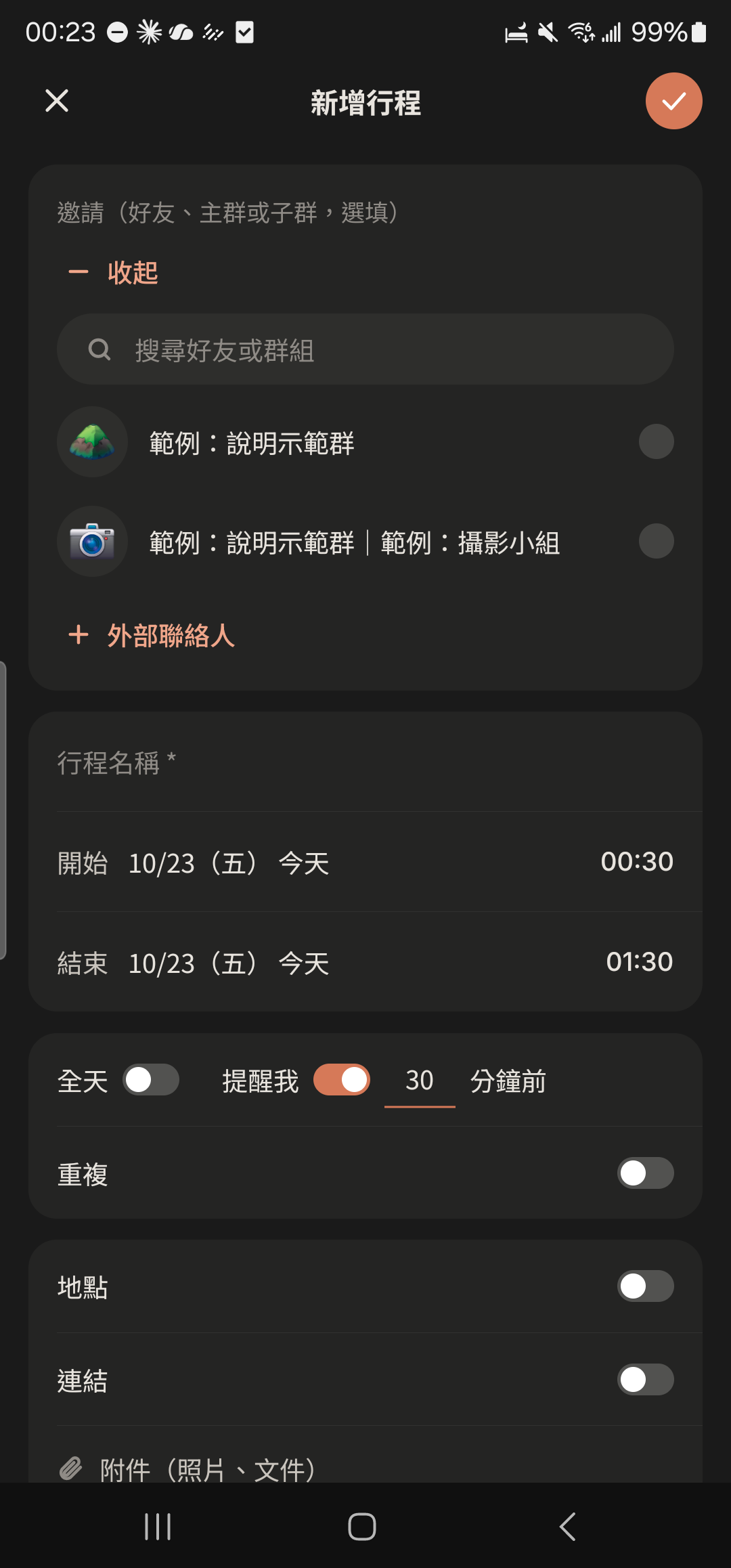
- 3
Enter the Event name and choose the start and end dates and times.
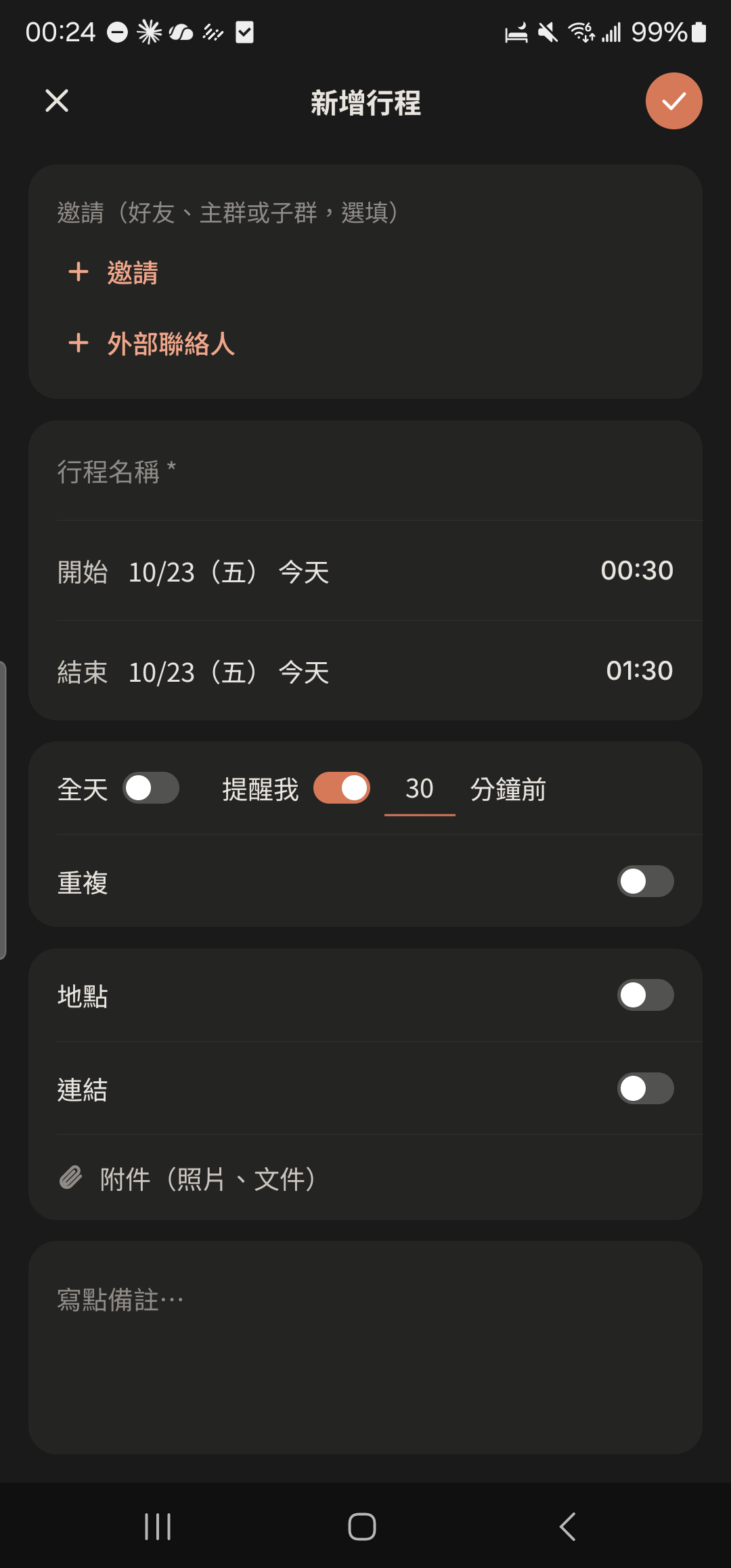
- 4
Choose "Remind Me" and "Repeat" (daily, weekly, monthly), and turn on "Location" or "Link" if needed.
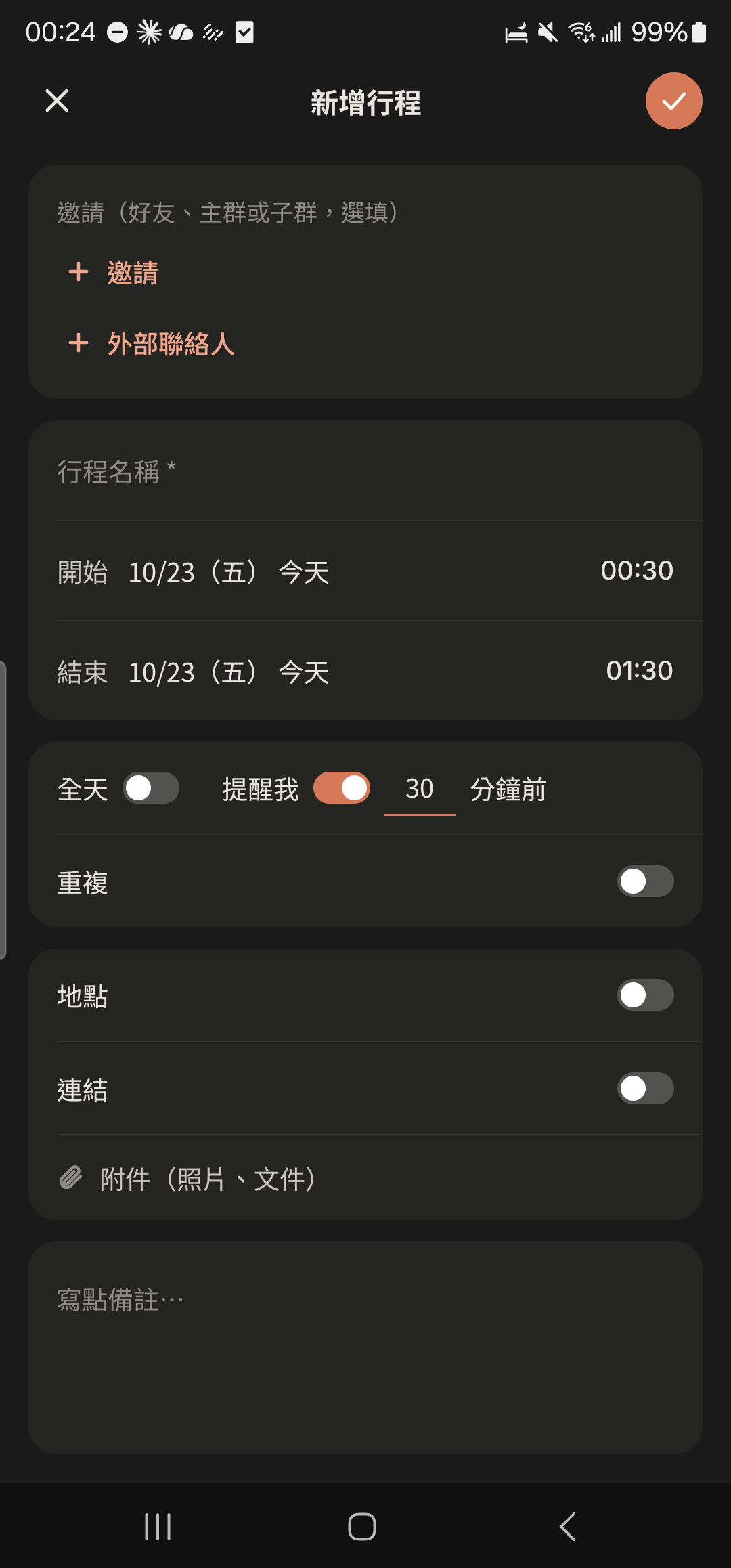
- 5
Tap the check mark at the top right to save. They'll get an invite card in the chat, and once they tap "Accept Invite", you're all set.
Screenshot comingEvent invite card in a chat, "Accept Invite" highlighted
- Tap the Calendar icon at the top right of a chat to add an Event that automatically invites that person or the whole Group.
- If an Event falls during your own Busy Hours, you'll get a heads-up first, but you can still create it after confirming. Invites from friends aren't blocked.
- To add more people after creating it, tap "Invite more" on the Event screen (people already invited can't be removed).
- Invitees can tap "Reminder" on the Event screen to set their own reminder time. It only reminds them.
- Use the magnifying glass at the top right of the Calendar to search Events and To-dos.