 24h
24hDesigner Ray is juggling three projects. He sets Busy Hours to protect his rest time, and when clients want a meeting he just shares his Free Days. Each project has its own Project Ledger for out-of-pocket costs, client categories go in private notes, reference links go in his Stash, and one photo of a receipt logs the expense.
Freelancers
Clients, schedules, and income: run your own business your way
Features you'll use
- Busy Hours
- Share Free Days
- One Project Ledger per project
- Private notes for clients
- Keep references in your Stash
- Snap Receipt to log expenses
- Credit card reward estimates
Busy Hours
- 1
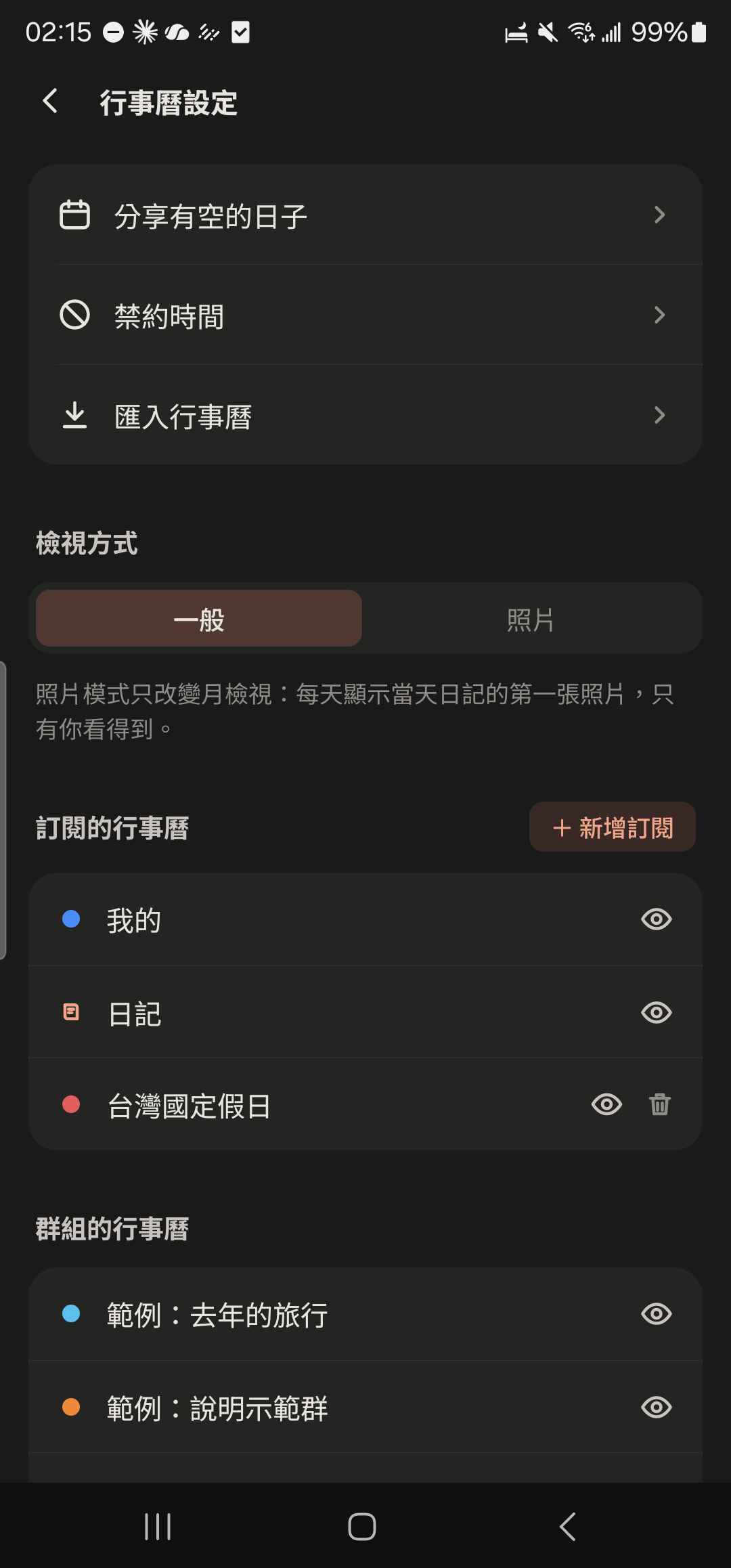
Tap settings at the top right of the "Calendar" tab, then tap "Busy Hours".
- 2
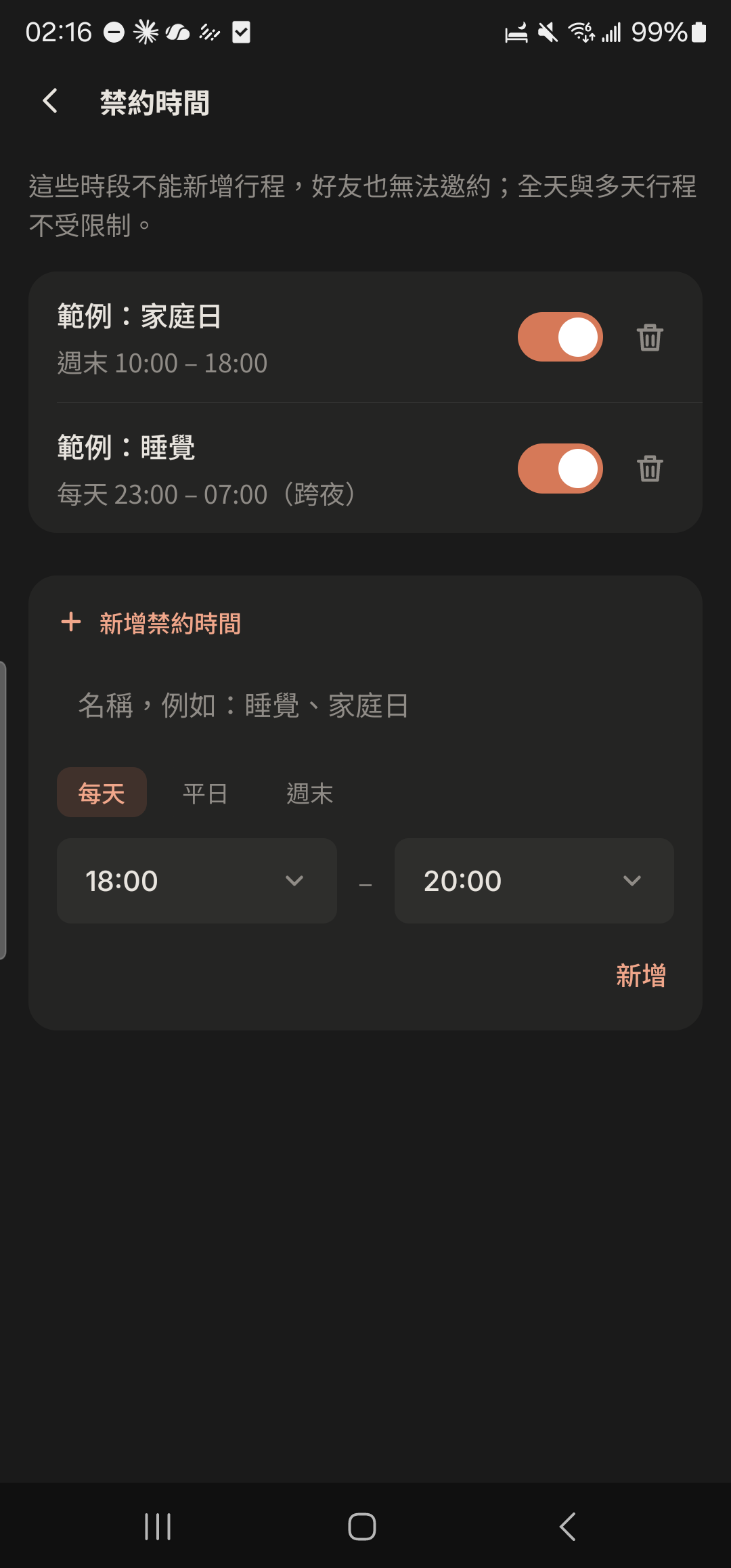
Enter a name (for example, "Rest time") and choose Daily, Weekdays, or Weekend.
- 3
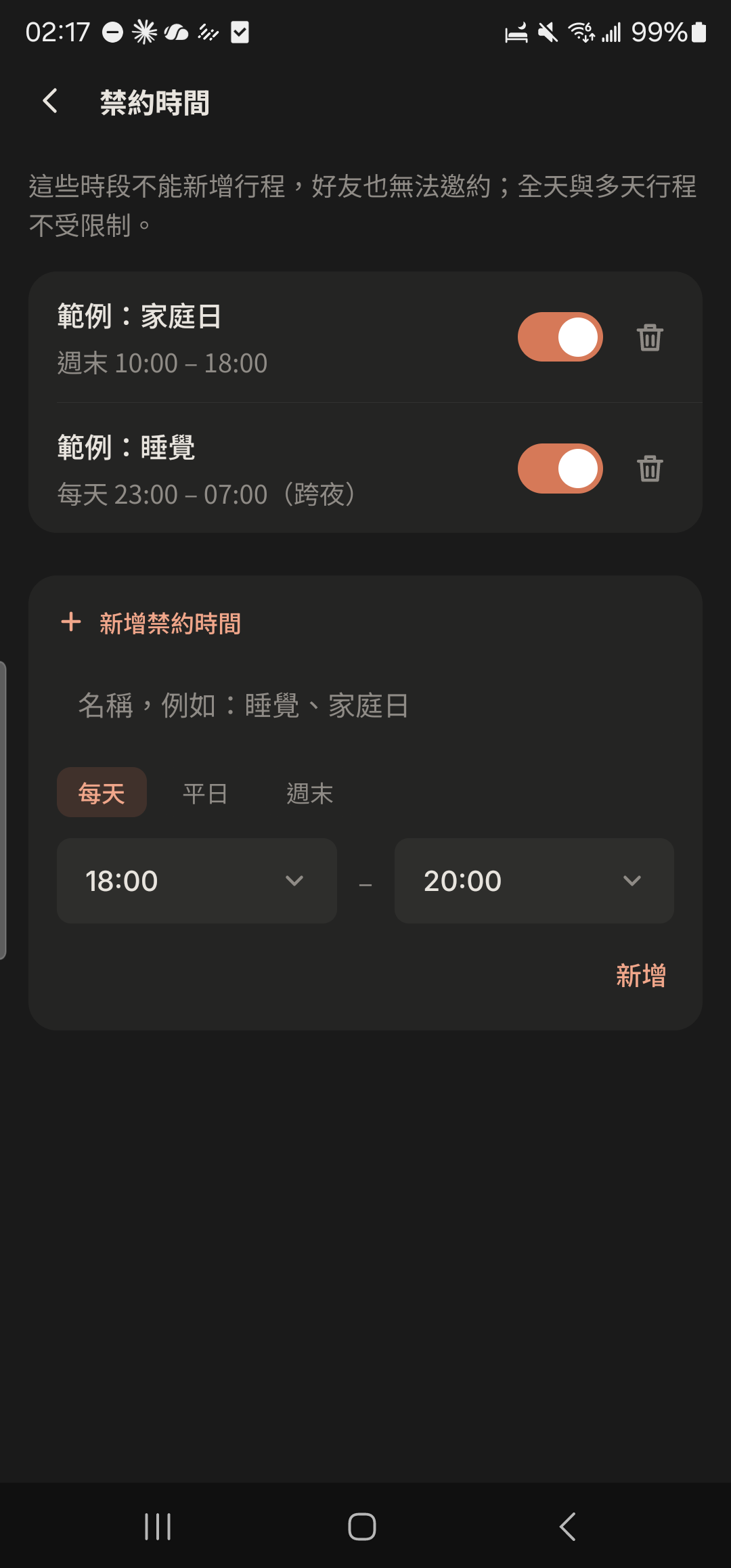
Choose start and end times (they can go past midnight) and save. If you schedule something during this time, 24h reminds you first, and you can still create it after confirming.
Share Free Days
- 1
Tap "Shared Calendar" on a friend's profile to see when they're "Busy" (without the details).
Screenshot comingShared Calendar showing busy blocks - 2
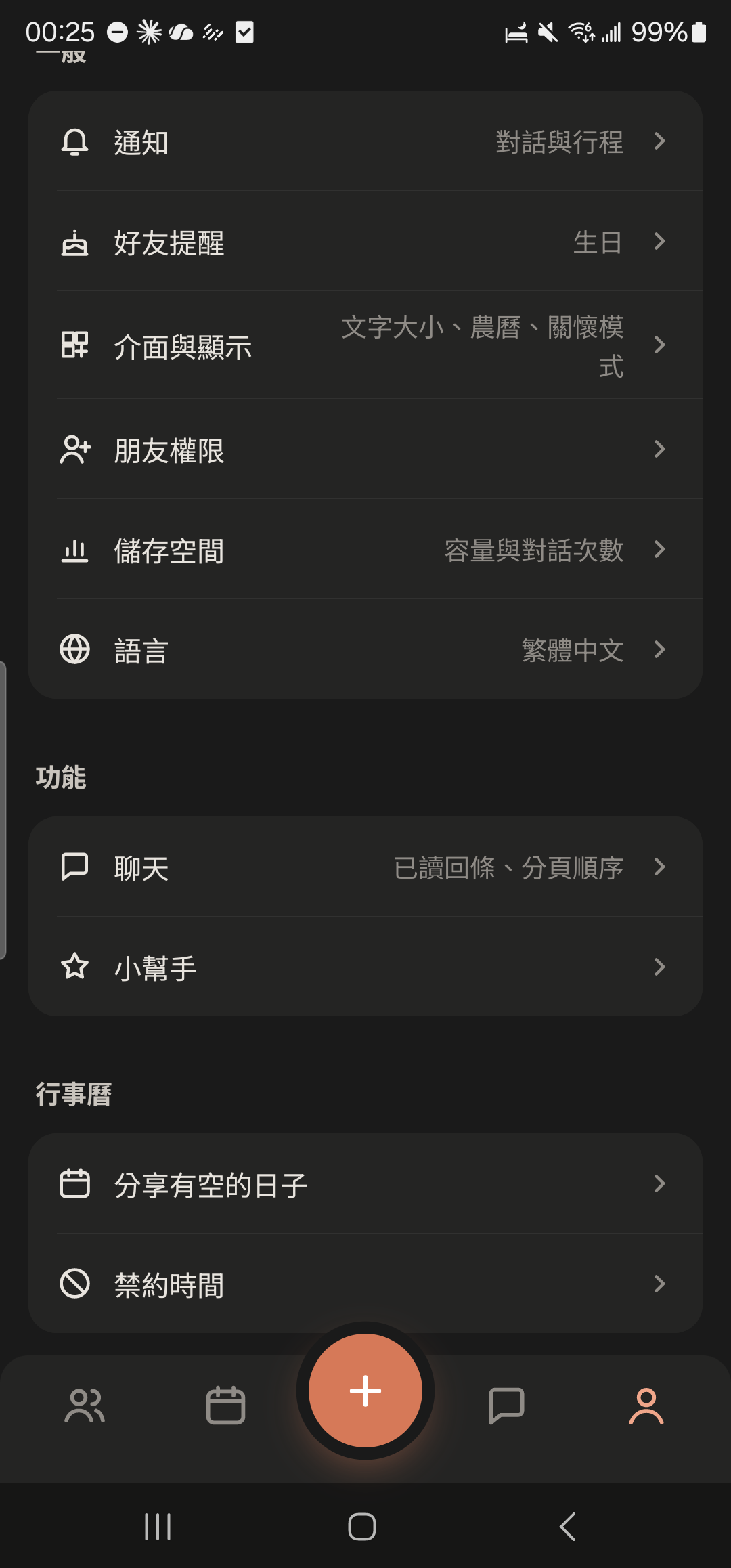
Tap "Share Free Days" in "Me".
- 3
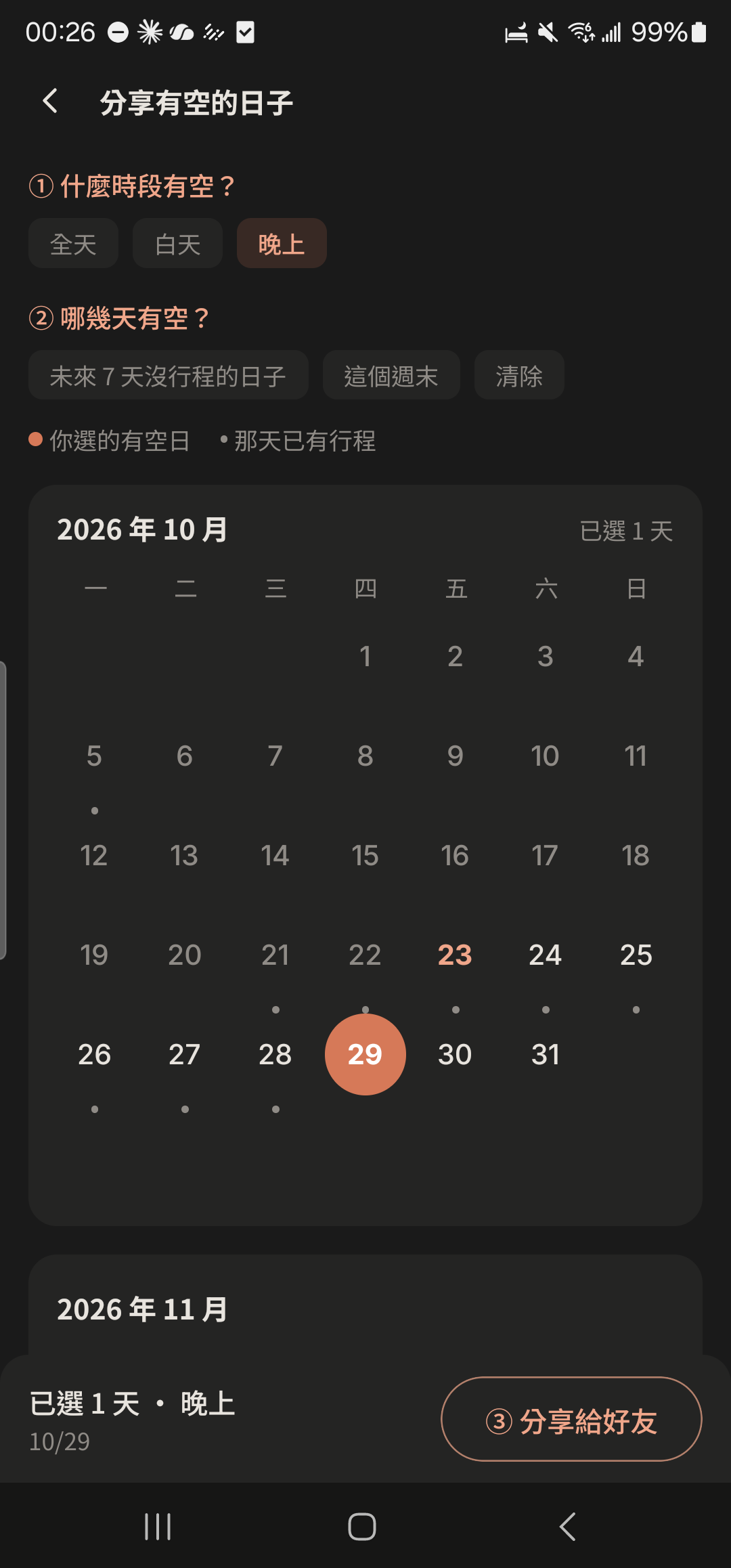
Choose a time of day (All day, Daytime, Evening), then choose the dates.
- 4
Choose the chat to share to. Friends can tap a date to make plans with you right away.
Screenshot coming"Free Days" card in a chat
One Project Ledger per project
- 1
Tap the "Ledger" button at the top of a chat, then tap "+ Add Project Ledger".
Screenshot comingChat Ledger screen, "Create Project Ledger" highlighted - 2
Enter a name (such as "6-Day Japan Trip"), start and end dates, and check the members taking part.
Screenshot comingCreate Project Ledger screen - 3
Choose the main currency (it can't be changed after creation).
Screenshot comingMain currency menu - 4
When logging in a foreign currency, enter the exchange rate as "1 foreign currency = ? main currency", and the amount converts instantly.
Screenshot comingForeign-currency expense entry showing the exchange rate and converted amount - 5
Tap "Add Virtual Member" in the Ledger settings to add friends who don't use 24h yet (up to 20 per Ledger).
Screenshot comingProject Ledger members screen, Virtual Members highlighted
Private notes for clients
- 1
Tap a friend to open their profile.
Screenshot comingFriend profile - 2
Tap "Private Note".
Screenshot comingFriend profile, "Private Note" highlighted - 3
Enter their job and choose a friend category (such as Work, Clients, or Classmates).
Screenshot comingJob and category on the private note screen - 4
Enter custom labels and a note (up to 500 characters), then tap the check mark at the top right to save.
Screenshot comingLabels and note fields on the private note screen
Keep references in your Stash
- 1
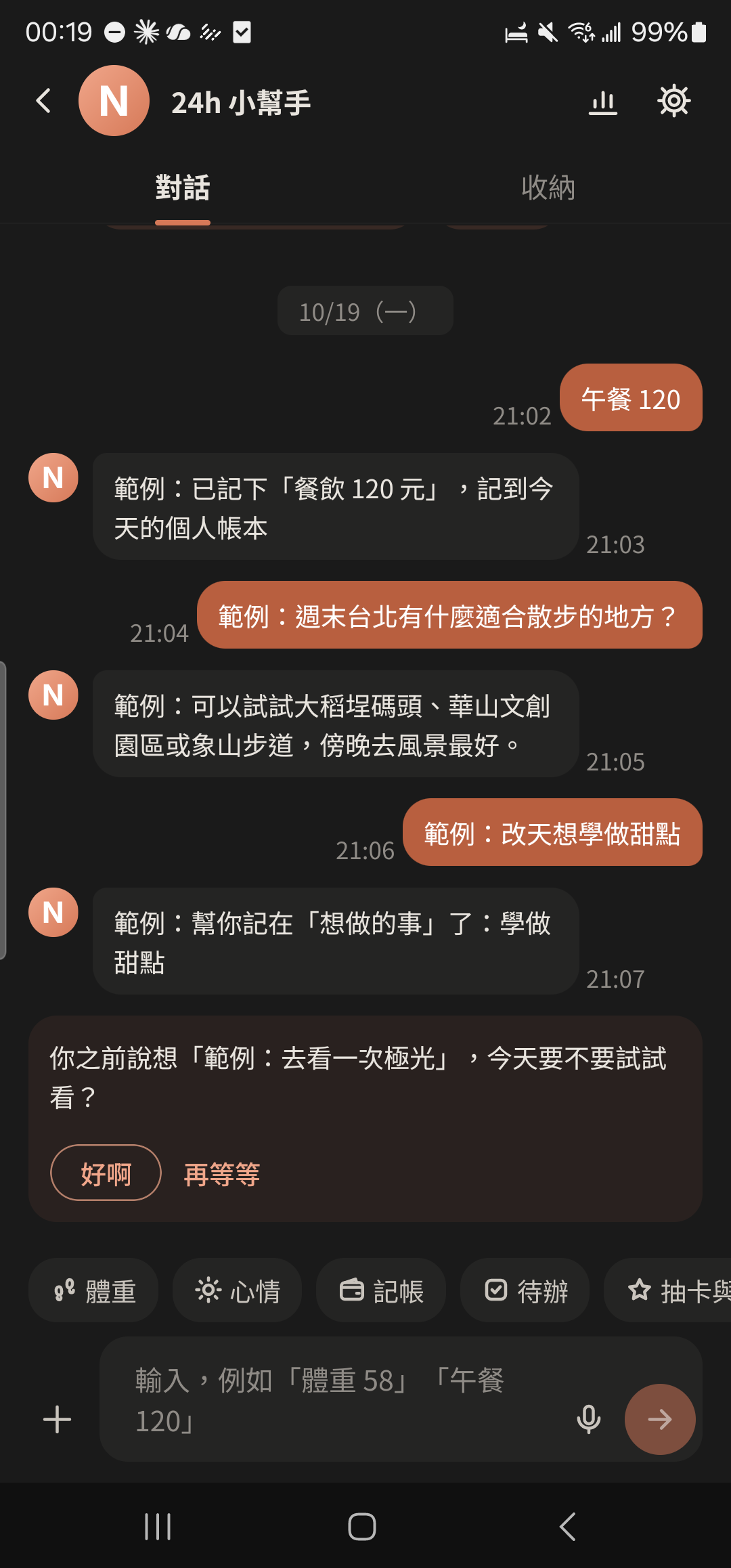
Tap the "Stash" tab at the top of the Assistant.
- 2
Type text or paste a link at the bottom of the Stash tab and tap send to save it.
Screenshot comingStash screen with a few saved links - 3
Press and hold a text message in any other chat and choose "Save to Stash".
Screenshot comingPress-and-hold menu on a message, "Save to Stash" highlighted - 4
Tap the search box at the top of Stash to find things you saved.
Screenshot comingStash search results
Full guide: Stash: save text and links you want to remember ›
Snap Receipt to log expenses
- 1
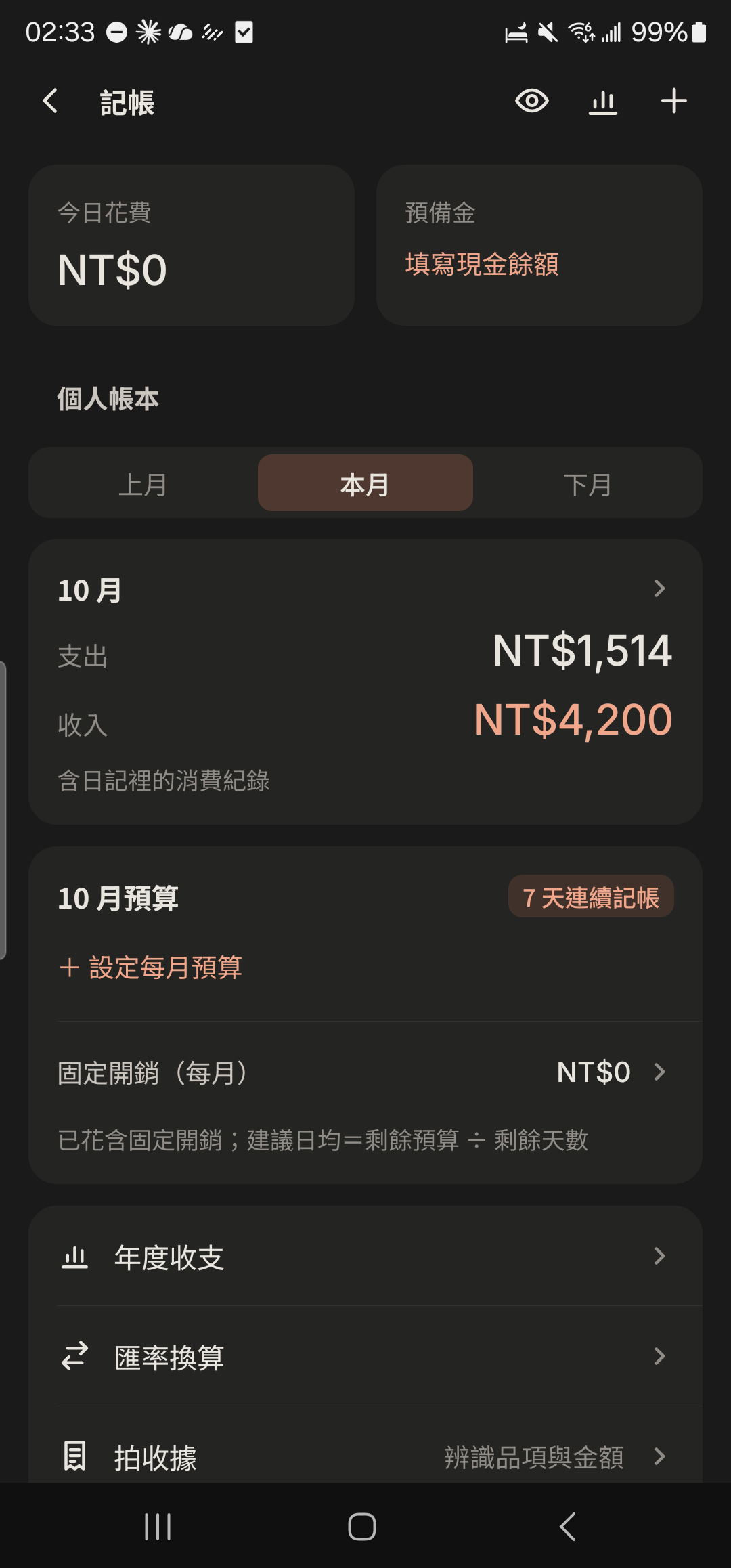
Tap "Snap Receipt" on the Expenses home screen to add to your Personal Ledger, or tap "Snap Receipt" on a Project Ledger screen to add to that Project Ledger.
- 2
Choose "Japanese Receipt" or "Chinese receipt", then tap "Take Photo" or "Choose from Album".
Screenshot comingSnap Receipt screen with Japanese Receipt, Chinese receipt, Take Photo, and Choose from Album at the top - 3
Tap items in the recognized list to edit the item or amount. Unchecked items won't be added.
Screenshot comingRecognized results list - 4
Choose "Merge into one" (the note lists all items) or "One Entry per Item".
Screenshot coming"Merge into one / One Entry per Item" switch on the Snap Receipt screen - 5
Tap the check mark at the top right to add them to the Ledger.
Screenshot comingCheck mark at the top right of the Snap Receipt screen
Credit card reward estimates
- 1
Tap "Expenses" in "Me", then tap "Cards & Rewards".
Screenshot comingExpenses home screen, "Cards & Rewards" highlighted - 2
Tap the + at the top right and enter a card name (such as "Travel Card") and the base reward %.
Screenshot comingAdd card screen - 3
Tap "Add" next to bonus promotions and enter the promotion name, bonus %, and start and end dates.
Screenshot comingBonus promotions on the add card screen - 4
Choose a "Payment card": pick this card when logging an expense in your Personal Ledger, and the estimated reward appears below.
Screenshot comingLog income and expenses screen, "Payment card" and estimated reward highlighted - 5
Tap "Cards & Rewards" to see each card's estimated rewards this month.
Screenshot comingCards & Rewards list showing this month's estimated rewards
Other guides
Individuals
Life on your own is worth keeping track of, too
Couples
Keep your days together in one place
Family and Parents
A family group that's easy for parents to use
Theater and Production Crews
One show, one group, with every team in its own lane
Beauty Professionals
Bookings, client preferences, and income, all on one phone
Tennis and Badminton Buddies
Get a game together and split court fees without asking one by one
Event Organizers
Sign-ups, waitlists, check-ins, and payments, all in one go
Travelers
Trip costs, plans, and photos, all settled when you get home
Roommates
Rent, utilities, and chores, without the awkwardness
Student Clubs and Study Groups
Officer teams, event sign-ups, and a smooth end of semester
Wedding Planning
From countdown to reception, with clear roles, budget, and RSVPs
Pet Parents
Vaccines, meds, costs, and every day with your furry friend