 24h
24hSnap a receipt to log expenses fast
Take a photo of a receipt, and 24h recognizes the items and amounts on your phone. Confirm them to add to your Personal Ledger or a Project Ledger.
- 1
Tap "Snap Receipt" on the Expenses home screen to add to your Personal Ledger, or tap "Snap Receipt" on a Project Ledger screen to add to that Project Ledger.
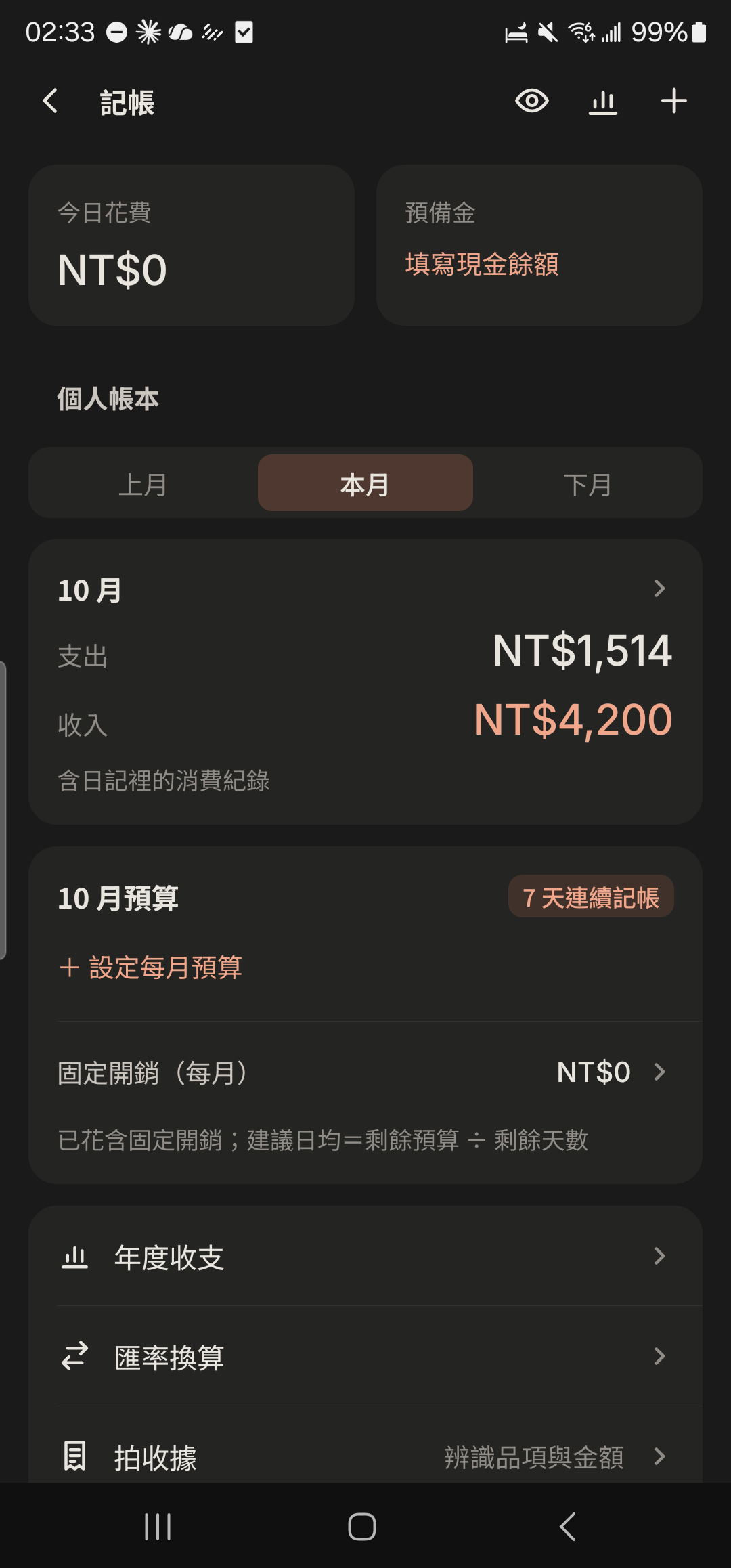
- 2
Choose "Japanese Receipt" or "Chinese receipt", then tap "Take Photo" or "Choose from Album".
Screenshot comingSnap Receipt screen with Japanese Receipt, Chinese receipt, Take Photo, and Choose from Album at the top - 3
Tap items in the recognized list to edit the item or amount. Unchecked items won't be added.
Screenshot comingRecognized results list - 4
Choose "Merge into one" (the note lists all items) or "One Entry per Item".
Screenshot coming"Merge into one / One Entry per Item" switch on the Snap Receipt screen - 5
Tap the check mark at the top right to add them to the Ledger.
Screenshot comingCheck mark at the top right of the Snap Receipt screen
- Recognition happens on your phone, and photos aren't uploaded. Chinese and Japanese receipts are supported.
- For foreign-currency receipts, enter the exchange rate. When adding to a Project Ledger, you can choose "Mine" or "Split Equally among all".