 24h
24hCreate a Group
Create a Group, choose friends to add, then use an invite link or QR code for people who aren't your friends yet.
- 1
Tap the create group icon at the top right of the "Chats" tab.
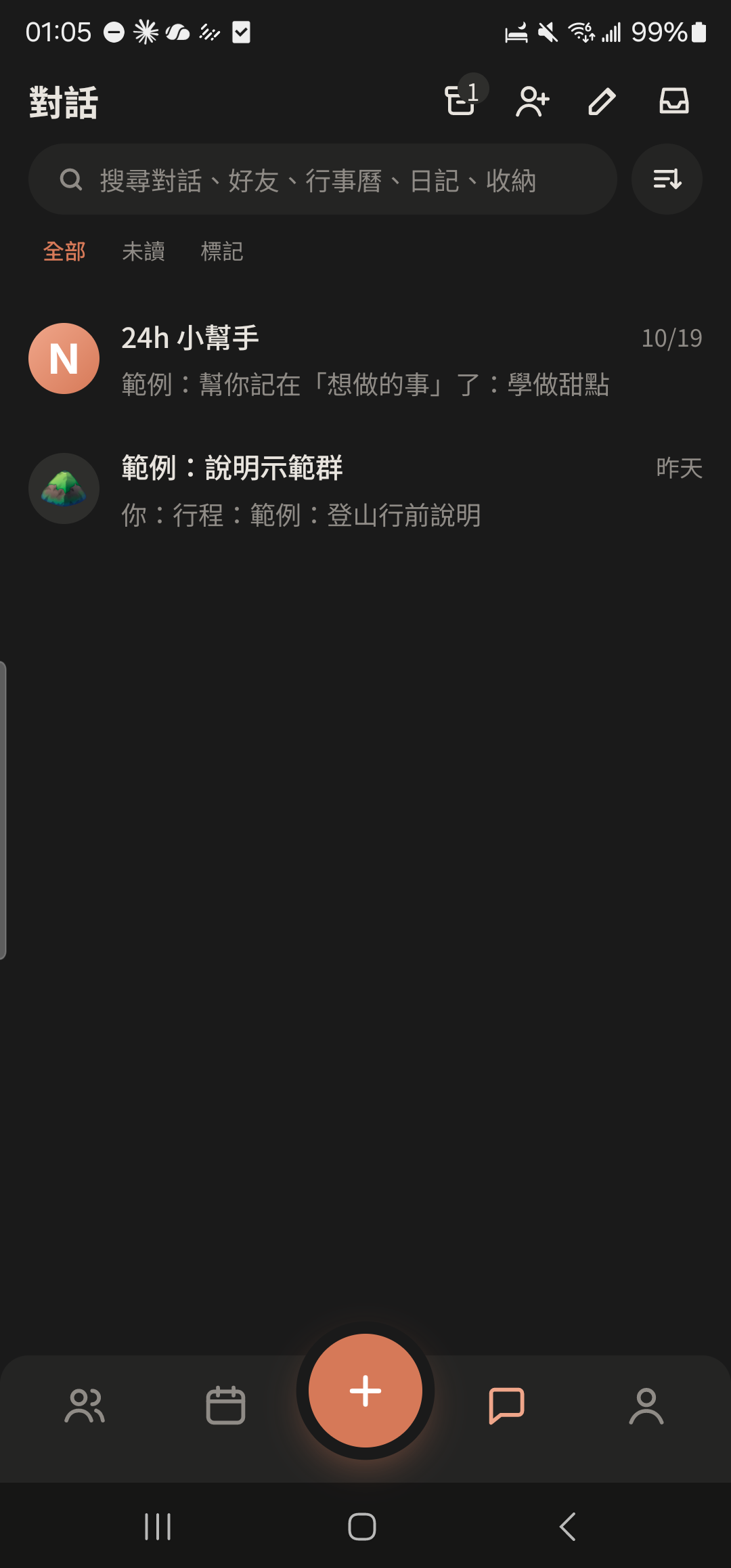
- 2
Enter a group name, such as "Weekend Hiking Crew".
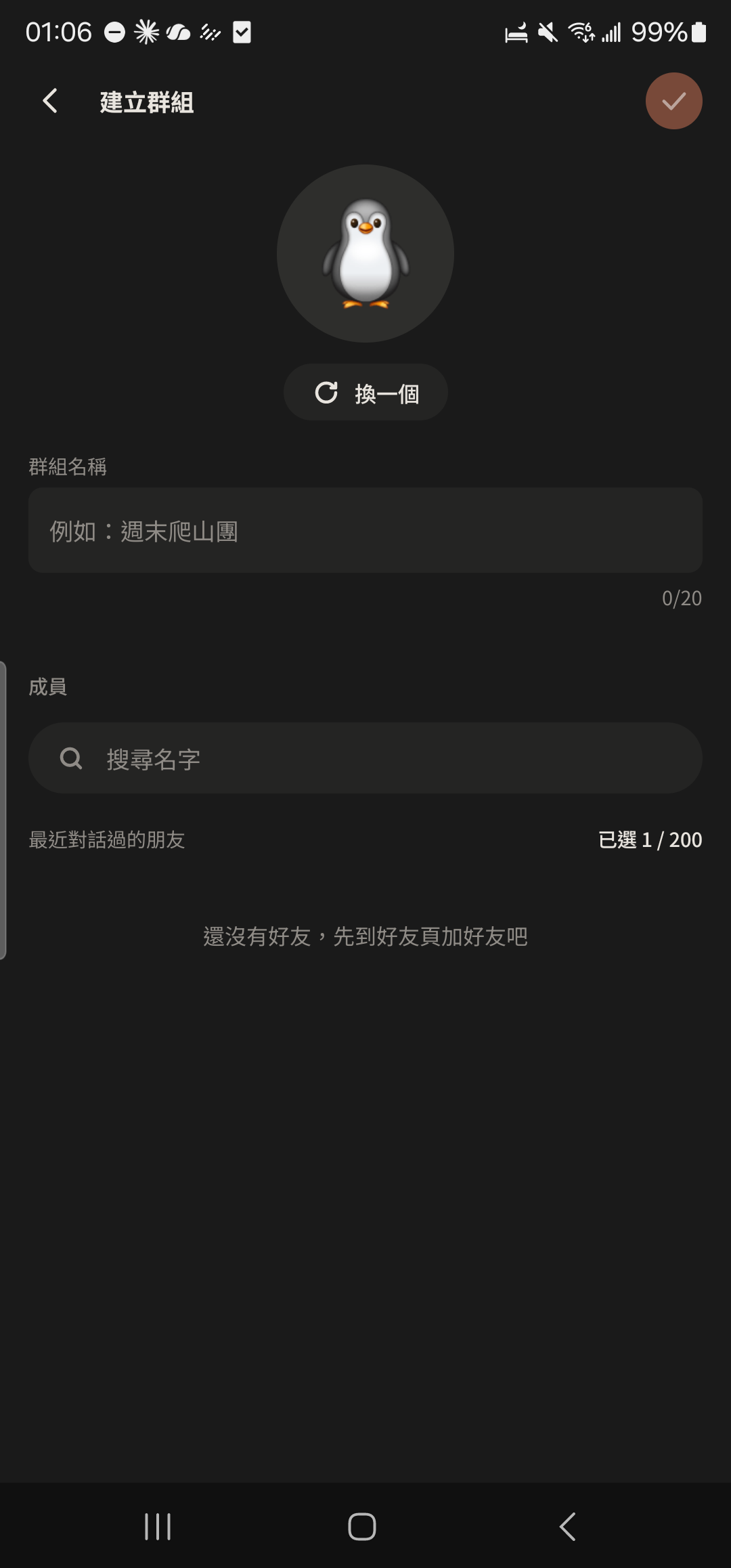
- 3
Choose friends to add (you can create the Group even if you have no friends yet), then tap "Create" at the top right.
Screenshot comingCreate Group screen with a few friends selected - 4
In the "Your group is ready. Invite some members!" menu, choose "Share invite link", "Show QR Code", or "Choose from friends".
Screenshot comingInvite menu: Share invite link, Show QR Code, Choose from friends
- Groups can have up to 1,000 people.
- When a Main Group has Subgroups, tapping it opens the Main Group chat directly, with Subgroups shown at the top of the chat.
- To invite more people later, see Invite members and invite links.