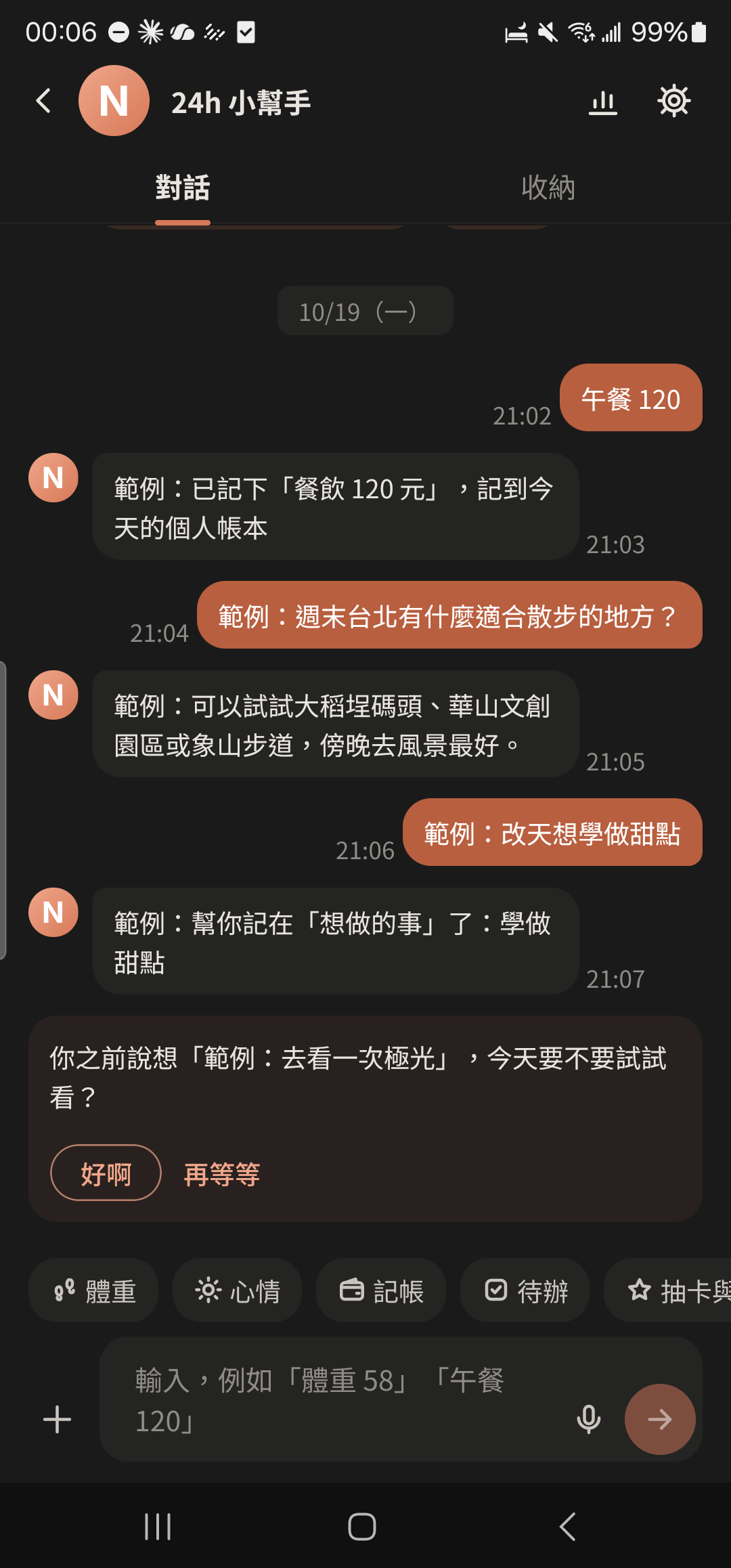
Type, speak, or send photos to the Assistant. Here are the ways to talk to it, with examples you can copy.
6 steps · about 2 min
Steps
1
Tap "24h Assistant" in your chats list, type in the box at the bottom, and tap send. One line is enough: "lunch 120" logs it to your Ledger right away. Each message can be up to 500 characters.
2
To speak instead, tap the voice input on your phone keyboard and talk, then tap send once it turns into text. Speech-to-text happens on your phone and is not uploaded.
Screenshot comingVoice input on the phone keyboard
3
To ask about a photo, tap "+" on the input bar, choose a photo or take one, then type what you want to ask, such as "About how many calories is this meal?"
Screenshot comingThe "+" panel on the input bar, with photo and camera highlighted
4
In a group or subgroup, tap "Group summary" in the "+" panel. The Assistant sums up the new messages you can see in that group, and only you can see the result.
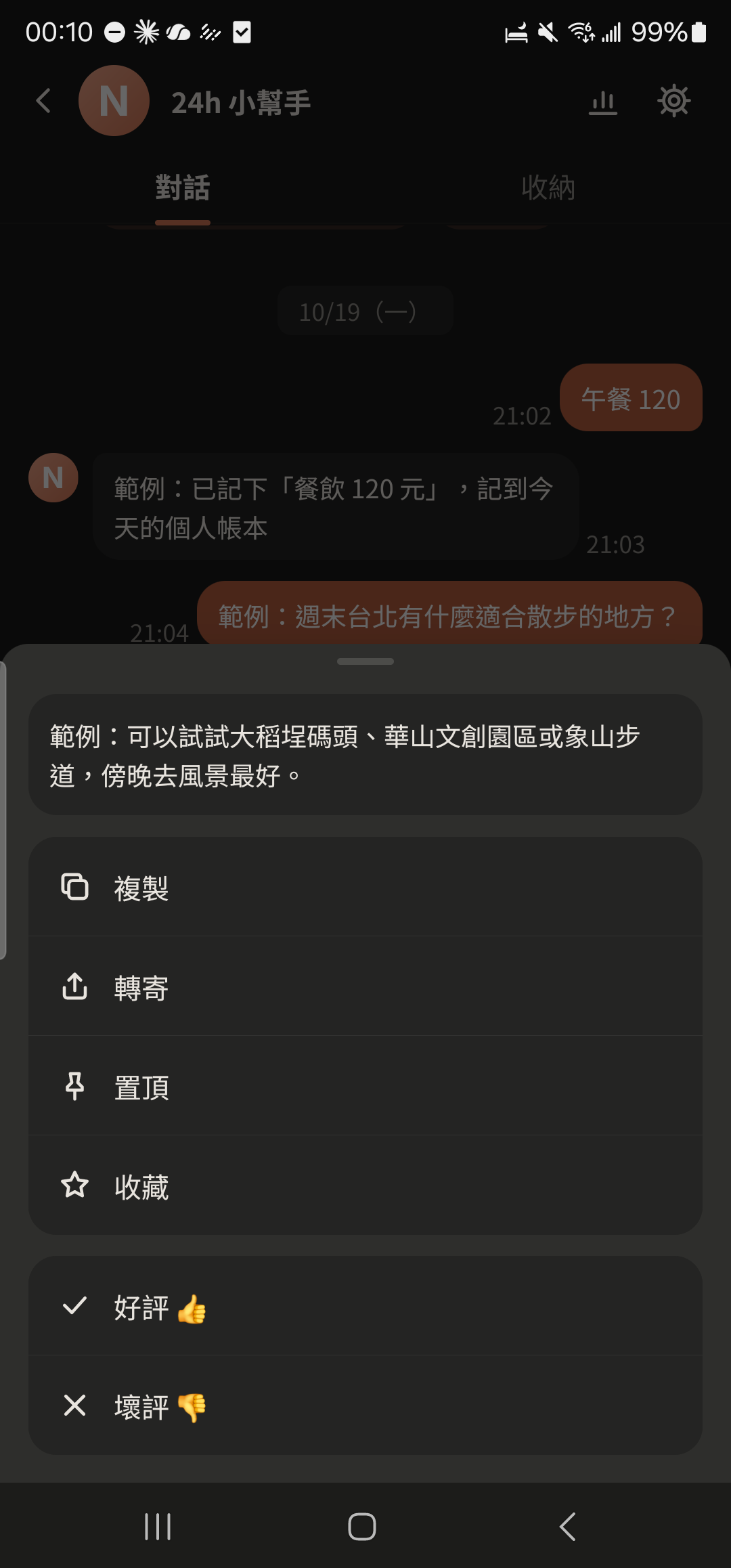
Press and hold an Assistant reply to copy, forward, pin, save to Notes, or tell us whether it helped.
Quick Log: say "lunch 120", "weight 58", or "feeling good today". The app's built-in rules log it directly and it doesn't use Energy.
Calories from a photo: choose or take a photo first, then say "Help me see about how many calories this meal is." Calories are an AI estimate, for reference only.
Group summary: say "Sum up today's highlights in the basketball team group." It only covers messages you can see in that group, and only you can see the result.
Search your chats: say "Where did everyone say we'd meet for dinner last time?" It finds messages by asking and shows where the original message is.
Draw a Card and spreads: say "Draw a card for today" or "Do a three-card spread for this week." Drawing doesn't use Energy; "Ask the Assistant to interpret" does. For entertainment only.
Notes: say "Save this: things to buy this weekend: milk, eggs." It goes into your Notes, which only you can see, and doesn't use Energy.
Help me reply: in a one-on-one chat, press and hold the other person's message and choose "Help me reply". The Assistant drafts a line in your own style and only puts it in the input box. It is never sent automatically.
Chat insight: in a one-on-one chat, tap "Chat insight" at the top right and choose "Last 7 days" to see the rhythm of your chats and what you talk about most. The free plan can only analyze the last 7 days. Results are for reference and entertainment only.