 24h
24hPasscode Lock, signed-in devices, and switching accounts
Add a 4-digit passcode to the app, see which phones are signed in to your account, and switch between multiple accounts on one phone.
- 1
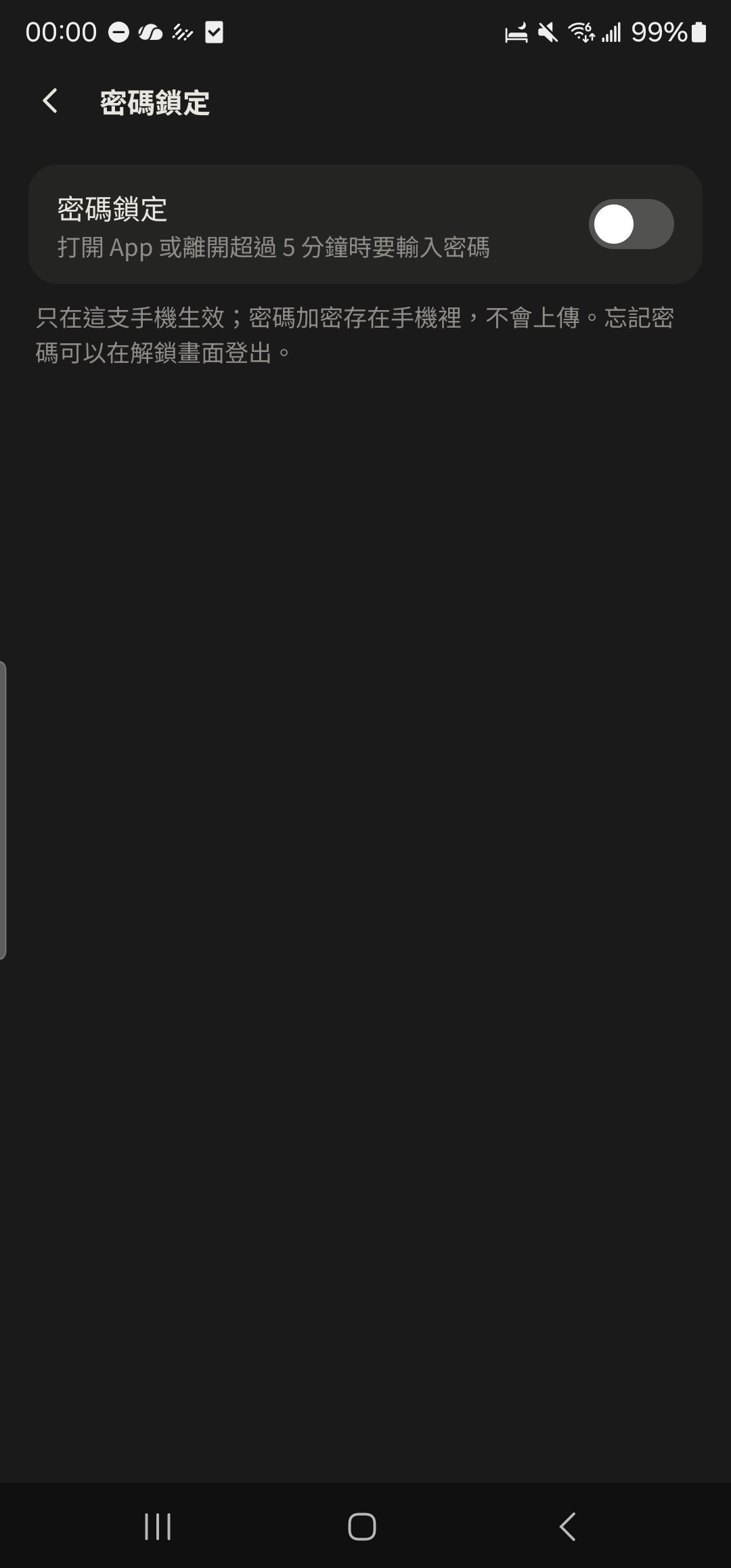
Tap "Passcode Lock" in "Me" and enter a 4-digit passcode twice. You can also turn on fingerprint or face unlock.
- 2
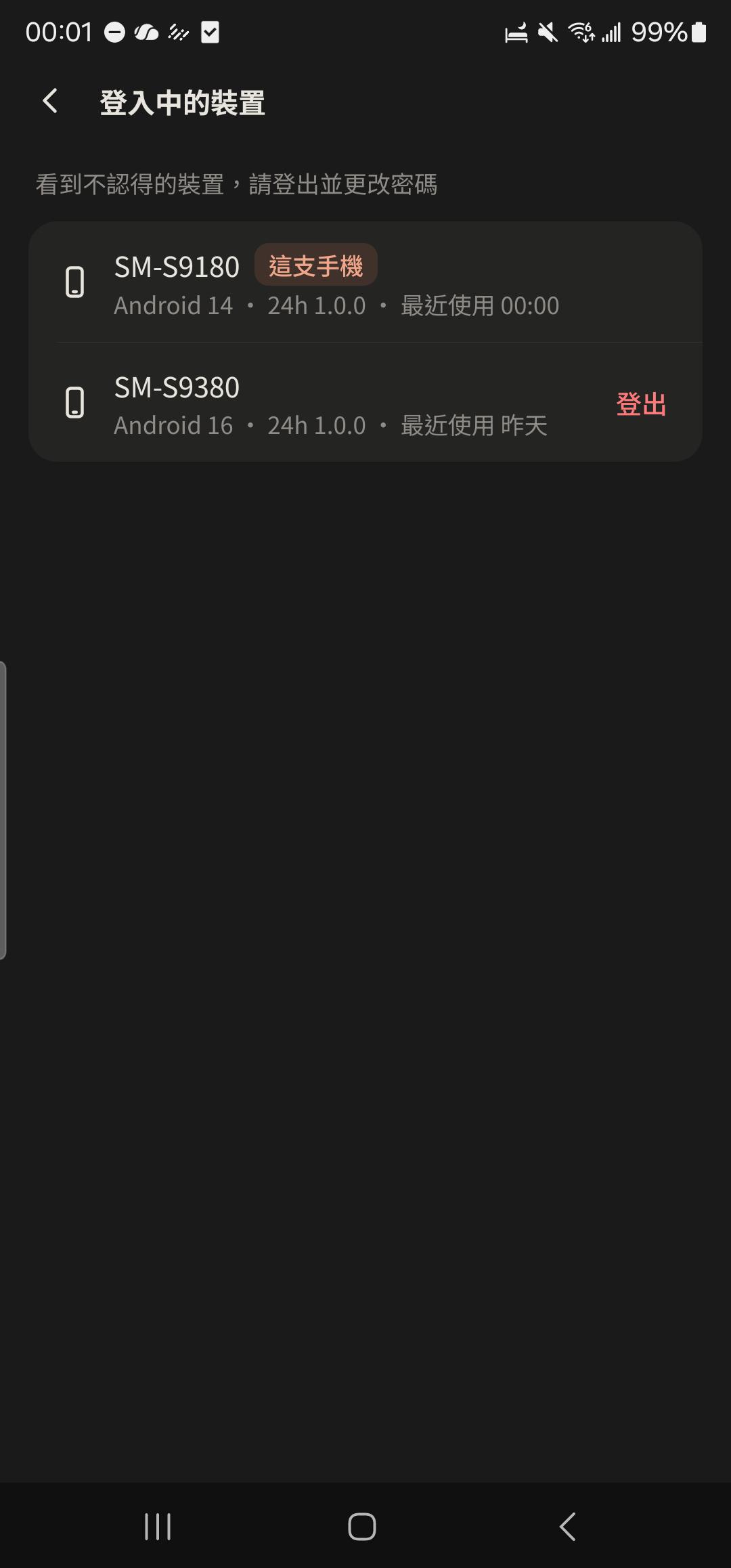
Tap "Account Security" in "Me", then tap "Signed-in Devices".
Screenshot comingAccount Security screen - 3
Tap "Sign Out" next to another phone, and that phone will be signed out the next time it connects.
- 4
Tap your profile photo at the very top of "Me", then choose "Add Account" or tap another account to switch (up to 5).
Screenshot comingAccount list
- Passcode Lock only applies to this phone. If you forget your passcode, you can sign out from the unlock screen and sign in again.