 24h
24hSet your name, photo, and 24h ID
When you first sign in, fill in your name and 24h ID on the "Set Up Profile" screen to get started. Friends can find you by your ID.
- 1
Enter your name. This is the name friends see, and you can change it later.
Screenshot comingName field on the "Set Up Profile" screen - 2
Enter the 24h ID you want, such as hello24h: 5–20 characters, lowercase letters and numbers only, and it must include both.
Screenshot coming24h ID field on the "Set Up Profile" screen, showing "@hello24h is available" below - 3
Tap "Get Started" and you're done. Your 24h ID can't be changed once set, so double-check before you submit.
Screenshot coming"Set Up Profile" screen, "Get Started" highlighted - 4
Tap "Edit Profile" in "Me" to change your photo, name, or status anytime.
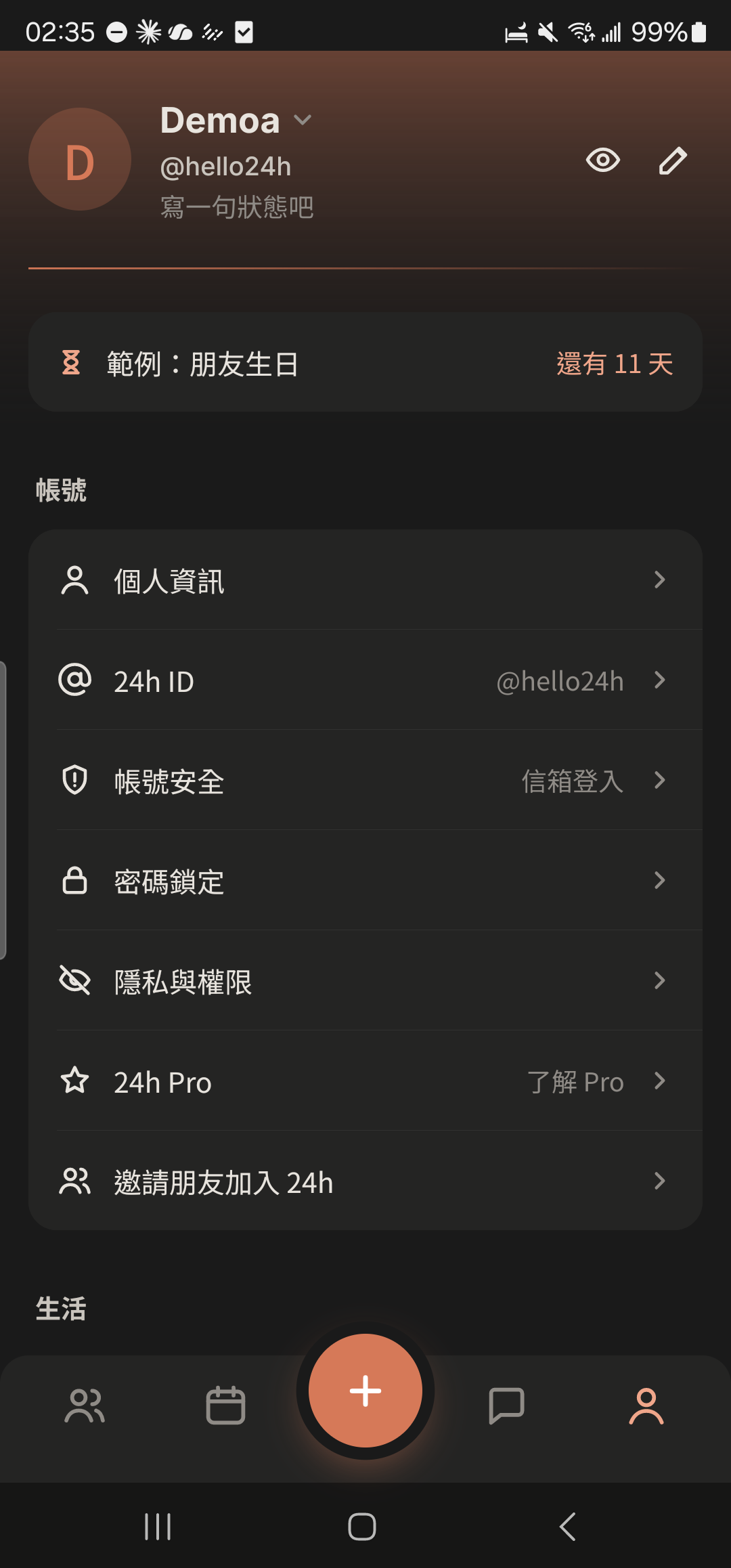
- "Edit Profile" is the pencil at the top right of the "Me" tab. You can also tap "Personal info" in "Me".
- Tap the @ID under your name in "Me" to copy it and paste it to friends.